Basic Cameras
Camera Entities
To view the scene created by your PlayCanvas application, a Camera Entity is used to render it to the screen. A camera is added to an Entity as a Component.
To run your Scene from the PlayCanvas Editor, you must have at least one enabled Camera Entity in your Scene.
Creating a Camera Entity
The quickest way to add a camera is from the Hierarchy panel:
- Click the + (Add Entity) button at the top right of the Hierarchy panel — or right click an existing Entity.
- Choose Camera from the menu.
This creates a new Entity with a Camera Component already attached.
You can also add a camera to an Entity you already have: select the Entity, then in the Inspector click Add Component and choose Camera.
The video below shows where these buttons are in the Editor:
Camera Properties
Like all Components, the Camera Component has a set of properties that alter its behavior. The properties that matter most for getting a view on screen are described below. For the complete list, see the Camera Component reference.
Enabled
If enabled, the camera renders the scene to its render target when the Scene loads. Multiple cameras can be enabled at the same time, which is useful for implementing a split-screen game or a mini-map, for example. The Priority property determines the order in which the enabled cameras are rendered.
Clear Color Buffer / Clear Color
If Clear Color Buffer is enabled, before rendering the scene the camera erases whatever was previously in its render target (the previously rendered frame) and fills it with the Clear Color.
Projection
The projection type determines how the 3D scene is converted into the 2D view rendered to the page.
The Perspective projection is the most common type for games. Alternatively, Orthographic projection renders the scene without perspective, which is useful for 2D games. An orthographic camera uses an Ortho Height property in place of Field of View.
Field of View
The field of view of a perspective camera determines how much of the scene the camera shows. It is measured in degrees (°), so the default value of 45° means that the top edge of the view to the bottom edge form an arc of 45° from the position of the camera.
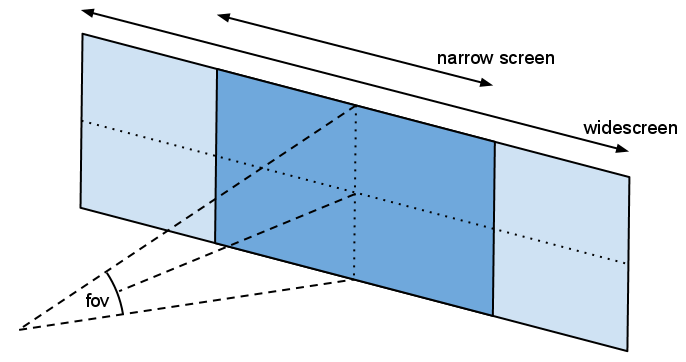
Because the field of view is independent of the width of the display, a wide screen view (light blue) shows the same amount vertically but more horizontally than a narrow screen view (dark blue).
Near Clip / Far Clip
The near and far clip distances define the range, in camera space, within which geometry is drawn. Nothing closer to the camera than Near Clip, or further away than Far Clip, is rendered.
Priority
A number that determines the order in which cameras are rendered when more than one is enabled. Smaller numbers are higher priority and are rendered first.
Viewport
The viewport is a rectangular area of the camera's render target, given as four normalized values (0 to 1) in the order X, Y, Width, Height, measured from the bottom left. So to limit the camera to rendering in the bottom-left quadrant of the screen, set the viewport to 0, 0, 0.5, 0.5.
Scripting Interface
You can read and change any of these properties at runtime from a Script Component. See the CameraComponent API for the full scripting interface.
See Also
- Camera Component reference — the complete property list
- Orbit Camera
- First Person Movement
- Smooth Camera Movement