Collision and Triggers
Rigid bodies collide with one another, play a sound on impact, and return to the ramp after entering a trigger volume.
This tutorial introduces rigid-body physics, collision events, and trigger volumes. You can explore the finished scene in the tutorial project.
If you are recreating the scene in a new project, enable physics before adding rigid bodies.
Collision shapes
The Collision component defines a volume around an Entity. On its own, it acts as a trigger volume. When combined with a Rigid Body component, it defines the body's physical shape.
The Type property provides seven collision shapes:
- Box - A rectangular box.
- Sphere - A sphere.
- Capsule - A cylinder with rounded ends, commonly used for characters.
- Cylinder - A cylinder aligned to the selected local axis.
- Cone - A cone aligned to the selected local axis.
- Mesh - A collision shape generated from a Model or Render asset. Enable Convex Hull when using a mesh with a dynamic rigid body.
- Compound - A shape assembled from primitive collision shapes on descendant Entities.
Primitive shapes are generally cheaper to simulate than mesh shapes, so use the simplest shape that reasonably matches the object.
Trigger volumes
To create a trigger volume, add a Collision component to an Entity without adding a Rigid Body component. A trigger does not physically block other bodies. Instead, it emits triggerenter and triggerleave events when dynamic or kinematic rigid bodies cross its boundary.
In this tutorial, a large box-shaped trigger underneath the ramp catches the falling bodies and returns them to the top.
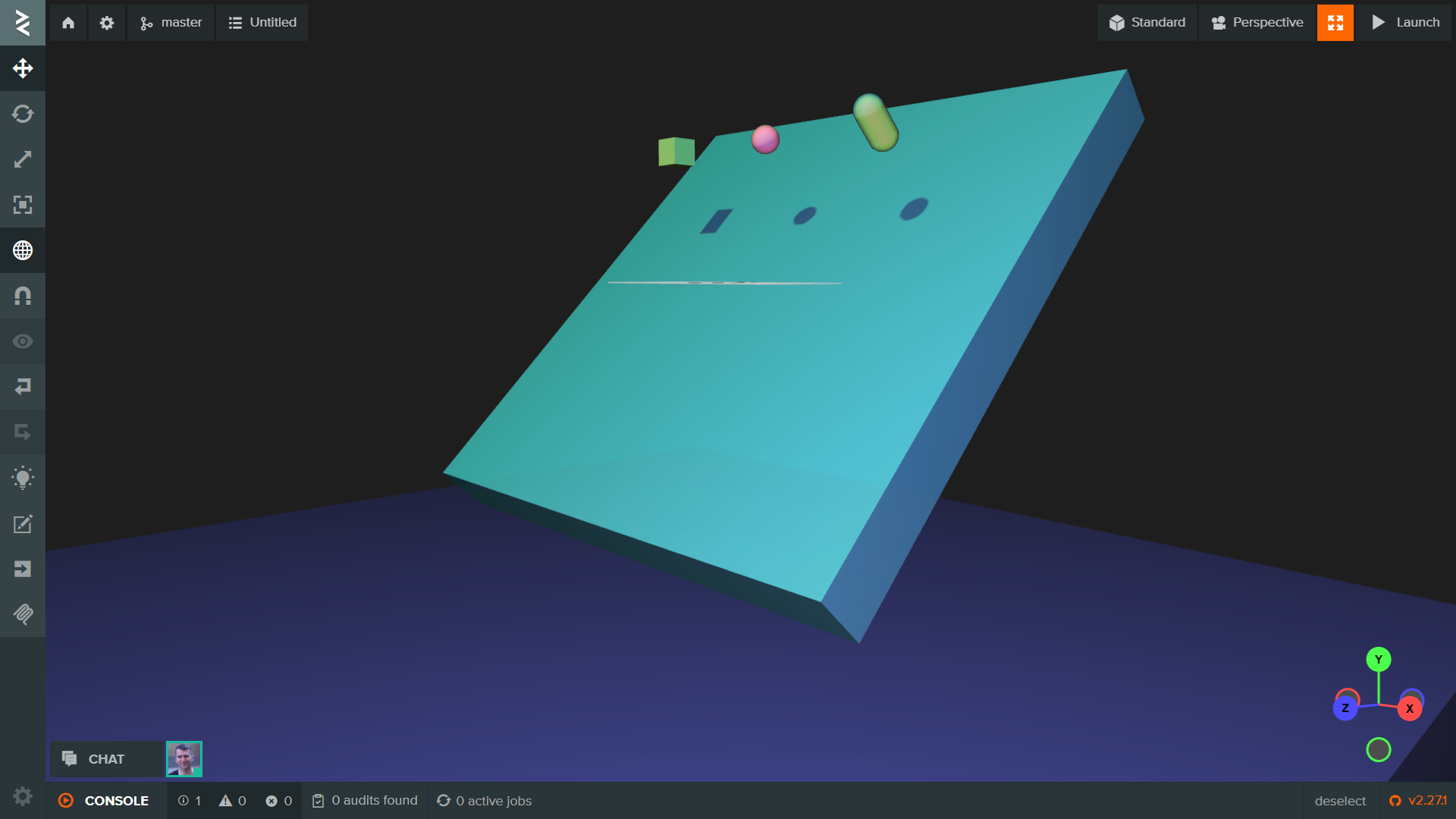
Use the Editor's Physics view mode to inspect the collision and trigger volumes in the viewport.
Rigid bodies
A Rigid Body component makes an Entity participate in the physics simulation. It controls properties such as mass, friction, restitution, and damping. The Entity also needs a Collision component to define its shape.
By default, adding both components creates a static box-shaped body.
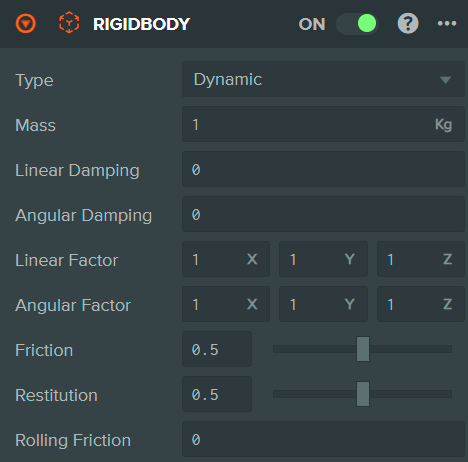
The Rigid Body Type determines how the body moves:
- Static - Does not move and is typically used for the environment.
- Dynamic - Is controlled by the physics simulation and responds to gravity, forces, and collisions.
- Kinematic - Is moved explicitly by code and can affect dynamic bodies, but does not respond to forces.
Setting up the ground
The ground is the large green block beneath the ramp.
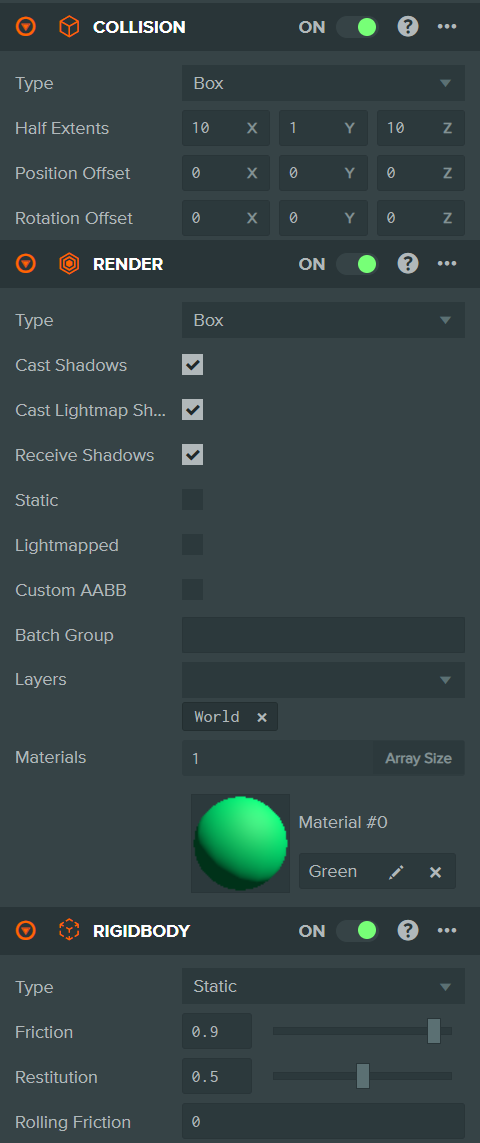
Add Render, Collision, and Rigid Body components. Set the Collision type to Box with Half Extents of 10, 1, 10, and set the Rigid Body type to Static. This example uses friction 0.9 and restitution 0.5 to make the surface grippy and slightly bouncy.
Setting up the trigger
Create an Entity for the trigger underneath the ramp.
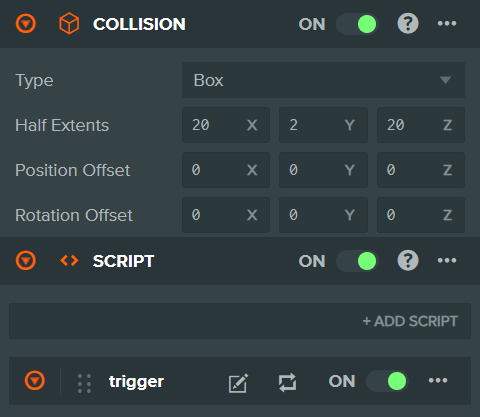
Add a box Collision component with Half Extents of 20, 2, 20, but do not add a Rigid Body component. Add a Script component and attach the following trigger script to listen for bodies entering the volume.
- ESM
- Classic
import { Script, Vec3 } from 'playcanvas';

export class Trigger extends Script {
    static scriptName = 'trigger';

    initialize() {
        const triggerEnterEvent = this.entity.collision.on('triggerenter', this.onTriggerEnter, this);

        this.on('destroy', () => {
            triggerEnterEvent.off();
        });
    }

    onTriggerEnter(entity) {
        entity.rigidbody.linearVelocity = Vec3.ZERO;
        entity.rigidbody.angularVelocity = Vec3.ZERO;

        // Return the body to the top of the ramp.
        const position = entity.getPosition();
        entity.rigidbody.teleport(position.x, 10, 0);
    }
}
var Trigger = pc.createScript('trigger');

Trigger.prototype.initialize = function () {
    var triggerEnterEvent = this.entity.collision.on('triggerenter', this.onTriggerEnter, this);

    this.on('destroy', function () {
        triggerEnterEvent.off();
    });
};

Trigger.prototype.onTriggerEnter = function (entity) {
    entity.rigidbody.linearVelocity = pc.Vec3.ZERO;
    entity.rigidbody.angularVelocity = pc.Vec3.ZERO;

    // Return the body to the top of the ramp.
    var position = entity.getPosition();
    entity.rigidbody.teleport(position.x, 10, 0);
};
The triggerenter event fires once when a rigid body enters the volume. Its callback receives the Entity that entered. In other words, this.entity is the trigger Entity, while the callback's entity argument is the falling body. The third argument to on binds the callback's this value to the script instance.
The event handle is detached when the script is destroyed. In onTriggerEnter, the script clears the body's linear and angular velocities, preserves its current X position, and uses rigidbody.teleport to move it above the ramp. Dynamic bodies must be repositioned through the Rigid Body API rather than by setting the Entity transform directly. The companion triggerleave event works in the same way when a body exits the volume.
Setting up the dynamic bodies
Add Rigid Body and Collision components to the box, sphere, and capsule. Set each Rigid Body type to Dynamic, and choose the matching Collision type for each shape.
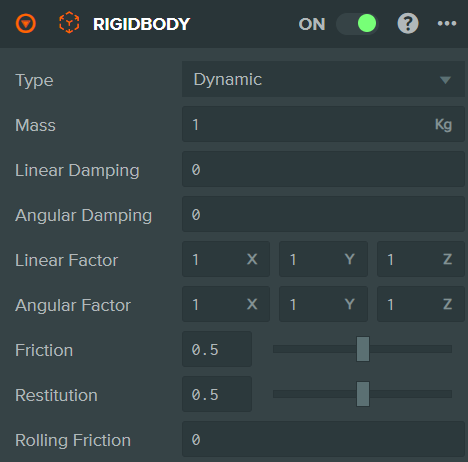
The example box has mass 1, friction 0.5, and restitution 0.5. The sphere and capsule use the same Rigid Body settings.
Handling collision events
The Collision component emits three events for physical contacts between rigid bodies:
contact- Fires on every physics step while the bodies are touching. The result contains all contact points for that step.collisionstart- Fires once when the bodies begin touching.collisionend- Fires once when the bodies stop touching.
Use contact when you need continuously updated contact details. For one-off responses such as an impact sound, collisionstart avoids replaying the effect on every physics step.
- ESM
- Classic
import { Script } from 'playcanvas';

export class Collider extends Script {
    static scriptName = 'collider';

    initialize() {
        const collisionStartEvent = this.entity.collision.on('collisionstart', this.onCollisionStart, this);

        this.on('destroy', () => {
            collisionStartEvent.off();
        });
    }

    onCollisionStart() {
        this.entity.sound.play('hit');
    }
}
var Collider = pc.createScript('collider');

Collider.prototype.initialize = function () {
    var collisionStartEvent = this.entity.collision.on('collisionstart', this.onCollisionStart, this);

    this.on('destroy', function () {
        collisionStartEvent.off();
    });
};

Collider.prototype.onCollisionStart = function () {
    this.entity.sound.play('hit');
};
Attach this script to each falling Entity that has a Sound component with a slot named hit. The handler runs once at the start of each physical collision and plays that slot. Trigger overlaps emit trigger events instead, so they do not call this collision handler.
You now have static ground, dynamic falling bodies, a trigger that resets them, and a collision event that plays an impact sound. For more detail, see Physics basics and the Collision component API.