Anim
The Anim Component is used to connect an animstategraph asset and all of its required animation assets to a single entity.
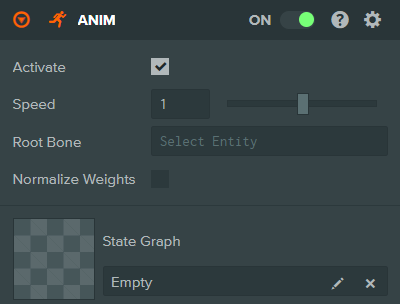
Properties
| Property | Description |
|---|---|
| Activate | If enabled, the animation will start playing automatically when the scene is launched. |
| Speed | Controls the playback speed of all animations in the state graph. A value of 1 is normal speed, 0.5 is half speed, and 2 is double speed. Range is 0 to 2. |
| Root Bone | Optionally specify an entity to use as the root bone for the animation. This is useful when the model hierarchy is not at the top level of the entity. |
| Normalize Weights | If enabled, the weights of all layers will be normalized so they sum to 1. This affects how layer blending is calculated. |
| State Graph | The animstategraph asset that defines the animation state machine for this entity. |
Assigning Animation Assets
After selecting an animstategraph asset, the Anim Component will display a list of animation asset slots organized by layer. There will be one slot for each animation state in every layer of the state graph asset (excluding START, END, and ANY states). This is where actual animation data is connected to the previously created state graph.
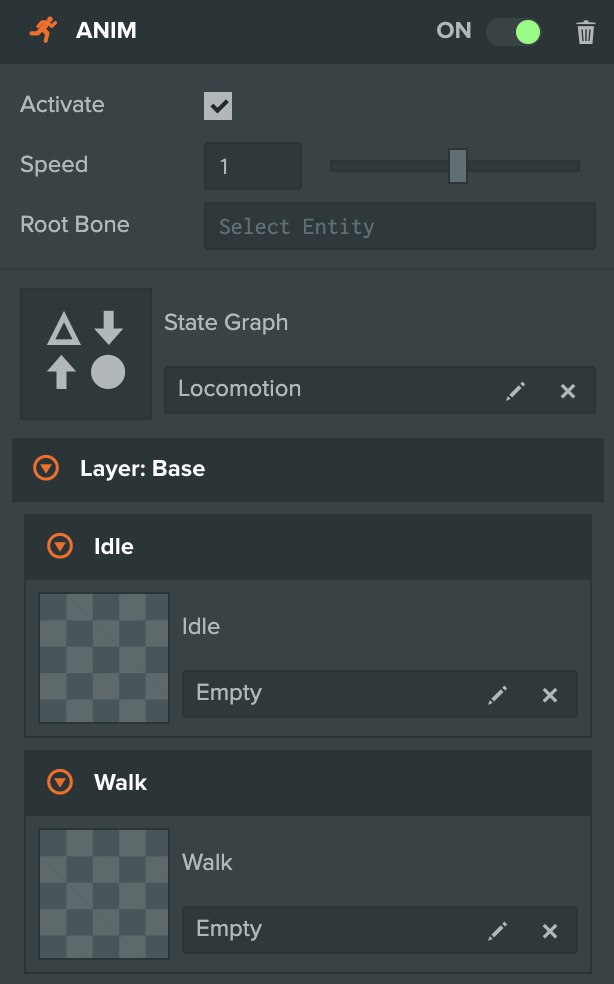
Multiple Anim Components can use the same animstategraph asset, each with their own set of animation assets. After all animation state slots have been filled, the Anim Component will become playable. The animations can be played via script by calling entity.anim.playing = true or automatically if the Activate option is enabled.
Layer Masks
Each layer in the state graph can have an optional mask that limits which bones the layer's animations will affect. This is useful for scenarios like playing a walking animation on the lower body while playing a waving animation on the upper body.
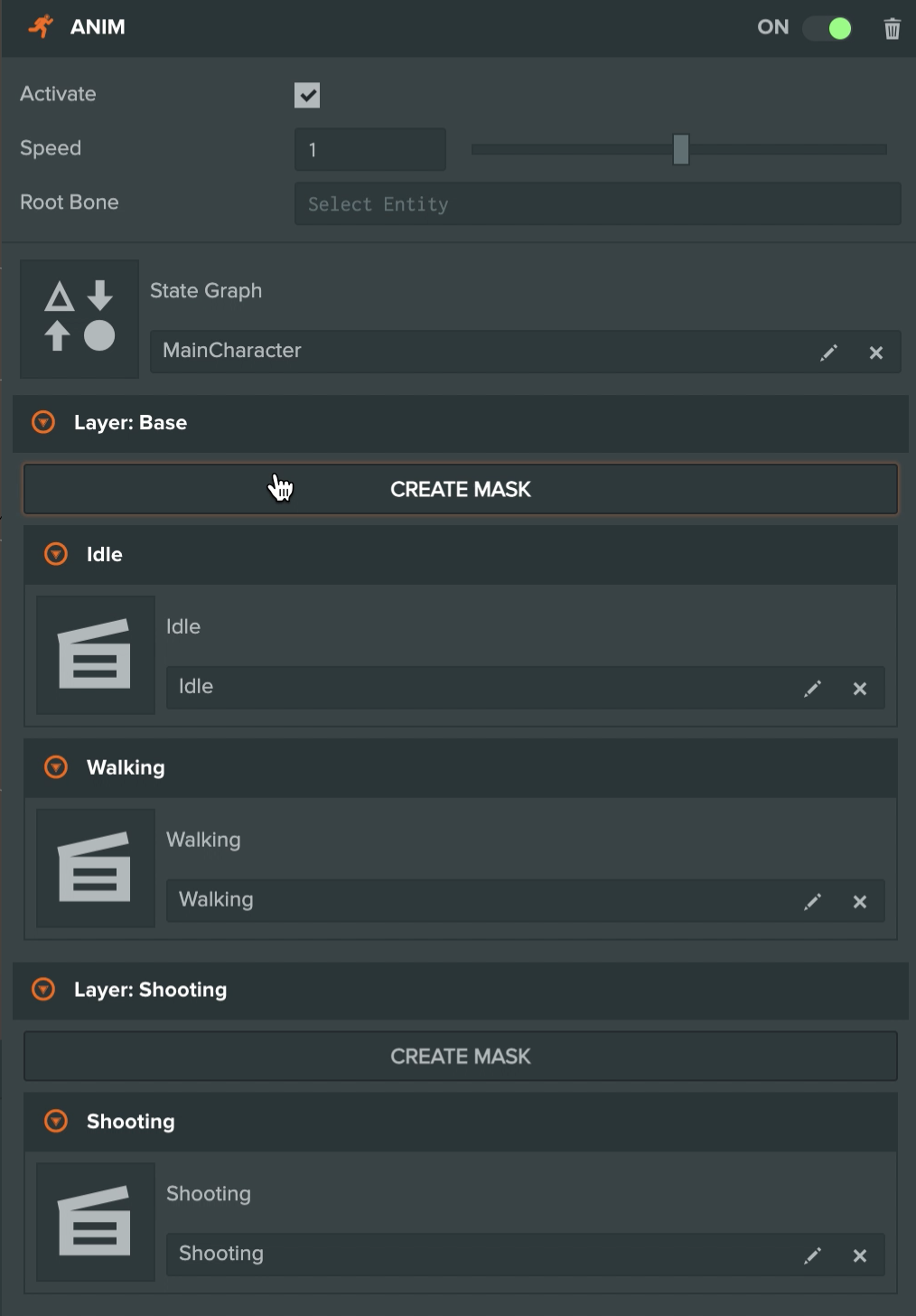
To create a mask for a layer, click the CREATE MASK button next to the layer name. This will open the mask inspector.
Mask Inspector
The mask inspector displays a tree view of all bones in the model hierarchy. Each bone has a checkbox that determines whether the layer's animation will affect that bone.
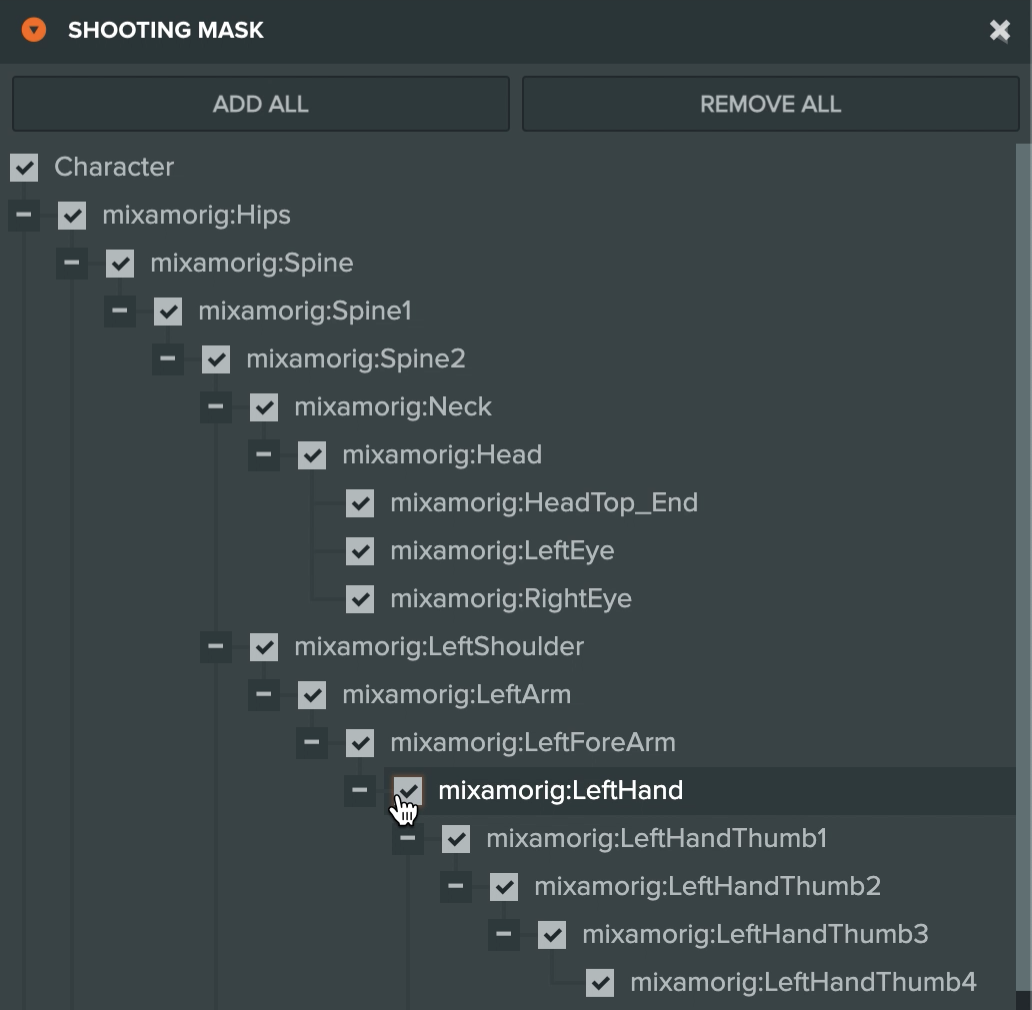
The mask inspector provides several controls:
| Control | Description |
|---|---|
| ADD ALL / ADD SELECTED | Enables all bones in the mask, or only the selected bones if any are selected. |
| REMOVE ALL / REMOVE SELECTED | Disables all bones in the mask, or only the selected bones if any are selected. |
| Add hierarchy (context menu) | Right-click a bone to enable it and all of its children. |
| Remove hierarchy (context menu) | Right-click a bone to disable it and all of its children. |
To edit an existing mask, click the EDIT MASK button. To delete a mask, click the trash icon next to the layer.
See Also
- Animation - Learn more about the animation system
Scripting Interface
You can control an Anim Component's properties using a Script Component. The Anim Component's scripting interface is here.