Managing Scenes
The Scenes dialog allows you to create, open, duplicate and delete scenes in your project.
Opening the Scenes Dialog
There are two ways to open the Scenes dialog:
-
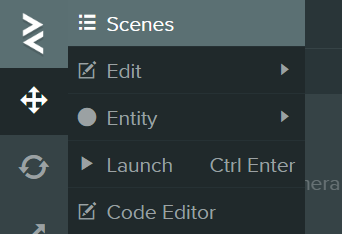
Menu - Click the PlayCanvas logo in the top-left corner and select Scenes.
-
Scene Name - Click on the current scene name in the viewport toolbar.

Scenes Dialog Overview
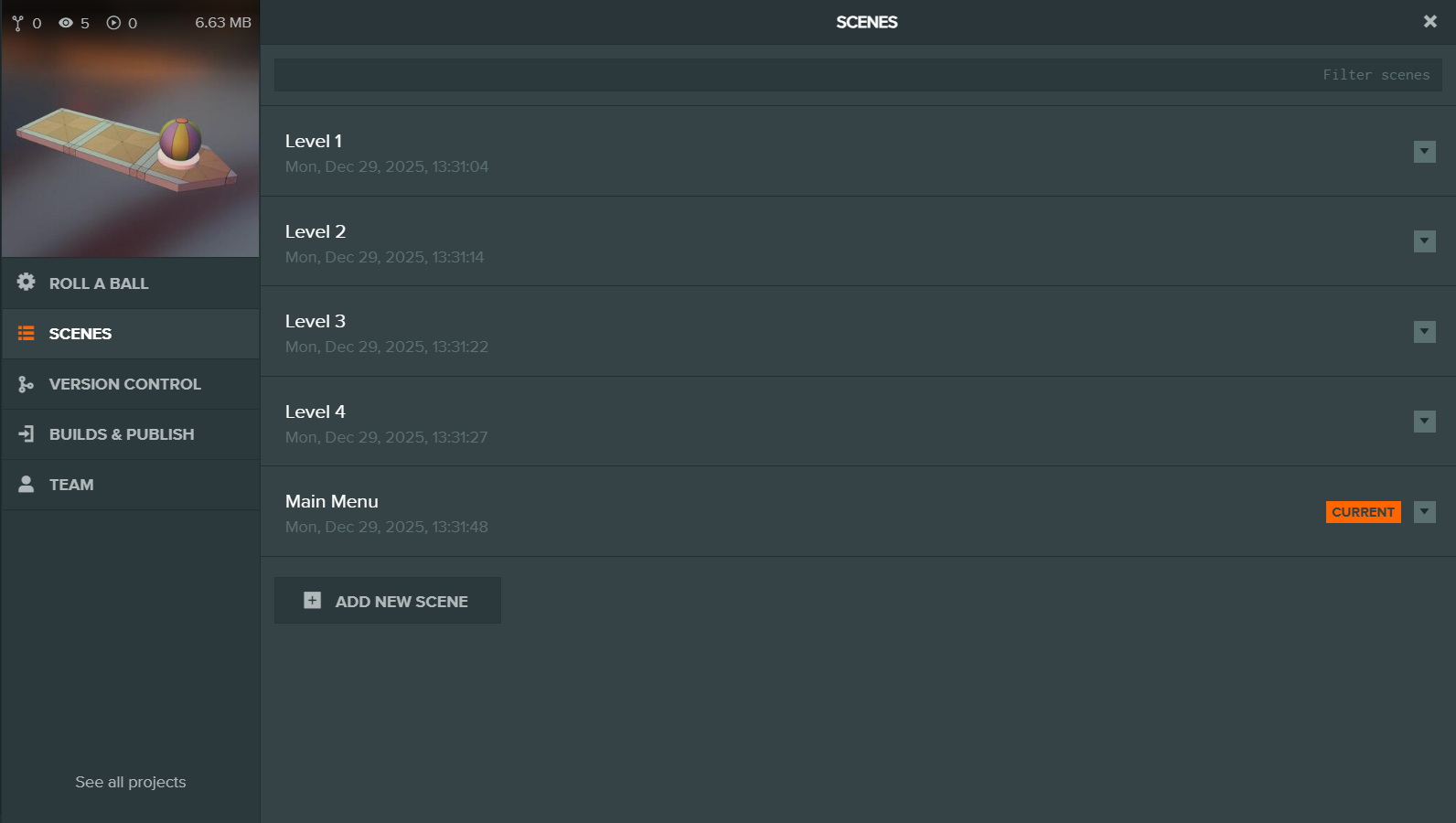
The Scenes dialog displays all scenes in your project:
- Filter - Use the search field to filter scenes by name.
- Scene List - Scenes are sorted alphabetically, showing the scene name and last modified date.
- Current Scene - The currently loaded scene is highlighted and its name is selectable for copying.
Opening a Scene
Click on any scene in the list to open it.
Creating a New Scene
- Click the + ADD NEW SCENE button at the bottom of the dialog.
- Enter a name for your scene.
- Press Enter to create and open the new scene.
Scene Actions Menu
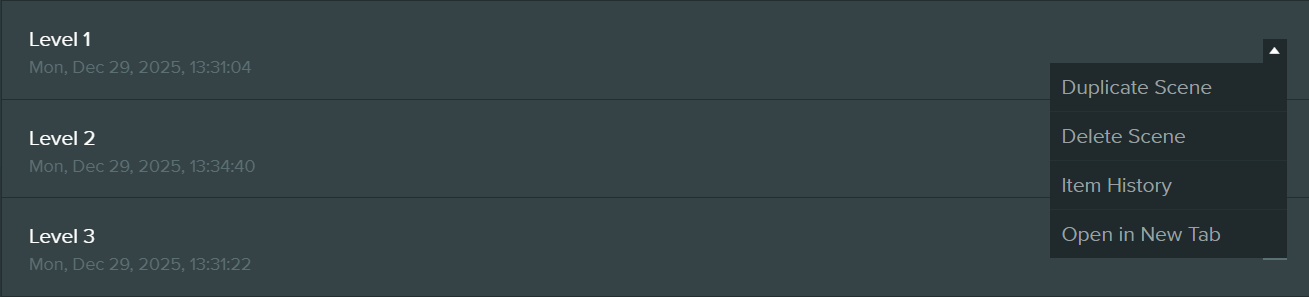
Click the dropdown button on the right side of any scene to access additional actions:
| Action | Description |
|---|---|
| Duplicate Scene | Creates a copy of the scene. The duplicate is automatically named with an incremented number (e.g., "My Scene 2"). |
| Delete Scene | Permanently deletes the scene after confirmation. |
| Item History | Opens the version control history for the scene. |
| Open in New Tab | Opens the scene in a new browser tab. |
note
Creating, duplicating and deleting scenes requires write access to the project.