World-Space UI
A world-space interface sits in the scene: a sign on a wall, a control panel on a machine, a name tag over a character or a menu in XR. It is built from the same elements as a HUD, on a world-space screen that the scene's camera sees like any other object.
World-Space Screens
A world-space screen is placed by its entity's transform. Its resolution is its size in the entity's local units, and it is centered on the entity:
- Engine
- Editor
- React
- Web Components
// A 400 × 240 unit panel, scaled to 1.6 × 0.96 meters, two meters up
const sign = new pc.Entity('sign');
sign.addComponent('screen', {
    screenSpace: false,
    resolution: [400, 240]
});
sign.setLocalScale(0.004, 0.004, 0.004);
sign.setPosition(0, 2, -3);
app.root.addChild(sign);

const background = new pc.Entity('background');
background.addComponent('element', {
    type: pc.ELEMENTTYPE_IMAGE,
    anchor: [0, 0, 1, 1],
    margin: [0, 0, 0, 0],
    color: new pc.Color(0.16, 0.18, 0.23)
});
sign.addChild(background);

const title = new pc.Entity('title');
title.addComponent('element', {
    type: pc.ELEMENTTYPE_TEXT,
    fontAsset: font.id,
    text: 'Exit',
    fontSize: 96,
    anchor: [0.5, 0.5, 0.5, 0.5],
    pivot: [0.5, 0.5]
});
sign.addChild(title);
In the Hierarchy, click + and choose User Interface › 3D Screen. Its entity is created with a scale of 0.01. For the sign above, set the screen's Resolution to 400 × 240 and the entity's scale to 0.004. Then position and rotate the entity in the scene, and add elements below it as you would on a 2D screen.
<Entity name="sign" position={[0, 2, -3]} scale={[0.004, 0.004, 0.004]}>
  <Screen screenSpace={false} resolution={[400, 240]} />
  <Entity name="background">
    <Element type="image" anchor={[0, 0, 1, 1]} margin={[0, 0, 0, 0]} color="#292e3b" />
  </Entity>
  <Entity name="title">
    <Element type="text" fontAsset={font} text="Exit" fontSize={96}
      anchor={[0.5, 0.5, 0.5, 0.5]} pivot={[0.5, 0.5]} />
  </Entity>
</Entity>
<pc-entity name="sign" position="0 2 -3" scale="0.004 0.004 0.004">
    <pc-screen resolution="400 240"></pc-screen>
    <pc-entity name="background">
        <pc-element type="image" anchor="0 0 1 1" margin="0 0 0 0" color="#292e3b"></pc-element>
    </pc-entity>
    <pc-entity name="title">
        <pc-element type="text" font-asset="arial" text="Exit" font-size="96"
                    anchor="0.5 0.5 0.5 0.5" pivot="0.5 0.5"></pc-element>
    </pc-entity>
</pc-entity>
Size and Scale
The size of a world-space screen in meters is its resolution times the scale of its entity. Choose the resolution for the layout, as you would for a 2D interface, and the scale for its size in the world:
| Resolution | Scale | Size in meters | Text of font size 32 |
|---|---|---|---|
| 640 × 320 | 0.01 | 6.4 × 3.2 | 32 cm tall |
| 400 × 240 | 0.004 | 1.6 × 0.96 | 12.8 cm tall |
| 1000 × 600 | 0.001 | 1 × 0.6 | 3.2 cm tall |
A world-space screen has no scale mode. Its elements stay the same size in the world, and so look smaller from further away.
Seen from Behind
A world-space screen is one-sided. From behind, it is not drawn and its elements receive no input. For a sign that is read from both sides, put two screens back to back, the second one turned 180 degrees about the y axis.
Depth and Draw Order
World-space elements are on the UI layer by default, which is drawn after the rest of the scene. They are depth-tested against the scene, so walls hide them, except when the camera renders through a CameraFrame: the UI layer is then drawn after post-processing, without the scene's depth, and world-space elements show through walls. See World-Space UI and Post-Processing for drawing them as part of the scene instead.
Facing the Camera
A panel that should always face the viewer, such as a name tag, can copy the camera's rotation every frame. That keeps it parallel to the view, so its text is never seen at an angle:
app.on('update', () => {
    nameTag.setRotation(camera.getRotation());
});
Labels Over Characters
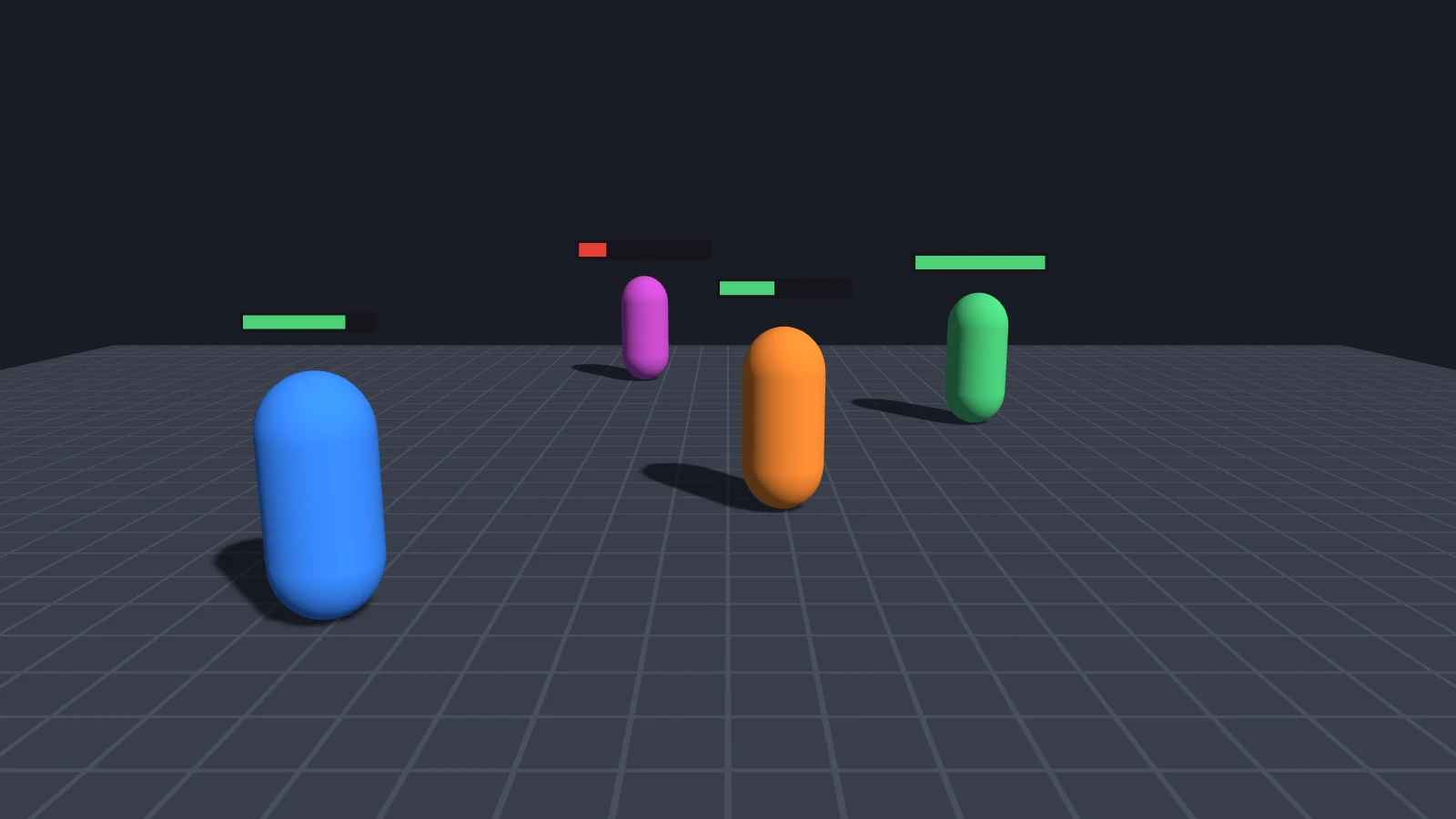
A label, health bar or marker over a character can be drawn in two ways:
| A world-space screen, as a child of the character | A screen-space element, moved to the character's position every frame | |
|---|---|---|
| Size on screen | Smaller further away | Always the same |
| Hidden by walls | Yes, unless the camera uses a CameraFrame | No, it is drawn over the scene |
| Faces the camera | Only with Facing the Camera | Always |
A world-space screen is a child of the character entity, positioned over its head, and moves with it. To place a screen-space element instead, find where the character is on the canvas with the camera's worldToScreen, and convert that to the screen's units:
// The label is on a screen-space screen, anchored to its bottom-left corner: anchor 0, 0, 0, 0
const head = new pc.Vec3();
const onCanvas = new pc.Vec3();
const inView = new pc.Vec3();
const overHead = new pc.Vec3(0, 2.2, 0);

app.on('update', () => {
    head.add2(character.getPosition(), overHead);
    // CSS pixels from the canvas's top-left corner
    camera.camera.worldToScreen(head, onCanvas);

    // Hide the label when the character is behind the camera, which its depth in view space
    // tells: a point in front of the camera has a negative z
    camera.camera.viewMatrix.transformPoint(head, inView);
    label.enabled = inView.z < 0;

    // One CSS pixel is canvas.width / canvas.clientWidth pixels of the drawing buffer, and one
    // screen unit is screen.scale of them. The screen's y axis points up, the canvas's down
    const canvas = app.graphicsDevice.canvas;
    const units = (canvas.width / canvas.clientWidth) / screen.screen.scale;
    label.setLocalPosition(onCanvas.x * units, (canvas.clientHeight - onCanvas.y) * units, 0);
});
Give the label a pivot at the middle of its bottom edge, 0.5, 0, so that it sits over the point. For many labels, update them all from one update handler, and skip the characters that are far away or off screen.
A label can also be an HTML element, placed at the same CSS pixels without any conversion. See HTML and CSS.
Interacting
World-space elements with input enabled receive the same events as screen-space ones, from the mouse, from touch and from XR controllers. The camera must render the layer they are on. Screen-space elements are tested first, and among overlapping world-space screens, the one with the higher priority receives the event, whatever its distance. See Which Element Gets the Event.
See Also
- Screens - Screen space and world space, resolution and scaling
- UI in XR - World-space panels, controllers and hands in XR
- Draw Order and Performance - Layers, cameras and depth
- Screen Component,
<pc-screen>and ScreenComponent - Reference for every screen property