Annotations
Annotations are 3D-positioned text hotspots you place on your published splat in Studio. On the viewer side, each annotation shows up as a numbered hotspot visitors can click; clicking it moves the camera to a curated pose and surfaces a title and body of text. Use them to call out features, narrate a story, or give a self-guided tour of the scene.
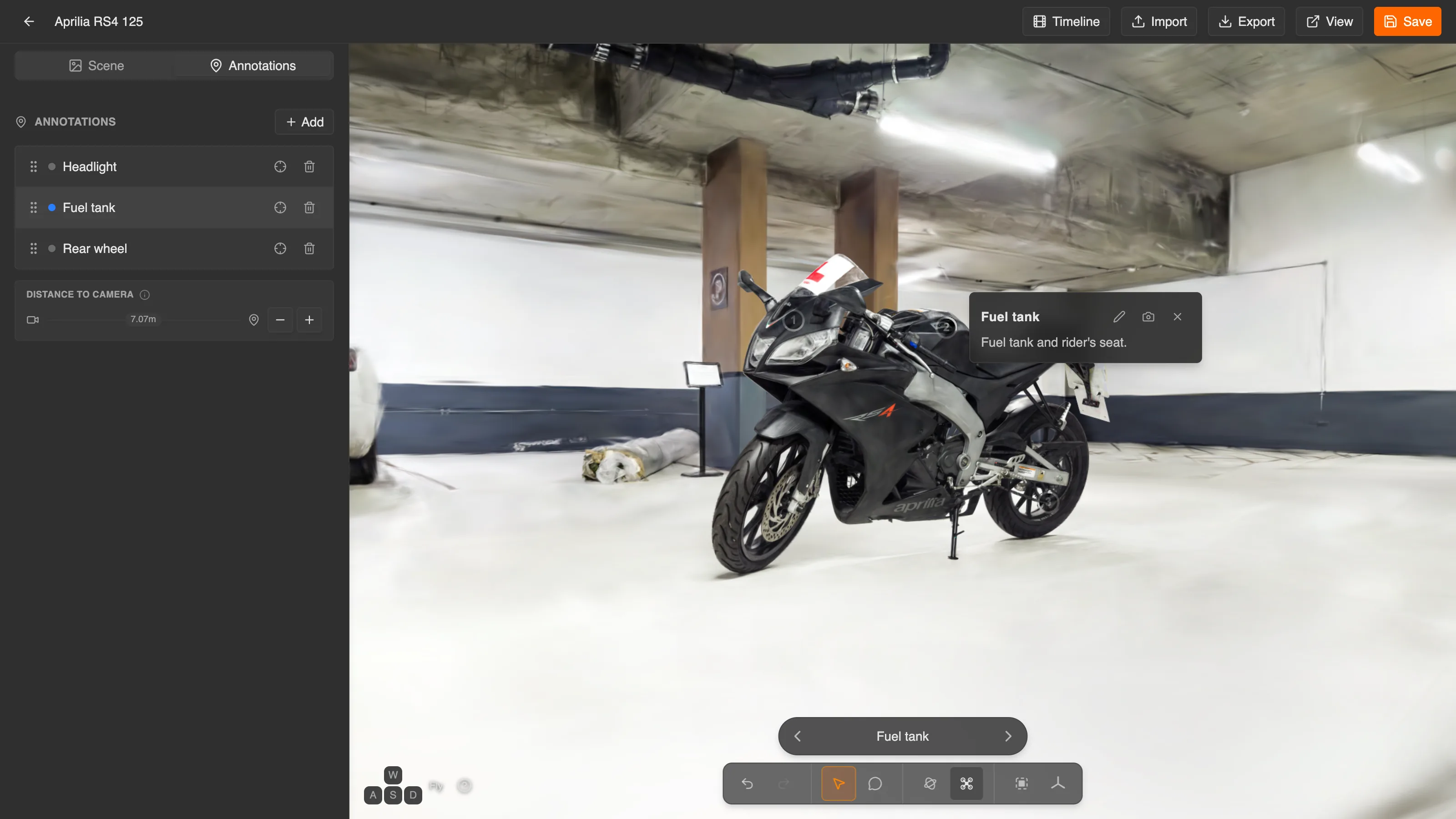
Annotation properties
Each annotation has:
| Field | Description |
|---|---|
| Position | World-space [x, y, z] where the hotspot marker sits in the scene. |
| Title | Short heading shown when the annotation is selected. |
| Text | Longer body of text, shown as plain text in the viewer. |
| Camera | The camera pose the viewer animates to when this annotation is selected. |
| Extras | Free-form metadata for custom integrations. Studio keeps it but has no control for editing it; set it in imported settings. |
Adding an annotation
- Frame the viewport the way you want a visitor to see this part of the scene.
- Choose Add annotation: the button in the viewport toolbar, Add on the Annotations tab, or C.
- Click the point on the splat you want to annotate. Studio places the hotspot there and stores the current view as the annotation's camera.
- Type a title (Untitled until you do) and a description in the card that opens beside the hotspot, then click OK.
A scene can have up to 50 annotations, with titles of up to 60 characters and text of up to 280. These are the Experience Settings authoring limits.
Editing annotations
Select an annotation by clicking its hotspot or its row on the Annotations tab. Its card in the viewport has three buttons:
- Edit annotation (pencil) — change the title and description.
- Set camera to current view — store the current view as the annotation's camera.
- Unselect annotation — close the card.
While an annotation is selected, Distance to camera on the Annotations tab moves its hotspot along the view direction: - nudges it toward the camera and + away, and holding Shift makes finer steps. Use it to lift a hotspot off the surface or tuck it closer.
Each row on the Annotations tab also has Go to annotation, which moves the viewport to the annotation's camera, and Delete annotation. Drag rows to reorder them: the order controls how visitors step through the annotations, and the number each hotspot shows.
How visitors use them
On the scene page, the viewer shows each annotation as a numbered hotspot. Selecting one eases the camera to the annotation's view and shows its title and text, and a navigator steps through the annotations in list order. Viewer Controls describes everything visitors can do with them.
A visitor selects a hotspot, then steps through the annotations with the navigator. Honeybee by danylyon.
The settings format accepts annotation as a scene's start mode, but the viewer doesn't act on it: a scene always starts from its starting camera or its camera animation.
See also
- Cameras — the camera poses annotations reference
- Camera animation (Timeline) — for cinematic flythroughs that don't need visitor interaction
- Experience Settings — the JSON contract that stores annotations