Scene Page
The scene page at https://superspl.at/scene/<hash> is the public face of a published splat. Whatever you authored in the Editor and curated in Studio shows up here for visitors. Owners see additional controls that open Studio or take them back to Manage.
Visitors can browse a scene page without a PlayCanvas account. An account is required to like the splat, leave a comment or follow its creator.
What visitors see
The scene content is split between a central embedded viewer and a right-hand sidebar with metadata and actions.
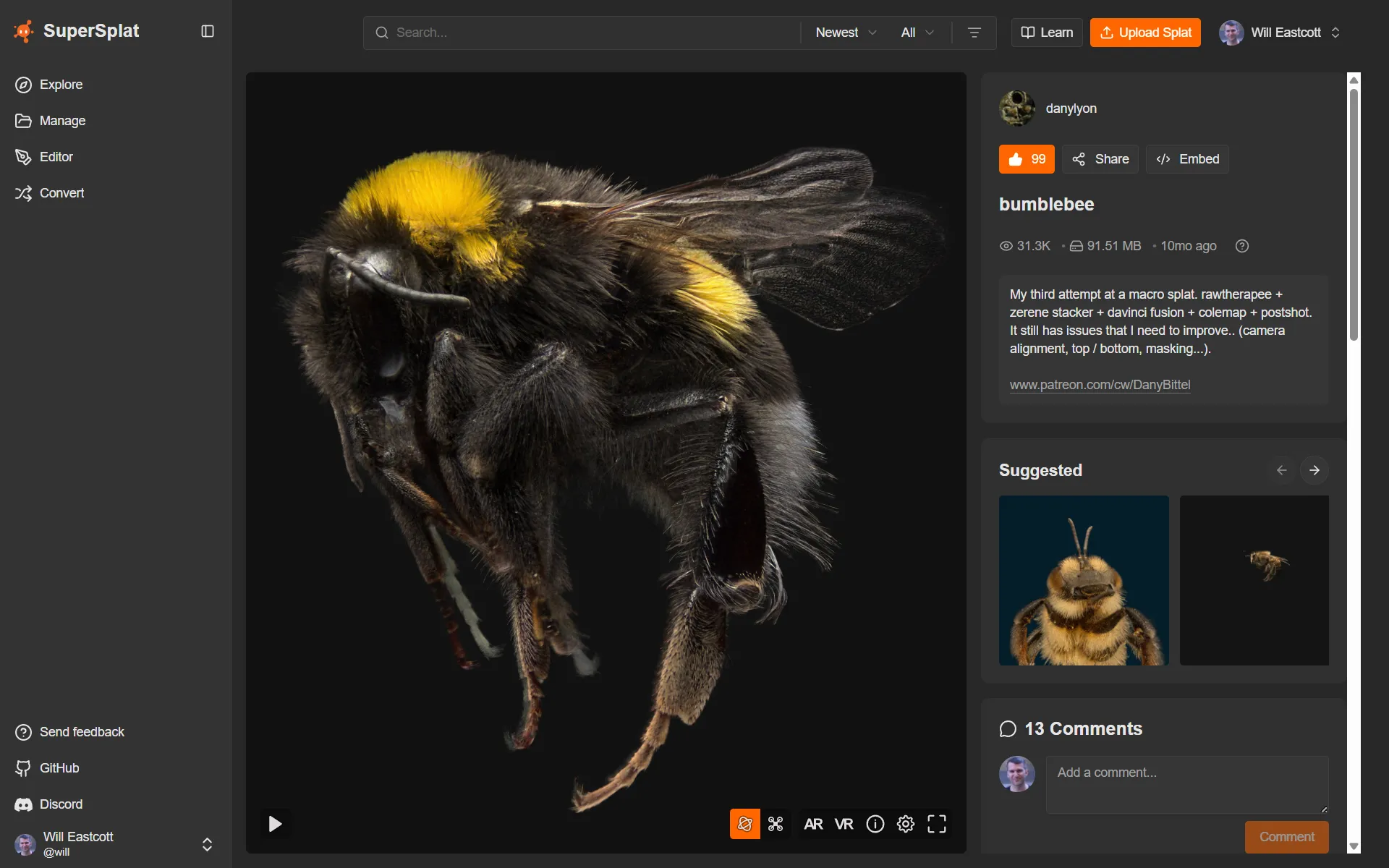
The embedded viewer
The viewer is the open-source SuperSplat Viewer rendered inside an iframe. The cameras, annotations, post effects, skybox, and collision you configured in Studio — along with any camera animation published from the Editor — all apply here. Visitors can orbit, pan, zoom, navigate annotations, and (if collision is set up) walk through the scene.
Sidebar metadata
| Field | What it shows |
|---|---|
| Title | The headline you set in the Edit Splat dialog. |
| Author | A chip linking to the creator's user profile, with a Follow button so you can follow them. |
| Views | Total view count. |
| Likes | Total stars; highlighted if you've liked this splat. |
| Visibility badge | Public or Unlisted. |
| Software used | Chips for the tools you tagged in the Edit Splat dialog (capture / training tools). |
| Description | The longer description you set in the Edit Splat dialog (sanitized HTML). |
| Format / size | The published splat format and download size, with a tooltip. |
| Created | Relative time the splat was published, with the exact date on hover. |
Action buttons
| Button | What it does |
|---|---|
| Share | Opens the Share dialog. |
| Embed | Opens the Embed dialog. |
| Download | Opens the Download dialog. Only shown if the splat is downloadable. |
| Like (star) | Toggles your like for the splat. Requires login — anonymous visitors are prompted to sign in. |
Owners also see an Edit in Studio entry point that opens Studio for this scene.
Share dialog
The Share dialog gives one-click sharing to social platforms plus a copyable link.
| Action | Behavior |
|---|---|
| Facebook / X / LinkedIn / Reddit | Opens the platform's share intent prefilled with the scene's URL and title. |
| Copy link | Copies the scene URL to your clipboard with a brief Copied! confirmation. |
Embed dialog
The Embed dialog gives you an <iframe> snippet to drop into your own webpage. The snippet points back at the scene's public URL so any future Studio updates show up automatically.
| Field | Description |
|---|---|
| Iframe snippet | A copy-to-clipboard <iframe> tag. |
| Size presets | Pick from a few common embed sizes or use a responsive layout. |
If you'd rather host your own copy of the viewer and bundle the splat into a self-contained file instead of pointing back at superspl.at, see Self-Hosting the Viewer.
Download dialog
The Download button is shown only when the owner has enabled Downloadable for the splat from the Manage page. Click it to open the Download dialog, which offers:
| Section | Contents |
|---|---|
| Targets | A list of formats you can download — typically the original published format, a compressed PLY, a self-contained HTML viewer, and (if the scene has collision) a voxel.zip. Each entry shows its file size. |
| License | Expandable section with the Creative Commons license the owner picked. Shows the CC icons, a summary, an Open License link, and a Copy Credit button that produces ready-to-paste attribution text. |
Some download targets are produced on demand — the dialog shows a Preparing… state while the file is built, then makes it available to download.
Comments
Below the viewer is the comments section. Anyone signed in can post a comment; the splat's owner can delete any comment.
- Each comment shows the commenter's avatar, username, timestamp, and sanitized HTML body.
- Comments can be liked individually (the per-comment star icon).
- The comments list is paginated; up to 100 comments are returned per page.
- Comments are sorted newest-first.
A PlayCanvas account is required to post — unauthenticated visitors see a prompt to sign in.
Likes (stars)
The Like button in the action bar is a single-click toggle. Counts update immediately. Like requires a PlayCanvas account; visitors without one are prompted to sign in.
Suggested splats
A carousel near the bottom of the page recommends a handful of related splats. Click any card to navigate to its scene page.
See also
- Studio — owners use Studio to change what visitors see here
- Embedding the Viewer — for full programmatic control of how the splat is displayed
- Manage — edit metadata, change visibility, choose downloadable + license