Manage
The Manage page is your splat library on superspl.at. From here you can list and search your published splats, edit metadata, toggle visibility, choose whether visitors can download the source, pick a license, delete splats, and open any splat in Studio to curate its viewing experience.
You must be signed in with a PlayCanvas account to access Manage. See Account Creation.
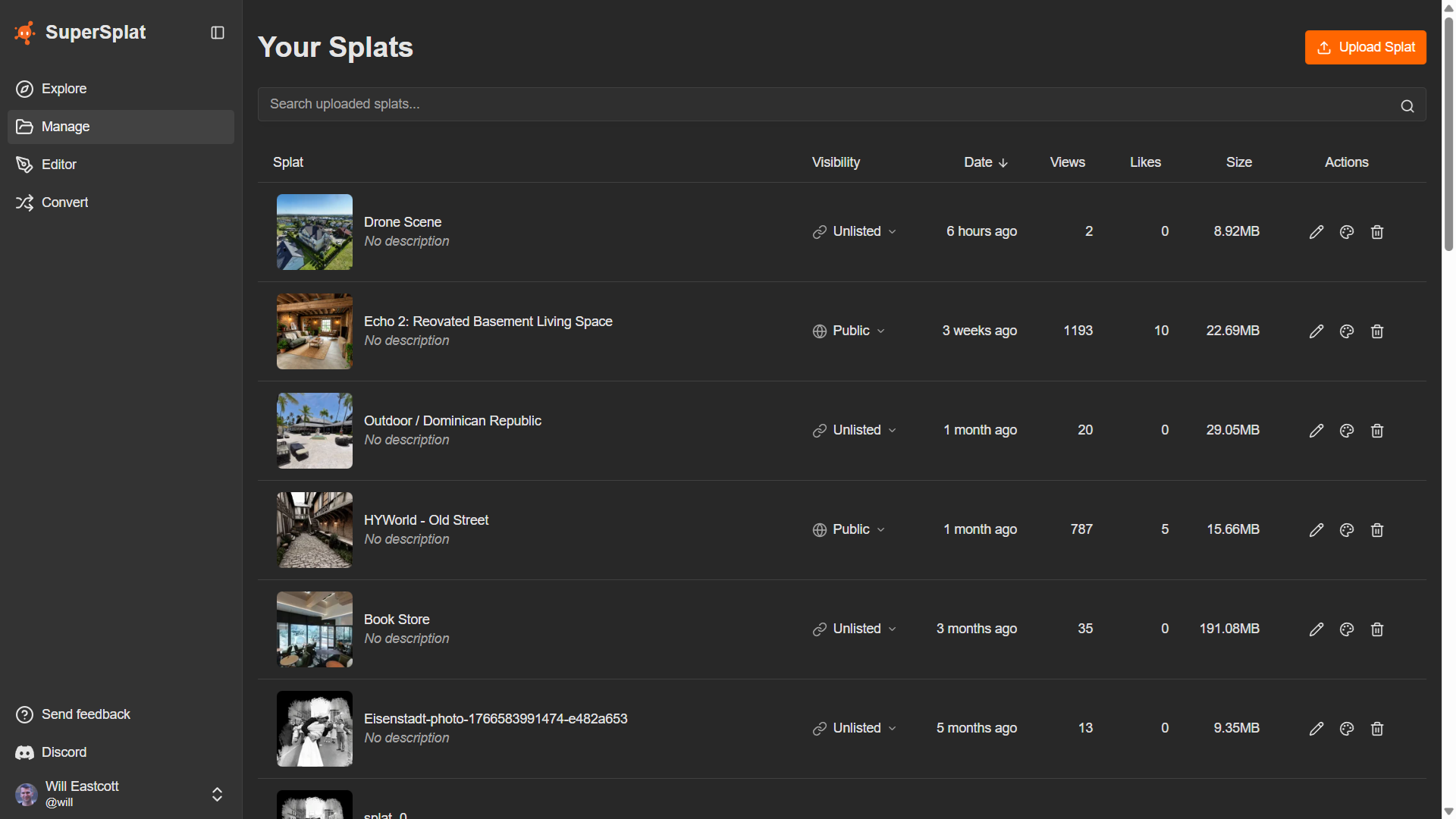
The list view
On desktop the page shows a sortable table; on mobile each splat is rendered as a card.
| Column | Description |
|---|---|
| Splat | Thumbnail, title, and description. Click the thumbnail to open the splat's scene page. |
| Visibility | Dropdown for Public (globe icon) or Unlisted (link icon). |
| Date | Relative time the splat was uploaded; hover for the exact timestamp. |
| Views | View count on the public scene page. |
| Likes | Thumbs-up count. |
| Size | Human-readable file size of the published splat. |
| Actions | Edit, Open in Studio, and Delete. |
Click a column header to sort. Sortable fields are Date (default — newest first), Views, Likes, and Size. The list paginates at 25 splats per page.
Searching
The search bar above the table filters across title and description. The search box is hidden until you've uploaded at least one splat.
Uploading a new splat
The Upload Splat button in the page header opens the Upload dialog. See Direct Upload for the full flow.
Editing splat metadata
Click Edit in the row's Actions column to open the Edit Splat dialog.
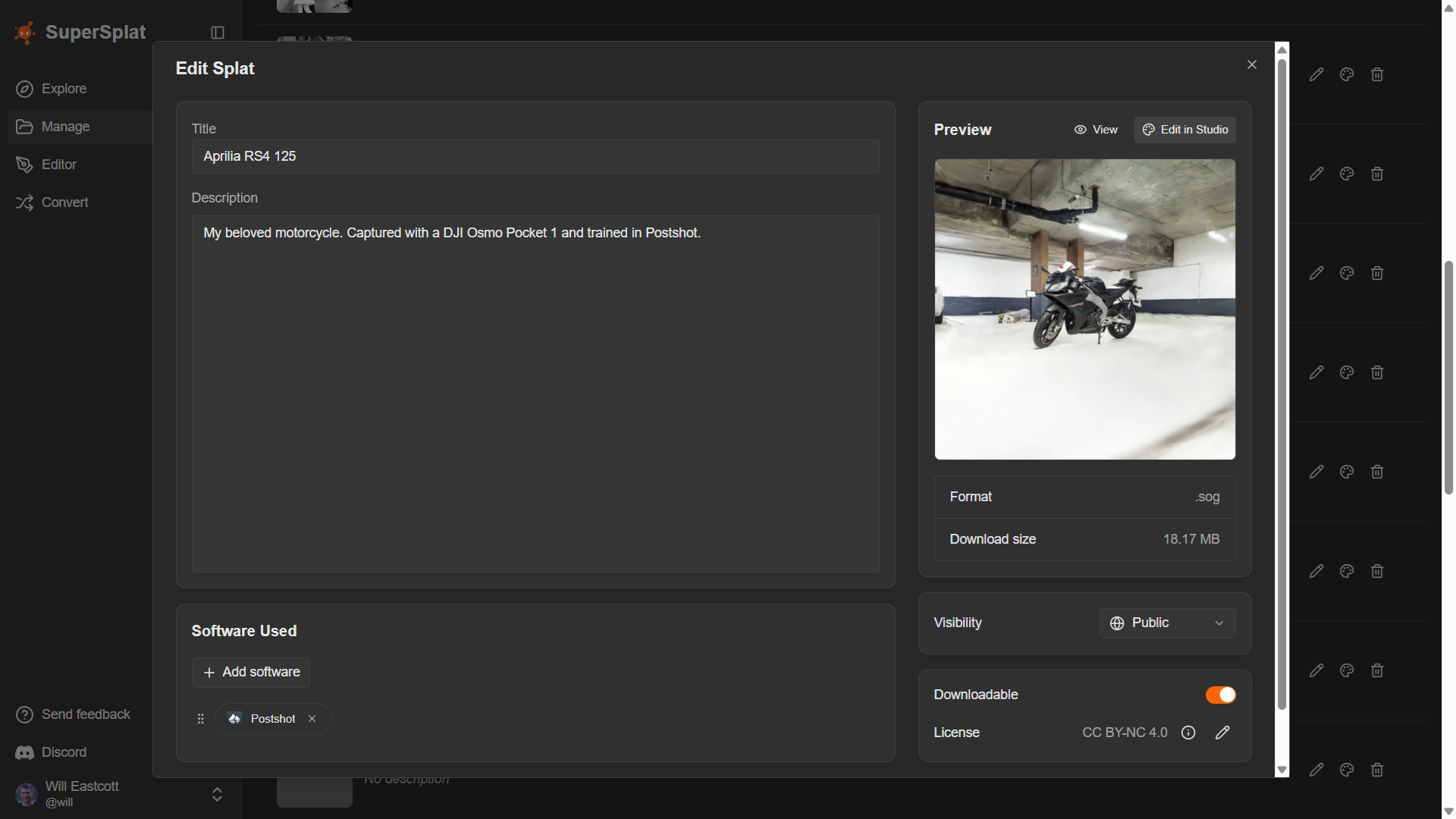
| Field | Description |
|---|---|
| Title | The headline shown on the scene page sidebar. |
| Description | A longer summary shown on the scene page. |
| Software Used | Multi-select of the tools you used to capture or train the splat. Chosen entries appear as chips on the public scene page. |
| Visibility | Public (appears in Explore listings and searches) or Unlisted (reachable only via the direct URL). |
| Downloadable | Toggle that controls whether visitors can download the source splat from the scene page. Off by default. |
| License | Shown when Downloadable is on. Pick the Creative Commons license that applies to your splat. |
The Preview card in the top right of the dialog shows the thumbnail, format, and download size. It also has View (opens the public scene page) and Edit in Studio (opens Studio — disabled if the splat is still processing or in an unsupported format).
Downloadable & license
When you enable Downloadable, you must choose a Creative Commons license that tells visitors how they can reuse the file:
| Code | License |
|---|---|
by | Attribution |
by-nd | Attribution-NoDerivatives |
by-sa | Attribution-ShareAlike |
by-nc | Attribution-NonCommercial |
by-nc-nd | Attribution-NonCommercial-NoDerivatives |
by-nc-sa | Attribution-NonCommercial-ShareAlike |
The selected license is surfaced on the scene page Download dialog with an icon, summary, and a one-click Copy credit button for attribution.
Visibility from the list
You don't need to open the Edit dialog to change visibility — use the Visibility dropdown in each row. The button shows the current setting (icon and label) and a chevron; choose Public or Unlisted from the menu. Unlisted splats are excluded from Explore and won't appear when other users search.
Deleting a splat
Click Delete in the row's Actions column. A confirmation dialog asks you to confirm.
Deleting a splat is permanent and cannot be undone.
Opening a splat in Studio
Use Open in Studio in the row's Actions column, or Edit in Studio on the dialog's preview card, to launch Studio for that splat. The control is disabled while the splat is still processing or in an unsupported format. Studio's URL is superspl.at/scene/<hash>/studio. Only the splat's owner can open Studio for it.
See also
- Direct Upload — publish a splat without going through the Editor
- Studio — curate the published viewing experience
- Scene page — what visitors see when they open a splat