Interface Overview
The SuperSplat Editor's interface appears as follows:
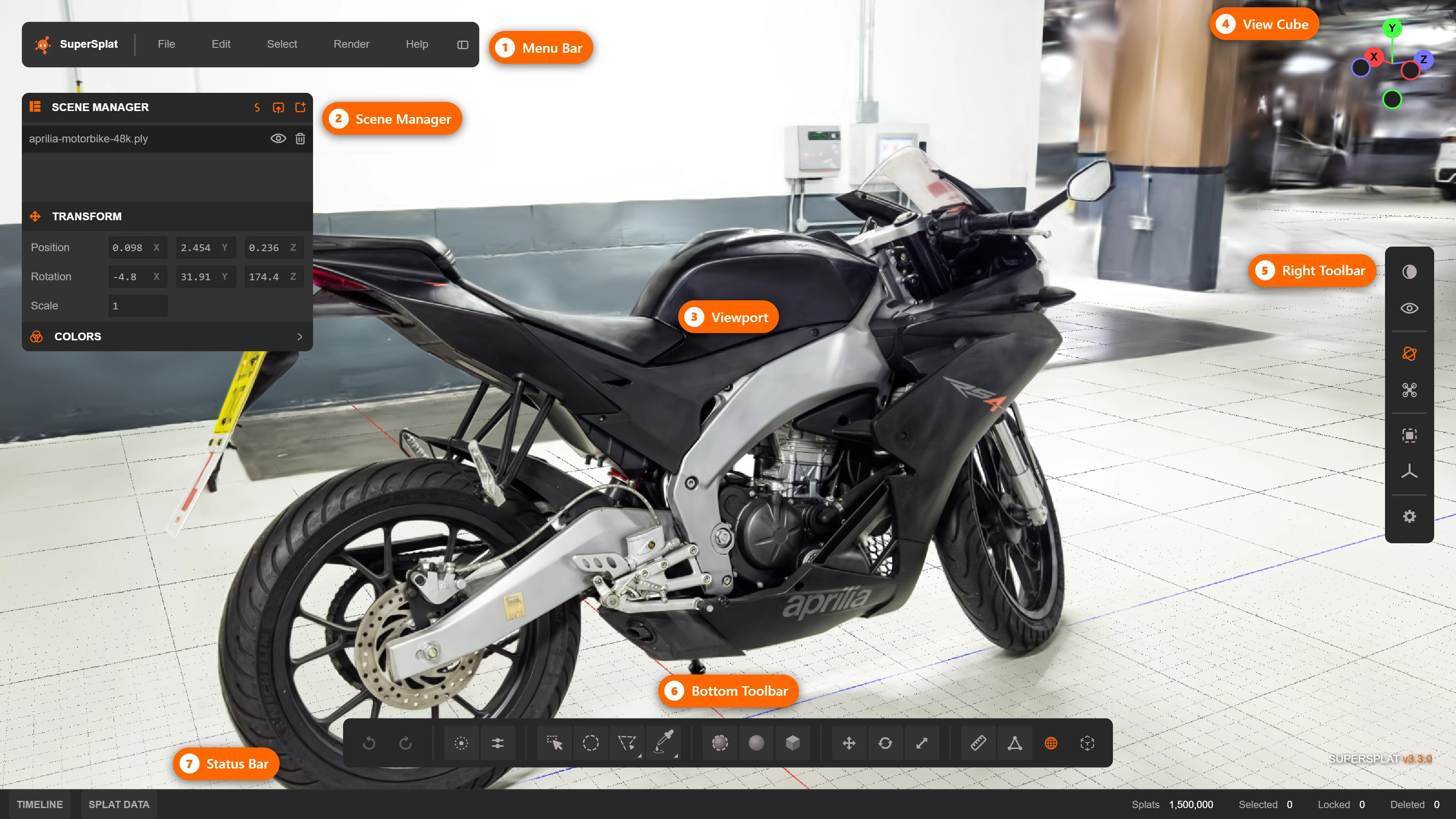
Interface Elements
The key elements of the interface are labeled:
Menu Bar
The Menu Bar gives you access to the most commonly used functions in the SuperSplat Editor. The SuperSplat logo at its left edge takes you back to superspl.at.
- File Menu: Create, open, and save
.ssprojprojects; import splats, including an Import Recent list; export to the supported formats and repeat the last export with Re-export; publish to superspl.at. - Edit Menu: Undo or redo changes, or duplicate or separate selected Gaussians into a new splat.
- Select Menu: Select all, none, or the inverse; lock, unlock, delete, and restore Gaussians.
- Render Menu: Render an image or a video of your currently loaded scene.
- Help Menu: Video tutorials, this user guide, the keyboard shortcuts reference, community links, and the About dialog.
Scene Manager
The Scene Manager lists the imported splats in the project. Click a row to choose the active splat, use the eye icons or Solo mode to control visibility, and use the Transform and Colors sections below the list for precise transforms and color grading. See Managing Splats for the complete workflow.
Viewport
The 3D viewport where you can visually edit your scenes. A grid helps you orient yourself in the scene. By default the grid lies in the XZ plane (with the world Y axis pointing upwards); the Overlays popup can draw the XY and YZ planes as well, in any combination. The X axis is colored red and the Z axis is blue. The grid uses meters, and its divisions adapt to your distance from the scene: 1 meter and 10 cm lines up close, with 100 m and 1 km lines appearing on large scenes.
View Cube
The View Cube is a gizmo that gives added control over the viewport camera. You can click on any of the circles to switch to an orthographic view of the scene from one of six directions. This can make it easier to make accurate selections in certain circumstances.
Right Toolbar
This vertical toolbar contains, from top to bottom:
- Appearance — opens the Appearance popup, which controls how Gaussians, centers, rings, and selections are drawn.
- Overlays (eye icon) — opens the Overlays popup: grid, bounding box, camera poses, camera info, and diagnostics.
- Orbit Camera and Fly Camera — switch the camera control mode (
V). - Frame Selection (
F) and Reset Camera (Shift + F). - Preferences (gear icon) — opens the Preferences popup.
Only one of the Appearance, Overlays, and Preferences popups is open at a time.
Bottom Toolbar
This horizontal toolbar contains, from left to right:
- Undo and Redo.
- The Selection Footprint (
M) and Selection Depth (N) toggles, which control how every selection tool decides what it hits. See Selection Depth and Footprint. - The 2D selection tools: Rectangle, Brush, Polygon / Lasso, and Eyedropper / Flood. The last two buttons each hold a pair of tools: click to use the current one, or press and hold to switch to the other.
- The 3D selection tools: Sphere Brush, Sphere Selection, and Box Selection.
- Move, Rotate, and Scale.
- Measure, Orient, the Use Local Orientation toggle (
Shift + C), and Reset Pivot.
See Selection and Cleanup and Transform, Measure and Align.
Status Bar
The bar along the bottom edge opens the Timeline (Ctrl + T) and Splat Data (Ctrl + D) panels and shows live counts of the active splat's Splats, Selected, Locked, and Deleted Gaussians. The Editor version is shown in the bottom-left corner of the viewport.
Animation Timeline
The Timeline allows you to create and delete keyframes for the viewport camera. It also allows you to play back (or scrub through) the animation you have configured.
Splat Data Panel
This panel visualizes the Gaussian data in the active splat as a histogram and lets you select ranges of values. See the Splat Data panel.
Appearance
The Appearance popup (the first button in the Right Toolbar) controls how the viewport draws Gaussians, their centers and rings, and the selection, how strongly selected and unselected Gaussians are tinted, and the background, selection, and lock colors. Press Tab to toggle the display overlays on and off without changing these settings. The full reference is in Color and Appearance.
Overlays
The Overlays popup (the eye icon in the Right Toolbar) holds viewport helpers and diagnostics. Each row is a toggle; click anywhere on the row to flip it.
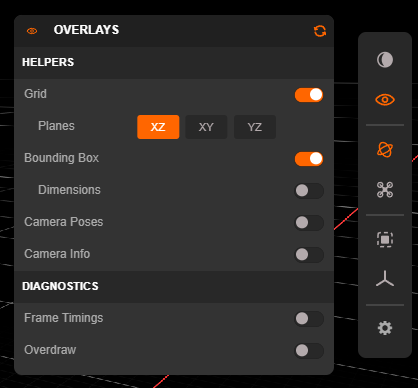
| Section | Control | Default | Description |
|---|---|---|---|
| Helpers | Grid (G) | On | Shows the reference grid. |
| Planes | XZ | Which grid planes are drawn: XZ, XY, and YZ, in any combination. The choice is saved with your preferences and in .ssproj projects. | |
| Bounding Box | On | Draws the bounding box of the active splat. | |
| Dimensions | Off | Labels the bounding box edges with their lengths in the viewport, and the Measure tool's line with its length. | |
| Camera Poses | Off | Draws a camera gizmo at every Timeline keyframe. | |
Camera Info (I) | Off | Shows the editable camera position and target overlay. | |
| Diagnostics | Frame Timings | Off | Live GPU and CPU frame times (median, minimum, and 95th percentile over the last second) with a graph, and whether the last frame was rendered sorted or stochastic. |
| Overdraw | Off | Replaces the image with a heat map of how many Gaussians overlap each pixel, with a legend from 1 to over 1000. Red-to-white regions are where cleanup would help performance most. |
Click the reset icon in the popup's header to restore the Overlays defaults.
Preferences
The Preferences popup (the gear icon in the Right Toolbar) holds application-wide settings. They are saved in your browser and restored the next time you open the Editor.
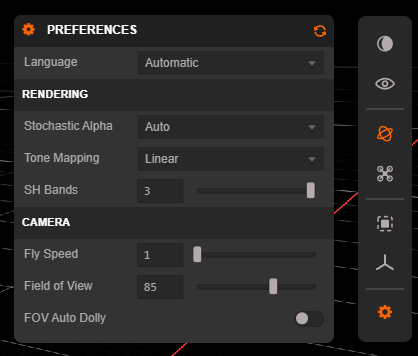
| Section | Setting | Default | Description |
|---|---|---|---|
| Language | Automatic | Interface language. See Language. | |
| Rendering | Stochastic Alpha | Auto | How heavy scenes are drawn while you move the camera. Disabled always draws depth-sorted, blended frames. Enabled always uses stochastic transparency, which needs no sorting and stays responsive on very large scenes at some cost in image quality. Movement uses stochastic frames only while the camera or a tool is moving and draws an exact sorted frame once the view settles. Auto keeps drawing sorted frames until one proves slow, then behaves like Movement. |
| Tone Mapping | Linear | Viewport tone mapping curve: Linear, Neutral, ACES, ACES2, Filmic, or Hejl. | |
| SH Bands | 3 | Spherical harmonic bands evaluated in the viewport (0–3). Lower values render faster and preview how a reduced-band export will look. | |
| Camera | Fly Speed | 1 | Speed of WASD navigation in fly mode (0.1–30). |
| Field of View | 85° | Vertical field of view of the viewport camera (10°–120°). | |
| FOV Auto Dolly | Off | Move the camera as the field of view changes so the subject keeps its framing. See Camera Settings. |
Loading an .ssproj project applies the view and camera settings saved in that project for the current session without replacing your stored preferences. Selecting File > New reapplies your preferences. To restore the factory settings, click the reset icon in the popup's header (Reset to Defaults). This also returns the interface language to Automatic. The Appearance and Overlays popups have their own reset buttons.
Language
SuperSplat's interface is available in several languages. By default it follows your browser's language — the Automatic setting — but you can choose a specific language from the Language dropdown at the top of the Preferences popup (the gear icon in the Right Toolbar).
Switching language takes effect immediately. There is no page reload, so your loaded scene and any unsaved work are preserved. Your choice is remembered across sessions until you change it again or switch back to Automatic.
The following languages are supported:
- English —
en - Deutsch (German) —
de - Español (Spanish) —
es - Français (French) —
fr - 日本語 (Japanese) —
ja - 한국어 (Korean) —
ko - Português (Brasil) (Brazilian Portuguese) —
pt-BR - Русский (Russian) —
ru - 中文 (简体) (Simplified Chinese) —
zh-CN
Add a ?lng= query parameter set to one of the language codes listed above (for example, ?lng=ja) to pin the language for a shared link. This overrides both your saved choice and the browser default, so the link always opens in that language.
SuperSplat is open source, and its translations are plain JSON files under static/locales. Open an issue to request a new language, or open a pull request adding or improving a locale file.