Import and Export
SuperSplat's import and export capabilities are essential for working with Gaussian Splat data throughout your entire workflow. Import allows you to bring in splat scenes from various capture tools and formats for editing, cleanup, and optimization. Once your editing work is complete, export enables you to save your refined splats in the optimal format for your target platform - whether that's a compressed format for web deployment, a full-quality PLY for archival, or a standalone HTML viewer for easy sharing. This flexibility ensures SuperSplat can integrate seamlessly into any Gaussian Splat production pipeline.
Supported File Formats
SuperSplat supports several Gaussian Splat scene formats, plus COLMAP and INRIA camera poses for creating timeline keyframes:
| Format | Import | Export | Description |
|---|---|---|---|
.ply | ✅ | ✅ | Standard PLY format - most common interchange format, widely supported but heavyweight |
.compressed.ply | ✅ | ✅ | Compressed PLY format - far smaller than uncompressed PLY, quantizes data. Learn more |
.sog | ✅ | ✅ | Bundled super-compressed format (a zip file containing meta.json and .webp textures). Recommended for runtime applications |
meta.json | ✅ | ❌ | Unbundled super-compressed format (accompanied by .webp textures). Use SplatTransform CLI tool to export |
lod-meta.json | ✅ | ❌ | Streamed SOG bundle (accompanied by per-LOD .sog chunks). Use SplatTransform CLI tool to export |
.splat | ✅ | ✅ | Legacy compressed splat format (antimatter15) - less efficient than compressed PLY |
.ksplat | ✅ | ❌ | KSplat compressed splat format. Import only |
.spz | ✅ | ✅ | Niantic compressed format. Exports as SPZ version 4 by default, with SPZ version 3 available for older readers |
.lcc / .lcc2 | ✅ | ❌ | XGRIDS proprietary multi-LOD formats. SuperSplat asks which level of detail to load |
images.txt | ✅ | ❌ | Camera poses from a COLMAP reconstruction. Importing the file creates Timeline keyframes; it does not load a splat scene |
Camera pose .json | ✅ | ❌ | Camera poses in the INRIA JSON format. Importing the file creates Timeline keyframes; it does not load a splat scene |
.html | ❌ | ✅ | Self-contained viewer app with the compressed splat data embedded in one HTML file |
.zip | ❌ | ✅ | Viewer package containing an HTML app and a separate bundled SOG file (index.sog) |
Only .ply files containing 3D Gaussian Splat data can be loaded - other PLY file types will fail to import.
Importing Splats
SuperSplat can import Gaussian Splat scenes in .ply, .compressed.ply, .splat, .ksplat, .spz, .lcc, .lcc2, .sog (bundled SOG), meta.json (unbundled SOG), and lod-meta.json (Streamed SOG) formats. It can also import COLMAP images.txt and INRIA camera pose .json files to create camera animation keyframes.
There are four ways to load a Gaussian Splat file:
-
Drag and drop - Drop one or more splat files, or a whole folder, from your file system into SuperSplat's window. For multi-file formats (such as
.lcc,.lcc2, unbundled SOG, or Streamed SOG), drag the parent folder containing those files. -
File menu - Select
File>Importand choose one or more splat files from your file system.File>Import Recentlists the files and folders you have imported before so you can reload them without browsing for them again;Clear Recentat the bottom of the list empties it. -
Direct file opening - If you have installed SuperSplat as an app from your browser's address bar, you can double-click a
.ply,.splat,.sog,.spz,.ksplat, or.ssprojfile in File Explorer (Windows) or Finder (macOS) to open it in the Editor. -
URL loading - Use the
loadquery parameter in the form:https://superspl.at/editor?load=<SPLAT_URL>. For example:https://superspl.at/editor?load=https://raw.githubusercontent.com/willeastcott/assets/main/biker.ply
This is particularly useful for sharing splats with others on social platforms like X and LinkedIn.
URL loading also supports multi-file
.lcc,.lcc2, unbundled SOG, and Streamed SOG scenes. Keep their related chunk or texture files at the relative paths referenced by the container.
Choosing a Level of Detail
When a file contains multiple levels of detail, SuperSplat displays a Load Options dialog before allocating the splats. The dialog lists each LOD and its splat count. It initially selects the most detailed level containing fewer than 20 million splats, helping large scenes avoid excessive memory use.
Choose the LOD that fits your editing needs and available memory, then click Load. Lower-detail levels load faster and consume less memory. Click Cancel to stop the import without loading a level.
Importing PLY Sequences
SuperSplat supports importing sequences of PLY files to create splat animations. This allows you to view animated Gaussian Splats where each PLY file represents a single frame in the animation.
To import a PLY sequence:
-
Ensure your PLY files follow a naming convention with sequential frame numbers appended, such as:
animation_0001.plyanimation_0002.plyanimation_0003.ply- etc.
-
Load the sequence into SuperSplat by either:
- Dragging and dropping all the PLY files from your file system into SuperSplat
- Dragging and dropping a folder containing the PLY files onto SuperSplat
- Using File > Import and selecting multiple PLY files
Once loaded, SuperSplat will automatically recognize the sequence and enable the Timeline panel, allowing you to:
- Step through frames using the arrow buttons
- Play the animation using the play button
- Scrub through the animation using the timeline slider
PLY sequences are memory-intensive since each frame loads a complete splat scene. For optimal performance, consider the file sizes and number of frames when working with animated splats.
Exporting Splats
To export your currently loaded scene, open the File > Export submenu and choose PLY, SOG, SPZ, Splat, or Viewer App. Exports include the visible splats only. Every export uses the same dialog:
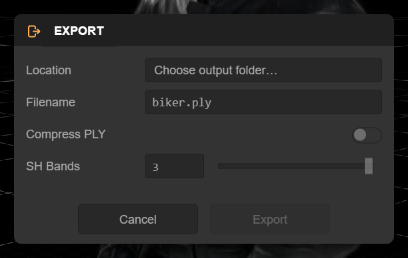
- Location - The output folder. The Editor remembers the folder you last exported to; click Choose output folder… (or Change…) to pick another. In browsers without the File System Access API this row is hidden and the file is delivered as a download instead.
- Filename - The name of the output file. The dialog warns if the name is invalid or already exists in the folder (the button then reads Overwrite), and it refuses to overwrite a file that the current scene is still reading from.
- Format-specific options:
- PLY: Compress PLY writes a
.compressed.plyinstead of a full-size PLY; SH Bands chooses how many spherical harmonic bands to include. - SOG: SH Bands, and Iterations (1–20, default 10), the number of clustering passes used to compress the spherical harmonic data. More iterations give slightly better quality at the cost of export time.
- SPZ: SH Bands, and Version. SPZ 4 (the latest version of the spec) is the default, while SPZ 3 (legacy gzip container) is available for compatibility with older third-party SPZ readers.
- Viewer App: the options for a standalone HTML viewer are described in Self-Hosting the Viewer.
- PLY: Compress PLY writes a
Choose File > Re-export (Ctrl + Shift + E) to repeat the last export with the same options to the same file. It overwrites the previous output without further prompts, which is handy while iterating on a cleanup.