Color and Appearance
Two different sets of controls affect how a splat looks in SuperSplat:
- The Colors section of the Scene Manager changes the splat data itself: tint, temperature, saturation, brightness, tonal range, and transparency. These edits are saved and exported with the splat.
- The Appearance popup changes only how the viewport draws Gaussians, their centers and rings, and the selection. It never modifies the splat.
Colors
Expand the Colors section at the bottom of the Scene Manager, below Transform. The sliders hold a pending color grade that is previewed live in the viewport on the Gaussians it would affect: the current selection, or the whole active splat when nothing is selected. Click Apply to bake the grade into those Gaussians; the sliders then return to neutral, ready for the next adjustment. To grade one region differently from the rest, select it first.
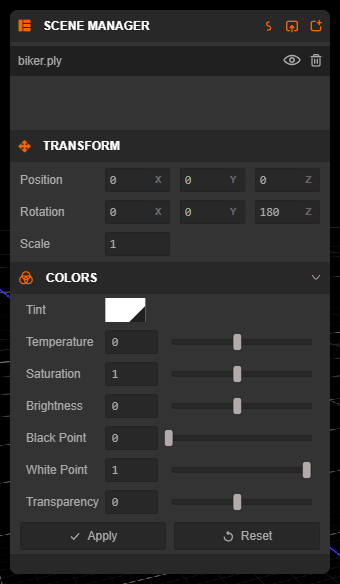
Controls
| Control | Range | Effect |
|---|---|---|
| Tint | color | Multiplies the color by the chosen tint. White leaves the source color unchanged. |
| Temperature | −0.5 to 0.5 | Shifts the result toward cooler (negative) or warmer (positive) tones. |
| Saturation | 0 to 2 | Reduces or increases color intensity. 1 leaves saturation unchanged. |
| Brightness | −1 to 1 | Darkens or brightens. 0 leaves brightness unchanged. |
| Black Point | 0 to 1 | Raises the darkest value that is mapped to black, increasing shadow clipping. |
| White Point | 0 to 1 | Lowers the brightest value that is mapped to white, increasing highlight clipping. |
| Transparency | −6 to 6 | Reduces (negative) or increases (positive) opacity relative to the source values. |
Black Point cannot be set above White Point. Reset removes any grade already applied to the targeted Gaussians and returns the sliders to neutral. Changing the selection discards a pending grade that has not been applied. Apply and Reset are recorded in the edit history and can be undone and redone.
A Practical Correction Workflow
- Set the viewport tone mapping in Preferences and the background color in Appearance, so you are judging the scene in its intended viewing conditions.
- Correct overall warmth with Temperature.
- Adjust Brightness, then set Black Point and White Point to establish the tonal range.
- Use Saturation and Tint for the final color balance.
- Check the result from several camera angles. Spherical harmonic color can change with view direction.
- Click Apply.
Tone mapping and the background color are view settings; the Colors section changes the splat itself.
Save and Export Behavior
Applied grades become part of the splat's color data, so they are stored in .ssproj projects and included in every export format. Click Apply before saving or exporting: a pending grade that has not been applied is only a preview.
Appearance
Open the Appearance popup from the first button in the right toolbar. Its settings are saved with your preferences and affect only the viewport.
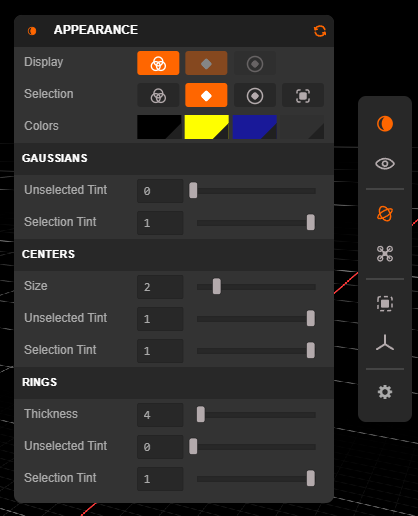
Display
The Display row chooses what is drawn for every Gaussian in the scene:
| Toggle | Default | Description |
|---|---|---|
| Gaussians | On | Render the Gaussians themselves. |
| Centers | On | Draw a dot at every Gaussian center. |
| Rings | Off | Outline the footprint of every Gaussian. |
Press Tab to toggle these display overlays on and off. They start off when you open the Editor, so the Gaussians render plainly and the Centers and Rings buttons are dimmed to show that they are inactive. Your choices are remembered, and turning any Display toggle on brings the overlays back. The Selection Footprint toggle keeps its own Display arrangement for each mode: centers while selecting by center, rings while selecting by footprint.
Selection
The Selection row chooses how selected Gaussians are highlighted. These overlays stay visible even when the display overlays are toggled off.
| Toggle | Default | Description |
|---|---|---|
| Selection Color | Off | Tint the selected Gaussians with the selected color. |
| Selection Centers | On | Draw a dot at the center of each selected Gaussian. |
| Selection Rings | Off | Outline the footprint of each selected Gaussian. |
| Selection Outline | Off | Draw an outline around the silhouette of the selection. |
Viewport Colors
The Colors row sets the viewport's Background Color and the Selected, Unselected, and Locked colors used by the overlays, the tints, and the Splat Data histogram.
Gaussians, Centers, and Rings
| Section | Control | Default | Description |
|---|---|---|---|
| Gaussians | Unselected Tint | 0 | How strongly unselected Gaussians are tinted with the unselected color. |
| Selection Tint | 1 | How strongly selected Gaussians are tinted with the selected color. | |
| Centers | Size | 2 | Size of the center dots in pixels (0–10). |
| Unselected Tint / Selection Tint | 1 / 1 | Tint strength of unselected and selected center dots. | |
| Rings | Thickness | 4 | Thickness of the ring outlines (1–50). |
| Unselected Tint / Selection Tint | 0 / 1 | Tint strength of unselected and selected rings. |
Click the reset icon in the popup's header to restore the Appearance defaults. Every control has a tooltip that names its shortcut where one exists.
For per-Gaussian inspection and selection by color or other attributes, use the Splat Data panel. To animate the viewport camera after finishing the splat's appearance, see the Timeline.