Camera Controls
SuperSplat provides intuitive camera controls for navigating the 3D view, supporting mouse, touch, and keyboard inputs. There are two control modes: Orbit (default) and Fly.
- Orbit mode - Camera rotates around a focal point. Best for inspecting objects from all angles.
- Fly mode - Camera moves freely through the scene. Best for navigating large environments.
Press V to toggle between modes, or use the WASD keys to automatically switch to fly mode.
Mouse Controls
| Action | Orbit Mode | Fly Mode |
|---|---|---|
| Left drag | Orbit around focal point | Look around |
| Middle click | Set focal point | — |
| Middle drag | Orbit around focal point | Zoom |
| Shift + middle drag | Pan | Zoom |
| Ctrl + middle drag | Zoom | Zoom |
| Right drag | Pan | Pan |
| Right + Ctrl/Shift drag | Orbit | Look around |
| Right + Alt/Cmd drag | Zoom | Zoom |
| Mouse wheel | Zoom | Move forward/backward |
| Mouse wheel + Shift | Pan | Pan |
| Mouse wheel + Ctrl | Orbit | Look around |
| Double-click | Set focal point | Set focal point (switches to orbit) |
Touch Controls
| Action | Orbit Mode | Fly Mode |
|---|---|---|
| Single finger drag | Orbit | Look around |
| Two-finger drag | Pan | — |
| Two-finger pinch/spread | Zoom | Move forward/backward |
Keyboard Controls
| Key | Action |
|---|---|
| W/A/S/D | Fly forward/left/backward/right |
| Q/E | Fly down/up |
| Shift | 10× faster fly speed |
| Alt | 0.1× slower fly speed |
| V | Toggle between orbit and fly modes |
| Shift + F | Reset camera to default position |
| F | Focus camera on the selection (or on the active Box, Sphere, Measure, or Orient tool) |
| I | Toggle the camera info overlay |
Camera Settings
Access camera settings through the Preferences popup (the gear icon in the right toolbar):
| Setting | Range | Default | Description |
|---|---|---|---|
| Field of View | 10° - 120° | 85° | Vertical camera viewing angle |
| FOV Auto Dolly | On / Off | Off | How Field of View changes affect the camera (see below) |
| Fly Speed | 0.1 - 30 | 1 | Speed of WASD navigation |
By default, changing the Field of View behaves like a lens zoom: the camera stays where it is and the scene appears magnified or shrunk. Enable FOV Auto Dolly to have the camera dolly (move) as the FOV changes instead, preserving the subject's framing.
Camera Info Overlay
Press I (or enable Camera Info in the Overlays popup) to toggle an information overlay in the bottom-left corner of the viewport:
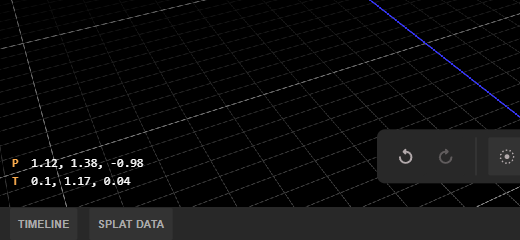
The overlay shows the camera's live pose as x, y, z coordinates in scene units, updating in real time as you navigate:
- P - The camera's position
- T - The camera's target (the focal point it orbits around)
Setting the Camera Pose Numerically
Both values are editable, so you can place the camera precisely:
- Click a value - the text is selected, ready to overwrite
- Type three numbers separated by commas or spaces (for example,
-0.55, 0.8, 1.1) - Press Enter to apply (or Escape to cancel)
A valid value flashes green and the camera moves to the new pose; invalid input flashes red and the previous value is restored. Editing P repositions the camera while keeping it aimed at the current target, while editing T re-aims the camera at a new target without moving it.
This is handy for reproducing exact viewpoints - for example, returning to a precise camera setup or sharing coordinates with someone else working on the same scene.