Shadows
Shadows ground the objects in your scene, conveying depth and the spatial relationships between them while adding realism and visual polish.
PlayCanvas renders real-time, dynamic shadows using a technique called shadow mapping, which is supported by every light type and works across all platforms, from desktop to mobile. This page covers how to enable shadows, choose which objects cast and receive them, pick a shadow type, and tune their quality.
Enabling Shadows
By default, shadow casting is disabled in PlayCanvas, so you have to explicitly enable it yourself. First, identify which lights in your scene should cast shadows — every light exposes a Cast Shadows option. You then choose which graphical objects cast and receive shadows: by default, all render and model components both cast and receive shadows, and you can toggle this per entity. Gsplat components can also cast shadows — though not receive them — and for these, shadow casting is disabled by default.
- Engine
- Editor
- React
- Web Components
// Enable shadow casting on a light
entity.light.castShadows = true;

// Mesh entities cast & receive shadows by default (render or model component);
// toggle per entity as needed
meshEntity.render.castShadows = true;
meshEntity.render.receiveShadows = true;

// Gsplat entities can cast shadows too (off by default)
splatEntity.gsplat.castShadows = true;
Select a light in the Hierarchy and enable Cast Shadows in its Light Component.
To control which objects participate, select an entity and toggle the Cast Shadows / Receive Shadows options on its render or model component, or enable Cast Shadows on its gsplat component.
// Enable shadow casting on a light
<Entity name="light">
  <Light type="directional" castShadows />
</Entity>

// Render components cast & receive shadows by default; toggle as needed
<Entity>
  <Render type="box" castShadows receiveShadows />
</Entity>

// GSplat components can cast shadows too (off by default)
<Entity>
  <GSplat asset={splat} castShadows />
</Entity>
<!-- Enable shadow casting on a light -->
<pc-entity>
  <pc-light type="directional" cast-shadows></pc-light>
</pc-entity>

<!-- Render components cast & receive shadows by default; toggle as needed -->
<pc-entity>
  <pc-render type="box" cast-shadows receive-shadows></pc-render>
</pc-entity>

<!-- Gsplat components can cast shadows too (off by default) -->
<pc-entity>
  <pc-gsplat asset="my-splat" cast-shadows></pc-gsplat>
</pc-entity>
Shadow Types
The technique used to filter a light's shadows — trading off edge softness, quality, and performance — is chosen per light. PlayCanvas offers three filtering techniques:
With clustered lighting enabled (the default), the per-light shadow type only applies to directional lights. Spot and omni lights all share a single scene-wide shadow type (PCF only), set in the scene's lighting settings.
PCF (Percentage-Closer Filtering)
The outline of a shadow is called the penumbra: the transition from dark to light that gives a shadow its soft edge. PCF, the default technique, reads several localized samples from the shadow map and averages them to soften this edge by a fixed amount.
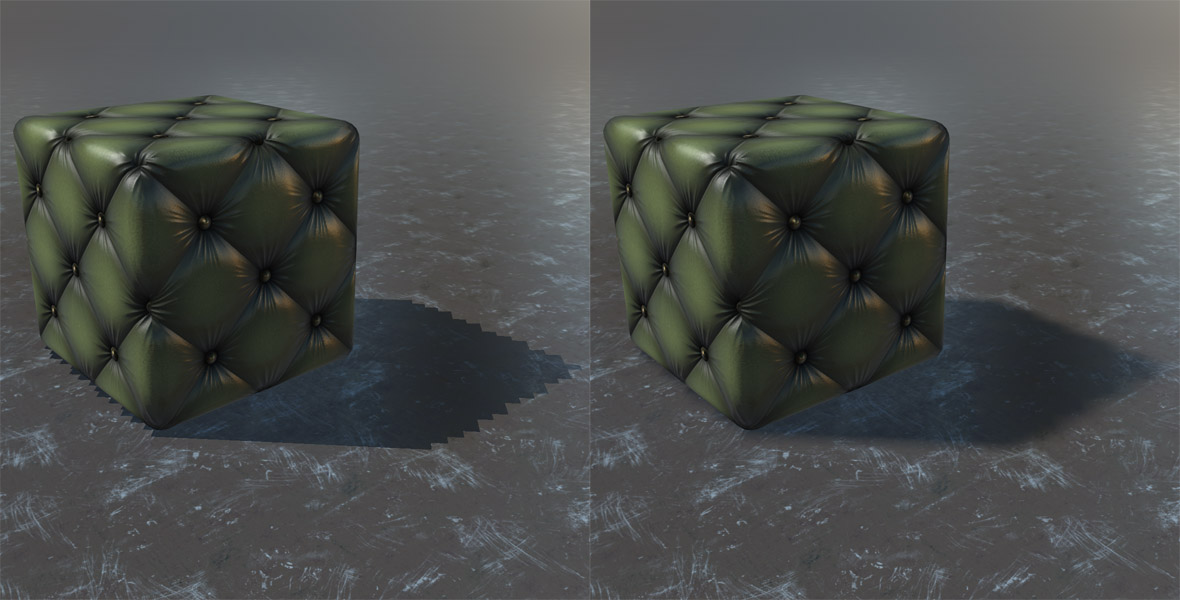
The kernel size controls the trade-off: 1×1 gives the hardest edge, 3×3 is the default, and 5×5 produces the softest edges — larger kernels sample more texels and cost more on the GPU.
Set the shadow type to a PCF variant:
- Engine
- Editor
- React
- Web Components
// SHADOW_PCF1_32F | SHADOW_PCF3_32F (default) | SHADOW_PCF5_32F
entity.light.shadowType = pc.SHADOW_PCF5_32F;
Set Shadow Type to Shadow Map PCF 1x1, 3x3 or 5x5 in the Light Component.
import { SHADOW_PCF5_32F } from 'playcanvas';

<Entity name="light">
  <Light type="directional" castShadows shadowType={SHADOW_PCF5_32F} />
</Entity>
<!-- shadow-type: pcf1-32f | pcf3-32f | pcf5-32f -->
<pc-entity>
  <pc-light type="directional" cast-shadows shadow-type="pcf5-32f"></pc-light>
</pc-entity>
VSM (Variance Shadow Maps)
Variance shadow maps store statistical depth information that can be pre-blurred, producing smooth soft edges that work well over large areas such as directional-light shadows. They are available in 16-bit and 32-bit precision variants (the latter being more precise), and can exhibit light-bleeding artifacts in some scenes.
VSM is only available for directional lights and non-clustered spot lights.
Set the shadow type to VSM and tune it:
- Engine
- Editor
- React
- Web Components
entity.light.shadowType = pc.SHADOW_VSM_16F;

// Optional tuning
entity.light.vsmBlurSize = 11; // blur kernel size, 1-25
entity.light.vsmBlurMode = pc.BLUR_GAUSSIAN; // or pc.BLUR_BOX (cheaper)
entity.light.vsmBias = 0.0025; // reduces shadow acne, 0-1
Set Shadow Type to Variance Shadow Map (16bit) or (32bit) in the Light Component. VSM Blur Mode and VSM Blur Size then appear there too.
import { SHADOW_VSM_16F, BLUR_GAUSSIAN } from 'playcanvas';

<Entity name="light">
  <Light type="directional" castShadows shadowType={SHADOW_VSM_16F}
    vsmBlurSize={11} vsmBlurMode={BLUR_GAUSSIAN} vsmBias={0.0025} />
</Entity>
<!-- vsm-blur-mode is not currently exposed as an attribute -->
<pc-entity>
  <pc-light type="directional" cast-shadows shadow-type="vsm-16f"
    vsm-blur-size="11" vsm-bias="0.0025"></pc-light>
</pc-entity>
PCSS (Percentage-Closer Soft Shadows)
PCF produces a soft edge of constant width. Real shadows, however, are sharp where two objects touch and soften as the caster moves further from the surface that receives the shadow. PCSS reproduces this contact-hardening behavior, varying the width of the penumbra based on the distance between the shadow caster and receiver.
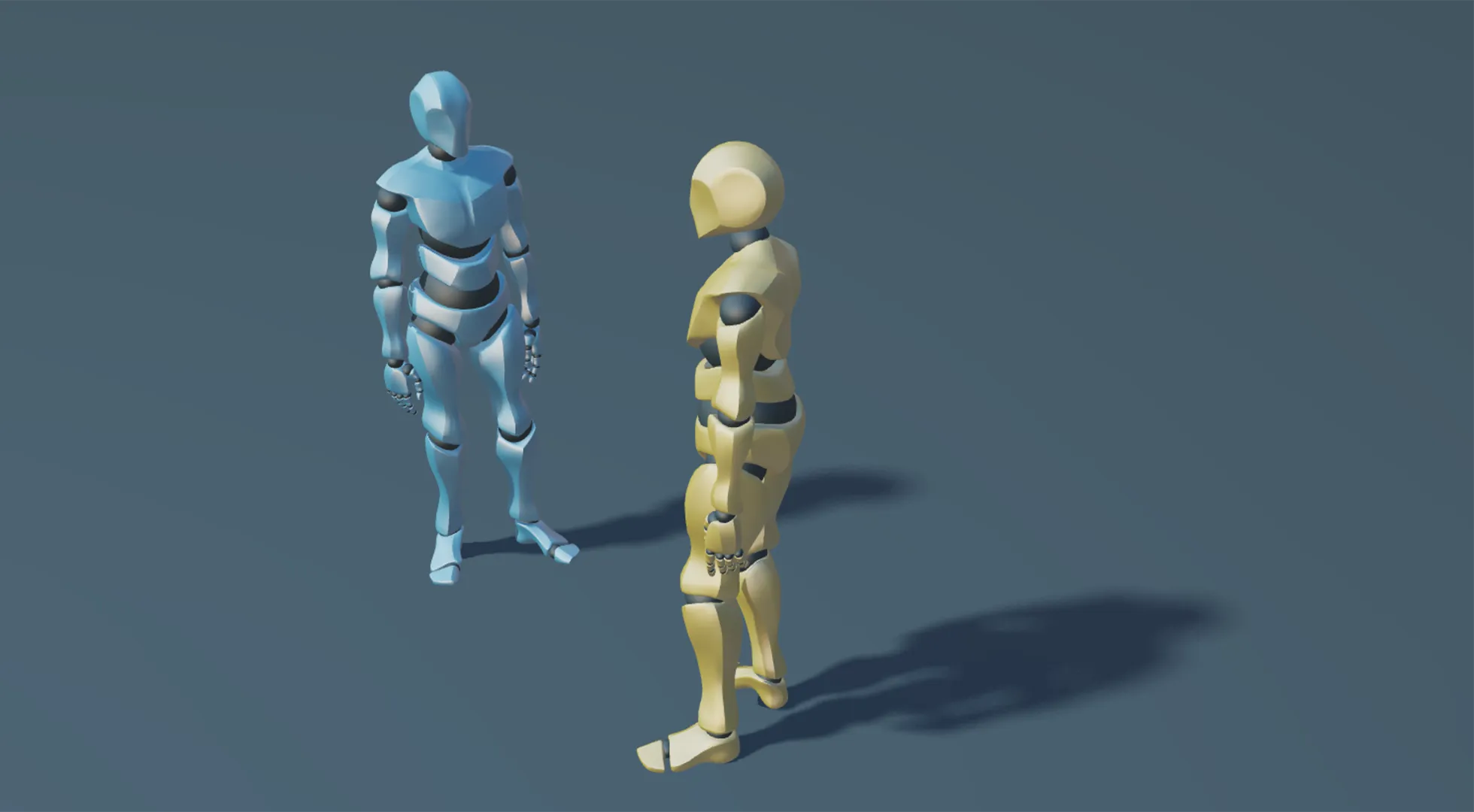
PCSS is only available for directional lights.
PCSS also requires the device to support rendering to and linearly filtering floating-point textures. This is widely available on modern desktop GPUs, but it is not universal — particularly on older or low-end mobile devices. Where it is unsupported, the light automatically falls back to PCF, so it is always safe to enable PCSS.
Set the shadow type to PCSS and fine-tune it:
- Engine
- Editor
- React
- Web Components
entity.light.shadowType = pc.SHADOW_PCSS_32F;

// Optional fine-tuning
entity.light.penumbraSize = 2; // overall penumbra size (softness)
entity.light.penumbraFalloff = 1; // how fast softness grows with distance, >= 1
entity.light.shadowSamples = 16; // filter samples; higher = smoother, costlier
entity.light.shadowBlockerSamples = 16; // 0 disables contact hardening
Select the light in the Hierarchy and set its Shadow Type to PCSS (Soft Shadows) in the Light Component. Penumbra Size and Penumbra Falloff then appear there too; the sample counts are not currently exposed in the Light Component editor UI and must therefore be set in a script.
import { SHADOW_PCSS_32F } from 'playcanvas';

<Entity name="light">
  <Light type="directional" castShadows shadowType={SHADOW_PCSS_32F}
    penumbraSize={2} penumbraFalloff={1} shadowSamples={16} shadowBlockerSamples={16} />
</Entity>
<pc-entity>
  <pc-light type="directional" cast-shadows shadow-type="pcss-32f"
    penumbra-size="2" penumbra-falloff="1" shadow-samples="16" shadow-blocker-samples="16"></pc-light>
</pc-entity>
Tuning Shadows
The shadow mapping technique used by PlayCanvas has only finite resolution. Therefore, you may need to tune some values to make them look as good as possible. Each property below can be set in the Light Component UI in the Editor, or on the light component in code (entity.light.*).
Shadow Resolution
Every light casts shadows via a shadow map. This shadow map (light.shadowResolution) can range from 16x16 up to 4096x4096, and this value is also set in the light component's interface. The higher the resolution, the crisper the shadows. However, higher resolution shadows are more expensive to render so be sure to balance performance against quality.
Shadow Distance
The shadow distance (light.shadowDistance) is the distance from the viewpoint beyond which directional light shadows are no longer rendered. The smaller this value, the crisper your shadows will be. The problem is that the viewer will be able to see the shadows suddenly appear as the viewpoint moves around the scene. Therefore, you should balance this value based on how far the player can see into the distance and generally what looks good.
Shadow Cascades
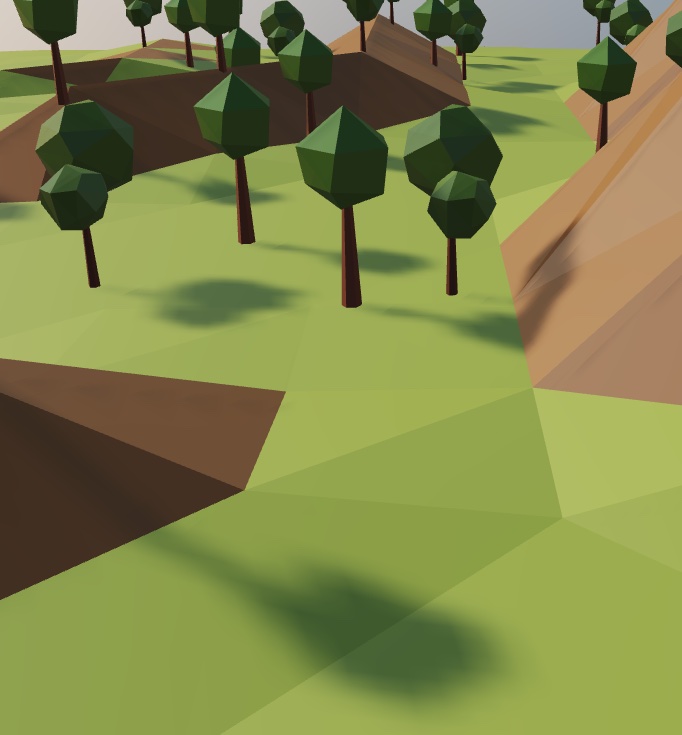
When a directional shadow is used over a large area, it often exhibits aliasing, where a shadow near the camera has a low resolution. Capturing the shadow in a single shadow map requires very high and impractical resolution to improve this.
Shadow cascades help to fix this problem by splitting the camera view frustum along the viewing direction, and a separate shadow map is used for each split. This gives nearby objects one shadow map, and another shadow map captures everything in the distance, and optionally additional shadow maps in between.
Note that the number of shadow cascades has an effect on performance, as each shadow casting mesh might need to be rendered into more than a single shadow map.
The number of cascades (light.numCascades) represents the number of view frustum subdivisions, and can be 1, 2, 3 or 4. The default value of 1 represents a single shadow map.
A screenshot showing a single shadow cascade.
A screenshot showing four shadow cascades.
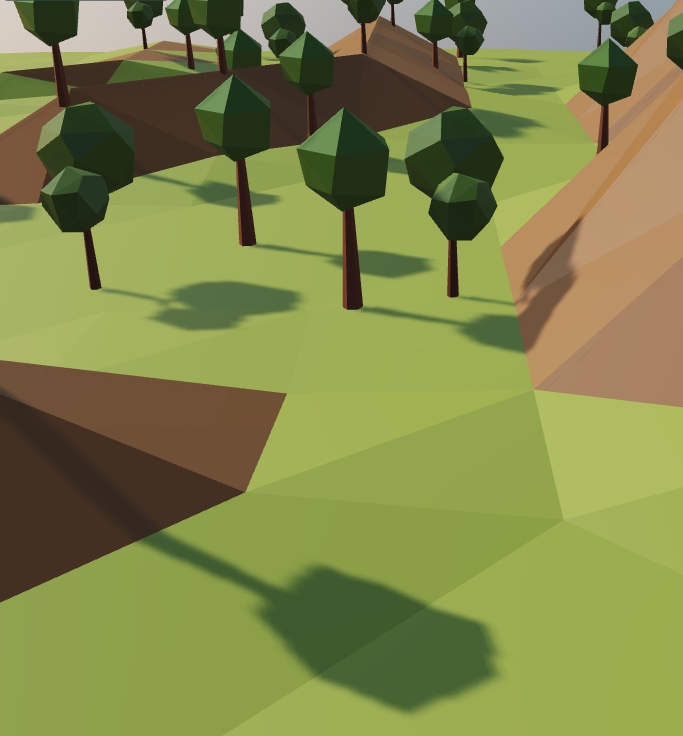
The distribution (light.cascadeDistribution) of subdivision of the camera frustum for individual shadow cascades. A value in the range of 0 to 1 can be specified. A value of 0 represents a linear distribution and a value of 1 represents a logarithmic distribution. Visually, a higher value distributes more shadow map resolution to foreground objects, while a lower value distributes it to more distant objects.
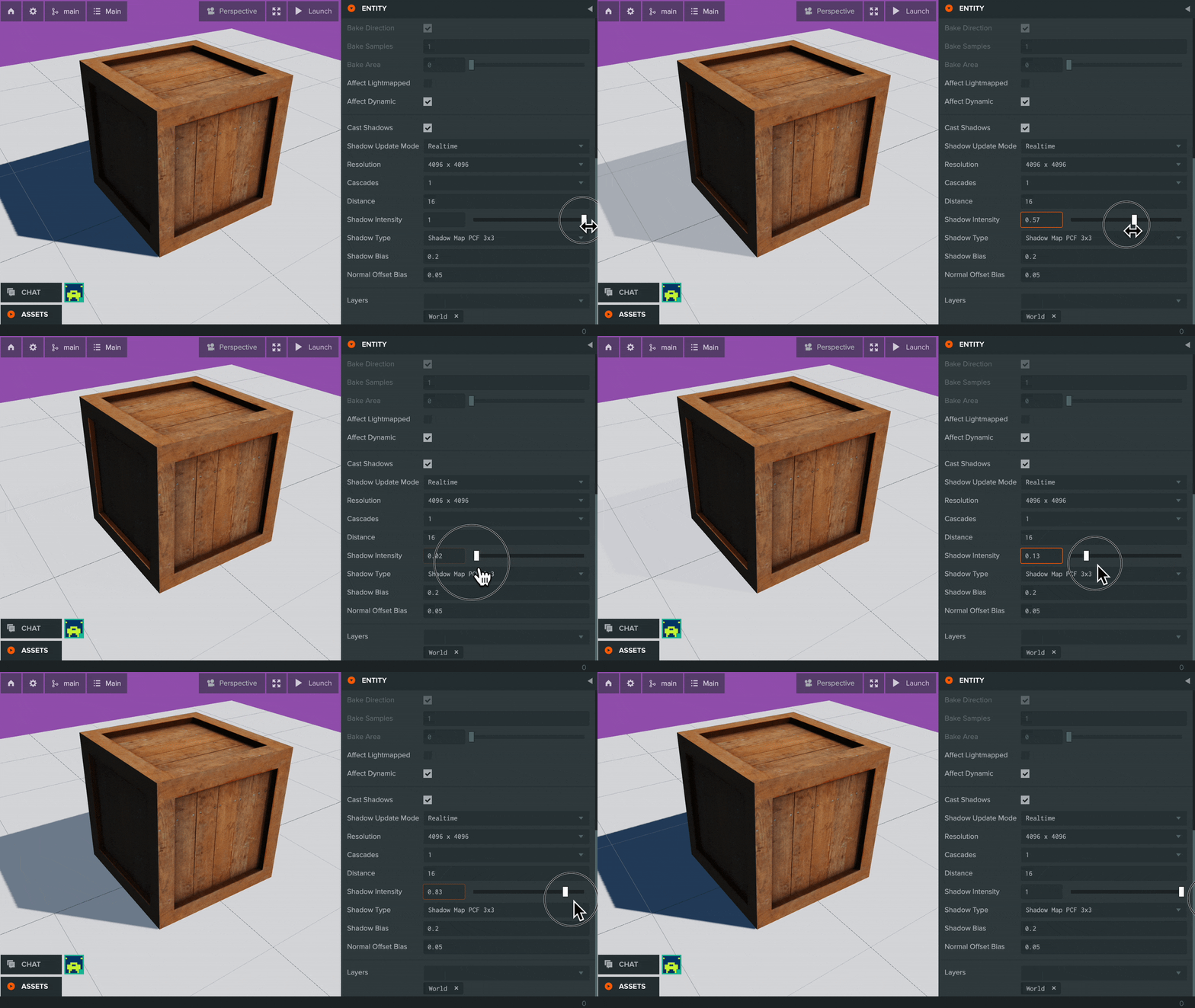
Shadow Intensity
The intensity of the shadow (light.shadowIntensity), where 1 represents full intensity shadow cast by this light, and 0 represents no shadow.
Fixing Shadow Artifacts
Shadow mapping can be prone to rendering artifacts that can look very ugly. The properties below can help you eliminate them.
Shadow Bias
If you notice bands of shadow or speckled patches where you do not expect, you should try tuning the shadow bias (light.shadowBias) to resolve the problem.
Normal Offset Bias
'Shadow acne' artifacts are a big problem and the shadow bias can eliminate them quite effectively. Unfortunately, this always introduces some level of 'Peter Panning', the phenomenon where shadows make an object appear to be floating in mid-air.
The Normal Offset Bias (light.normalOffsetBias) solves this problem. In addition to using the depth bias, we can avoid both shadow acne and Peter Panning by making small tweaks to the UV coordinates used in the shadow map look-up. A fragment's position is offset along its geometric normal. This "Normal Offset" technique yields vastly superior results to a constant shadow bias only approach.
Performance Considerations
Enabling shadows has performance implications:
- For each shadow casting directional or spot light, the scene must be rendered once into a shadow map every frame. Omni light shadows are far more expensive since the scene is rendered six times per light (the shadow map is stored as a 6-sided cube map). Rendering the scene into shadow maps places load on both the CPU and the GPU.
- Using a greater shadow map resolution will generate crisper shadows but the GPU must fill more shadow map pixels and therefore this may affect frame rate.
- The shadow type affects cost: larger PCF kernels, VSM blurring, and especially PCSS (which takes many samples per pixel) are more expensive on the GPU than a hard, single-sample shadow.
- For directional lights, each additional shadow cascade may require shadow casters to be rendered into more than one shadow map, increasing cost.
- If your shadows are from static parts of the environment consider using lightmaps to bake shadows into textures.