Migrating from Unity
If you have built projects in Unity, much of PlayCanvas will feel familiar. The PlayCanvas Editor has a hierarchy, an inspector, an assets panel and a 3D viewport. Scenes are trees of entities, entities are made of components, and behavior is written in scripts with lifecycle methods such as initialize and update.
This guide maps what you know from Unity to PlayCanvas: the Editor's panels and shortcuts, the names of common concepts, C# APIs and their JavaScript equivalents, and the places where PlayCanvas works differently. Each section links to the full documentation for its topic.
Key Differences
- Everything runs in the browser. The Editor is a web application, your project is stored online, and what you publish is a web app. There is no WebGL build to wait for: your app runs on the same engine as the Editor's viewport.
- Scripts are JavaScript. You write scripts as JavaScript modules instead of C# classes, and nothing is compiled: save a script and launch.
- Scripts share one component. In Unity, each MonoBehaviour is a component of its own. In PlayCanvas, an entity has one Script component, which holds all of its scripts.
- One component of each type per entity. An entity can have one camera, one light, one collision component and so on, and each script once. When you need two of something, such as two colliders, use child entities.
- The coordinate system is right-handed. Forward is -Z rather than +Z. See Coordinate System and Units.
- There is no Play Mode. Launch runs your scene in a separate browser tab that stays connected to the Editor.
- Collaboration and version control are built in. Several people can edit the same scene at the same time, and checkpoints, branches and merging are part of the Editor.
The Editor
The Editor's layout is much like Unity's default layout:
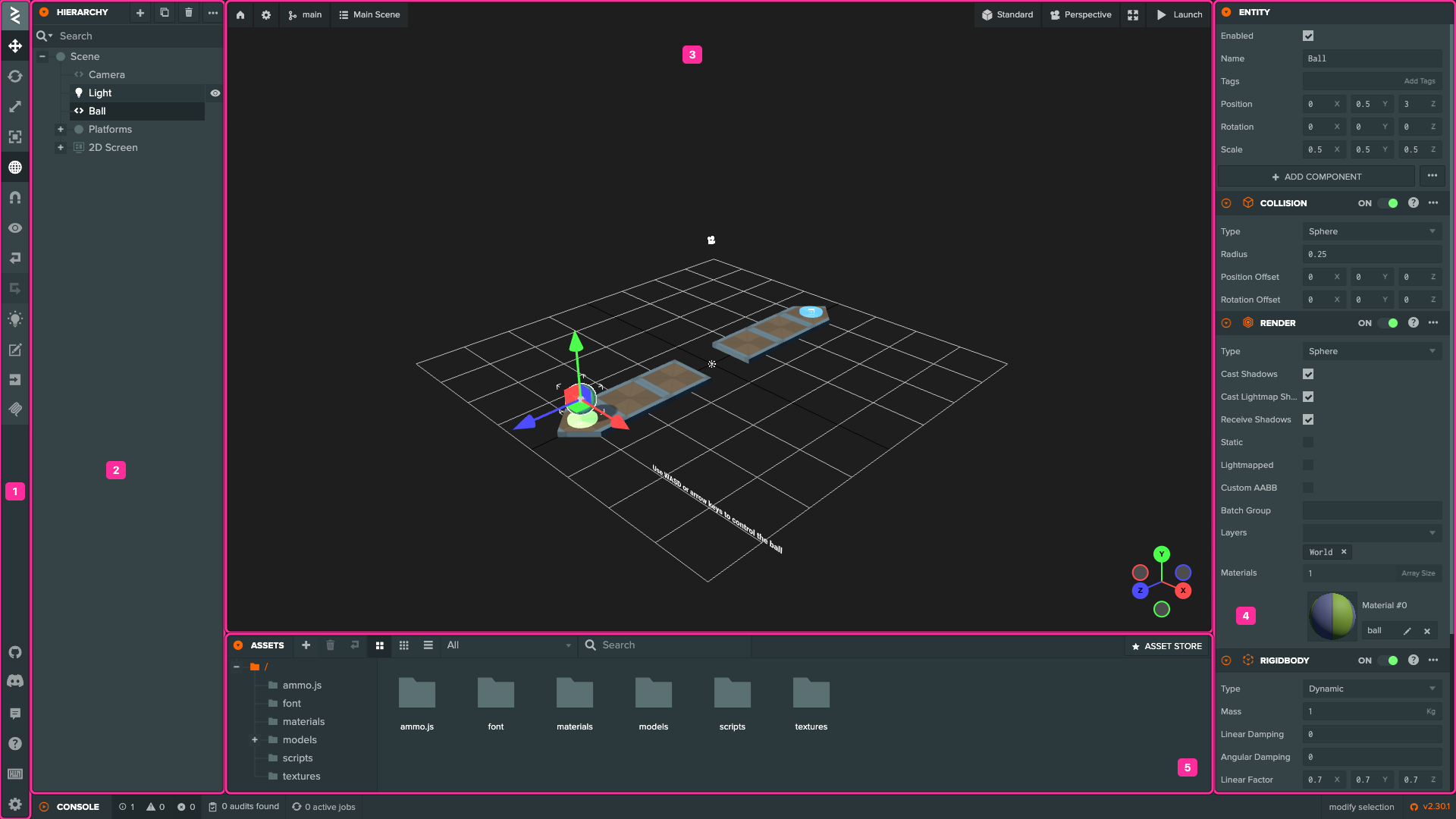
| PlayCanvas | Unity | |
|---|---|---|
| 1 | Toolbar | The main menu, the transform tools and the toolbar |
| 2 | Hierarchy | Hierarchy window |
| 3 | Viewport | Scene view |
| 4 | Inspector | Inspector window |
| 5 | Assets panel | Project window |
Other Unity windows and menus have these equivalents:
| Unity | PlayCanvas |
|---|---|
| Play button and Game view | The Launch button at the top right of the viewport |
| Console window | The browser's developer tools console in the launched tab. The Editor's own CONSOLE panel, at the bottom left, shows Editor messages such as script parse errors. |
| Project Settings and Lighting window | Settings, from the cog icon on the toolbar |
| Build Settings | Publish / Download on the toolbar |
| Animator window | The anim state graph editor, which opens when you select an anim state graph asset |
| Asset Store | ASSET STORE at the top right of the assets panel, with PlayCanvas Store and Sketchfab assets |
| Visual Studio or Rider | The built-in Code Editor, or VS Code with the VS Code extension |
| Unity Version Control or Git | Built-in version control |
Launching Instead of Play Mode
Unity plays your game inside the Editor. PlayCanvas opens it in a new browser tab, the Launch Page, which runs your scene just as it will run when published. Click Launch, or press Ctrl+Enter.
The Launch Page stays connected to the Editor. Changes to entities, components, script attributes, assets and scene settings show up in the running app as you make them, and unlike edits made in Play Mode, they are not thrown away when you stop: the Editor saves every change as you make it. Place the two tabs side by side to work this way. Code changes need a reload, unless the script supports hot reloading.
Scripts never run in the Editor's viewport, so there is nothing like Unity's [ExecuteInEditMode]: anything a script creates or changes appears only in the launched app.
The Launch button's menu has options for testing: choose the graphics API, open the Profiler, MiniStats or Inspector, and tick Debug to log the engine's warnings and errors to the console.
Navigating the Viewport
| Action | Unity | PlayCanvas |
|---|---|---|
| Orbit | Alt + left-drag | Left-drag |
| Look around | Right-drag | Right-drag |
| Pan | Middle-drag | Middle-drag, or Shift + left-drag |
| Zoom | Mouse wheel | Mouse wheel |
| Fly | Hold the right mouse button and press W, A, S, D, Q, E | Press W, A, S, D, Q, E, with no mouse button held (hold Shift to go faster) |
| Frame the selection | F | F |
| Rectangle selection | Left-drag over empty space | Ctrl + left-drag |
| Add to or remove from the selection | Shift+click or Ctrl+click | Ctrl+click |
Keyboard Shortcuts
| Action | Unity | PlayCanvas |
|---|---|---|
| Move tool | W | 1 |
| Rotate tool | E | 2 |
| Scale tool | R | 3 |
| Rect tool (UI elements) | T | 4 |
| Toggle local and world gizmo space | X | L |
| Frame the selection | F | F |
| Play | Ctrl+P | Ctrl+Enter (Launch) |
| Create an empty child | Alt+Shift+N | Ctrl+E |
| Duplicate | Ctrl+D | Ctrl+D |
| Rename | F2 | F2 |
| Delete | Delete | Delete |
| Undo / redo | Ctrl+Z / Ctrl+Y | Ctrl+Z / Ctrl+Y |
| Save | Ctrl+S | Not needed, because every change is saved. Ctrl+S opens the form for creating a version control checkpoint. |
| Maximize the view | Shift+Space | Space (hides the Hierarchy, Inspector and Assets panels) |
| Front, right and top views | Click the arms of the Scene Gizmo | Numpad 1, 3 and 7 (add Ctrl for the opposite side), or click the axes of the view cube |
| Toggle orthographic and perspective | Click the center of the Scene Gizmo | Numpad 5 |
On macOS, use Cmd in place of Ctrl. Unity's View tool (Q) has no equivalent, because navigating the viewport never needs a tool. The full list is on the Controls & Keyboard Shortcuts page.
Concepts and Terminology
| Unity | PlayCanvas | Notes |
|---|---|---|
| GameObject | Entity | |
| Component | Component | Components are properties of the entity: entity.camera, entity.light. |
| Transform | Part of every entity | Entities have a position, rotation and scale of their own. See Hierarchy & Transforms. |
| MonoBehaviour | Script | Attached through an entity's Script component. |
| Prefab | Template | See Prefabs and Templates. |
| Scene | Scene | |
| Tag | Tags | An entity can have any number of tags. |
| Layer | Layers | Rendering only. Physics uses collision groups and masks. |
| Mesh Filter and Mesh Renderer | Render component | Skinned meshes use the Render component too. |
| Material | Material | |
| Camera | Camera component | |
| Light | Light component | A point light is called an omni light. |
| Rigidbody | Rigid Body component | |
| Collider | Collision component | Without a rigid body, a collision component is a trigger. See Physics. |
| Audio Source | Sound component | One component plays any number of sounds, called slots. |
| Audio Listener | Audio Listener component | |
| Particle System | Particle System component | |
| Animator and Animator Controller | Anim component and anim state graph asset | |
| Canvas | Screen component | |
| RectTransform, Image and Text | Element component | |
| Sprite Renderer | Sprite component | |
| ScriptableObject | JSON asset | Or a JavaScript module that exports the data. |
Resources and Addressables | The asset registry | See Assets. |
Coordinate System and Units
Both engines use Y as up, measure distances in meters and take angles in degrees. The difference is handedness: Unity's coordinate system is left-handed with +Z forward, while PlayCanvas's is right-handed with -Z forward. Cameras look down their negative Z axis, entity.forward returns the negative Z axis, and lookAt points the negative Z axis at its target.

This has a few consequences when you port code and content:
- Moving forward means moving along -Z.
transform.Translate(0, 0, speed * Time.deltaTime)becomesthis.entity.translateLocal(0, 0, -this.speed * dt). - Positive rotations turn the other way. A positive rotation about Y turns an entity to its left (counter-clockwise seen from above), and a positive rotation about X tilts it up. In Unity they turn right and down, so a camera that looks down at the scene has a negative X rotation in PlayCanvas.
- Euler angles are applied in a different order. PlayCanvas applies the X rotation first, then Y, then Z, while Unity applies Z, then X, then Y. Together with the flipped axis, this means rotations you read off Unity's Inspector don't carry over. Bring layouts across in exported files instead, which convert them. See Bringing Your Content Over.
- Lights shine down -Y. Directional and spot lights point along their local negative Y axis, so an unrotated light shines straight down. In Unity they shine along +Z.
- Models usually face +Z. glTF defines +Z as the front of a model, and models exported from Unity keep facing +Z, which is backward in PlayCanvas. If a script moves a character along
entity.forward, put the model inside a parent entity and rotate it 180° about Y, so that the model faces the parent's forward direction. - The default field of view is narrower. Both engines measure the field of view vertically, but a new PlayCanvas camera starts at 45° rather than 60°.
Scripting
PlayCanvas scripts are JavaScript classes that extend Script. Each lives in a .mjs file in the assets panel, and you attach it to an entity by adding a Script component and choosing the script. See Scripting for the complete guide.
A Script Side by Side
Here is a Unity script that spins its GameObject and switches a light on and off with the space bar:
using UnityEngine;

public class Spinner : MonoBehaviour
{
    // Degrees per second
    [SerializeField] float speed = 90f;
    [SerializeField] Light lamp;

    void Start()
    {
        lamp.enabled = false;
    }

    void Update()
    {
        transform.Rotate(0f, speed * Time.deltaTime, 0f);

        if (Input.GetKeyDown(KeyCode.Space))
        {
            lamp.enabled = !lamp.enabled;
            Debug.Log($"Lamp on: {lamp.enabled}");
        }
    }
}
And here is the same script for PlayCanvas, in a file called spinner.mjs:
import { Entity, KEY_SPACE, Script } from 'playcanvas';

export class Spinner extends Script {
    static scriptName = 'spinner';

    /**
     * Degrees per second.
     *
     * @attribute
     */
    speed = 90;

    /**
     * @attribute
     * @type {Entity}
     */
    lamp;

    initialize() {
        this.lamp.light.enabled = false;
    }

    update(dt) {
        this.entity.rotateLocal(0, this.speed * dt, 0);

        if (this.app.keyboard.wasPressed(KEY_SPACE)) {
            this.lamp.light.enabled = !this.lamp.light.enabled;
            console.log(`Lamp on: ${this.lamp.light.enabled}`);
        }
    }
}
The differences to note:
scriptNamenames the script. The Editor lists the script under this name, and other scripts use it to reach the script:entity.script.spinner.@attributetakes the place of[SerializeField]. Class fields tagged with@attributein a JSDoc comment appear in the Inspector, and the comment's first sentence becomes the field's tooltip. See Inspector Fields.- Entity attributes reference entities, not components. An attribute of type
Entityholds the entity, so you reach its components through it, as inthis.lamp.light. this.entityis the GameObject and its transform.this.appis the application, which gives you input devices, the scene hierarchy (this.app.root), the asset registry and more.dtisTime.deltaTime. The engine passes the frame time, in seconds, toupdate.
Lifecycle Methods
| Unity | PlayCanvas | Notes |
|---|---|---|
Awake, Start | initialize() | Called once, the first time the script and its entity are both enabled. Don't use the class constructor for setup. |
Start that depends on another script's Awake | postInitialize() | Called after initialize has run on every script, so other scripts are ready. |
Update | update(dt) | |
LateUpdate | postUpdate(dt) | Called after update has run on every script. |
FixedUpdate | None | The physics engine steps at a fixed rate on its own. See Physics. |
OnEnable, OnDisable | enable and disable events | Subscribe with this.on('enable', ...). |
OnDestroy | destroy event | Subscribe with this.once('destroy', ...), and unsubscribe from other events there. |
OnValidate | An attribute setter | See Responding to Attribute Changes. |
OnCollisionEnter, OnTriggerEnter and so on | Collision component events | See Physics. |
See Script Lifecycle for the details.
Inspector Fields
Script attributes are PlayCanvas's serialized fields. The Editor reads them from your code, so after you add or change one, click Parse on the script asset or the Script component to update the Inspector.
| Unity | PlayCanvas |
|---|---|
[SerializeField] float speed = 5f; | /** @attribute */ speed = 5; |
[Tooltip("...")] | The first sentence of the attribute's JSDoc comment |
[Range(0, 10)] | @range [0, 10] |
[Min(0)] | @range [0] |
[HideInInspector], or no [SerializeField] | A field without @attribute |
GameObject or Transform field | @type {Entity} |
Texture2D, Material, AudioClip field | @type {Asset} with @resource texture, material or audio |
| Prefab field | @type {Asset} with @resource template |
Color, Vector3 field | color = new Color(), offset = new Vec3() |
AnimationCurve field | @type {Curve} |
Array or List<T> field | An array type, such as @type {Entity[]} |
enum field | An @enum object, or a union of literals such as @type {'low' | 'high'} |
[Serializable] class field | An @interface class or a @typedef |
Attribute values set in the Editor are applied before initialize runs. See the attributes reference for every tag.
Common API Equivalents
In these tables, entity stands for any entity, such as this.entity in a script, and imports such as Vec3 and KEY_W come from playcanvas.
Entities and Components
| Unity | PlayCanvas |
|---|---|
new GameObject("Box") | const box = new Entity('Box'); this.app.root.addChild(box); |
Instantiate(original) | const copy = original.clone(); this.app.root.addChild(copy); |
Instantiate(prefab) | const instance = templateAsset.resource.instantiate(); this.app.root.addChild(instance); |
Destroy(gameObject) | entity.destroy() |
gameObject.SetActive(false) | entity.enabled = false |
gameObject.activeInHierarchy | entity.enabled, which reads false when an ancestor is disabled |
GetComponent<Light>() | entity.light |
GetComponent<Spinner>() | entity.script.spinner |
GetComponentInChildren<Light>() | entity.findComponent('light') |
GetComponentsInChildren<Light>() | entity.findComponents('light') |
AddComponent<Light>() | entity.addComponent('light', { type: 'omni' }) |
Destroy(GetComponent<Light>()) | entity.removeComponent('light') |
GameObject.Find("Player") | this.app.root.findByName('Player') |
GameObject.FindGameObjectsWithTag("Enemy") | this.app.root.findByTag('enemy') |
transform.Find("Arm/Hand") | entity.findByPath('Arm/Hand') |
CompareTag("Enemy") | entity.tags.has('enemy') |
clone() copies an entity's components and children, but its scripts start again from the attribute values they were created with. Values that a script has changed while the app runs are not copied, whereas Unity's Instantiate copies the current values of serialized fields.
Transforms
| Unity | PlayCanvas |
|---|---|
transform.position | entity.getPosition(), entity.setPosition(x, y, z) |
transform.localPosition | entity.getLocalPosition(), entity.setLocalPosition(x, y, z) |
transform.rotation | entity.getRotation(), entity.setRotation(quat) |
transform.eulerAngles | entity.getEulerAngles(), entity.setEulerAngles(x, y, z) |
transform.localScale | entity.getLocalScale(), entity.setLocalScale(x, y, z) |
transform.Translate(x, y, z) | entity.translateLocal(x, y, z) (world space: translate) |
transform.Rotate(x, y, z) | entity.rotateLocal(x, y, z) (world space: rotate) |
transform.LookAt(target) | entity.lookAt(target.getPosition()) |
transform.forward, right, up | entity.forward, entity.right, entity.up (forward is -Z) |
transform.parent | entity.parent |
transform.SetParent(parent) | entity.reparent(parent), which keeps the local transform, so the entity moves with its new parent |
transform.GetChild(i), childCount | entity.children[i], entity.children.length |
Time, Math and Debugging
| Unity | PlayCanvas |
|---|---|
Time.deltaTime | The dt argument of update |
Time.timeScale | this.app.timeScale |
Time.time | None. Add up dt in update. |
Vector3, Quaternion, Color | Vec3, Quat, Color |
Vector3.up, Vector3.forward | Vec3.UP, Vec3.FORWARD (which is (0, 0, -1)) |
Quaternion.Euler(x, y, z) | new Quat().setFromEulerAngles(x, y, z) |
rotation * vector | rotation.transformVector(vector, result) |
Vector3.Distance(a, b) | a.distance(b) |
Vector3.Lerp(a, b, t) | result.lerp(a, b, math.clamp(t, 0, 1)), because lerp doesn't clamp t |
Mathf.Clamp, Mathf.Lerp | math.clamp, math.lerp |
Mathf.Deg2Rad | math.DEG_TO_RAD |
Random.Range(min, max) with floats | math.random(min, max) |
Random.Range(min, max) with integers | Math.floor(math.random(min, max)), because math.random always returns a float |
Debug.Log, LogWarning, LogError | console.log, console.warn, console.error |
Debug.DrawLine(start, end, color) | this.app.drawLine(start, end, color) |
Input
| Unity | PlayCanvas |
|---|---|
Input.GetKey(KeyCode.W) | this.app.keyboard.isPressed(KEY_W) |
Input.GetKeyDown(KeyCode.W) | this.app.keyboard.wasPressed(KEY_W) |
Input.GetKeyUp(KeyCode.W) | this.app.keyboard.wasReleased(KEY_W) |
Input.GetMouseButton(0) | this.app.mouse.isPressed(MOUSEBUTTON_LEFT) |
Input.mousePosition | The x and y of mouse events, measured from the top-left of the canvas rather than the bottom-left |
Input.GetAxis("Mouse X") | The dx of a mousemove event |
Cursor.lockState = CursorLockMode.Locked | this.app.mouse.enablePointerLock() |
Input.touches | Touch events on this.app.touch |
Physics.Raycast | this.app.systems.rigidbody.raycastFirst(start, end) |
There are no input axes or action maps: read the devices directly, or map them to actions in a script of your own. Browsers only allow pointer lock in response to a click or key press.
Web Platform
| Unity | PlayCanvas |
|---|---|
PlayerPrefs | The browser's localStorage |
UnityWebRequest | fetch |
JsonUtility | JSON.parse and JSON.stringify |
Application.OpenURL | window.open |
Vectors Are Objects
Unity's Vector3 and Quaternion are structs, copied whenever you assign them. PlayCanvas's Vec3 and Quat are classes, so assignment shares one object, and JavaScript has no operator overloading. Three habits follow:
- Treat returned vectors as read-only. Getters such as
entity.getPosition()return a vector that the entity owns and reuses: its value changes when the entity moves, and writing to it does not update the entity properly. Callclone()to keep a value, and use setters such assetPosition()to change one. - Use methods instead of operators. Methods such as
add,subandmulScalarchange the vector they are called on and return it.add2(a, b)and similar methods write a result into the vector they are called on. - Avoid allocating in
update. Creating vectors every frame gives the garbage collector work that can cause stutters. Create them once and reuse them.
import { Script, Vec3 } from 'playcanvas';

export class Mover extends Script {
    static scriptName = 'mover';

    /** @attribute */
    speed = 5;

    // Created once, and reused every frame
    step = new Vec3();

    update(dt) {
        // Unity: transform.position += transform.forward * speed * Time.deltaTime;
        this.step.copy(this.entity.forward).mulScalar(this.speed * dt);
        this.entity.translate(this.step);
    }
}
Events and Messages
C# events, UnityEvent and SendMessage all map to PlayCanvas events. The application, entities and scripts can fire events and listen for them:
// Anywhere: fire an event on the application
this.app.fire('player:died', this.entity);

// In another script: listen for it, and stop listening when the script is destroyed
initialize() {
    this.app.on('player:died', this.onPlayerDied, this);
    this.once('destroy', () => {
        this.app.off('player:died', this.onPlayerDied, this);
    });
}
Always remove listeners you add to other objects when your script is destroyed. Otherwise they keep running, and keep the script in memory.
Coroutines and Timers
PlayCanvas has no coroutines or Invoke. For gameplay timers, count down in update: the timer then honors app.timeScale, pauses while the script is disabled and stops when the entity is destroyed.
// Unity: Invoke(nameof(Spawn), 2f);
initialize() {
    this.spawnTimer = 2;
}

update(dt) {
    if (this.spawnTimer > 0) {
        this.spawnTimer -= dt;
        if (this.spawnTimer <= 0) {
            this.spawn();
        }
    }
}
The browser's setTimeout, setInterval and async functions with await are useful for loading and other work that is not tied to game time, but they run in real time and keep running after the script is destroyed, so cancel them in a destroy handler.
Execution Order
Scripts on the same entity run in the order they are listed in its Script component, which you can change by dragging. Instead of depending on the order between entities, as Unity's Script Execution Order settings allow, use postInitialize and postUpdate, or events.
Sharing Code and Using Packages
Scripts are ES modules, so they share code through import and export. A module's top-level variables are shared by every script that imports it, which makes modules the place for what you would write as static classes and singletons in C#. They also survive scene changes.
To use a package from npm in the Editor, map its name to a CDN URL with an import map. Projects built without the Editor install packages from npm like any other web project.
Prefabs and Templates
Templates are PlayCanvas's prefabs. They work much the same way:
| Unity | PlayCanvas |
|---|---|
| Drag a GameObject into the Project window | Right-click an entity in the Hierarchy and select Template > New Template |
| Prefab instance | Template instance, marked by its icon in the Hierarchy |
| Overrides | Overrides, shown in the Inspector, with a View Diff button |
| Overrides > Apply All / Revert All | Apply All / Revert All in the Inspector of the instance's root |
| Nested prefabs | Nested templates |
| Prefab Mode | Edit any instance in a scene, then apply its overrides |
| Unpack Prefab | Template > Unlink From Template |
Instantiate(prefab) | templateAsset.resource.instantiate() |
There are no prefab variants: a template instance with overrides is the closest equivalent. Importing a model creates a template of its hierarchy, much as Unity creates a model prefab.
You cannot undo applying overrides to a template asset. To instantiate a template at runtime, its asset must be loaded: reference it from a script attribute with @resource template and either mark it to preload or load it first.
Scenes
| Unity | PlayCanvas |
|---|---|
SceneManager.LoadScene("Level 2") | this.app.scenes.changeScene('Level 2') |
LoadSceneMode.Additive | this.app.scenes.loadSceneHierarchy('Level 2', callback) |
| Unloading an additive scene | Destroy the root entity that loadSceneHierarchy passed to its callback |
DontDestroyOnLoad | None. See below. |
| Lighting settings saved with each scene | Scene settings, applied by changeScene or loadSceneSettings |
changeScene destroys every entity under the application root, including entities that your scripts created, before it adds the new scene. To keep entities alive from one level to the next, don't change scenes: load each level additively and destroy the previous level's root entity. Data that only scripts need can live in modules, which changing scenes doesn't affect. See Loading Scenes.
The Editor opens one scene at a time, so there is no equivalent of Unity's multi-scene editing. Loading scenes additively is something your app does when it runs.
Assets
The assets panel stores files much like the Project window, but projects live on PlayCanvas's servers rather than in a folder on your disk, so there are no .meta files. Each asset has an ID and an Inspector of its own for its import settings.
| Unity | PlayCanvas |
|---|---|
Resources.Load<Texture2D>("logo") | this.app.assets.find('logo', 'texture'), then load it |
| Addressables and AssetBundles | Assets that do not preload, loaded when you need them, found by name or tag |
| ScriptableObject | A JSON asset, whose resource is the parsed object |
| Texture import settings | The texture inspector, including texture compression |
| Model import settings | Asset Import settings |
Assets marked Preload are downloaded before the application starts. New assets preload unless you turn off Assets default to preload in the Asset Import settings, so clear the option on large assets that only some scenes need.
Rendering
PlayCanvas has one renderer, so there is no render pipeline to choose. It renders with WebGPU or WebGL 2, and its clustered lighting keeps scenes with many omni and spot lights fast.
Materials and Shaders
The PlayCanvas material is a physically based material like Unity's Standard shader and URP's Lit shader, with metalness and specular workflows:
| Unity | PlayCanvas |
|---|---|
| Albedo or Base Map | Diffuse |
| Metallic | Metalness |
| Smoothness | Glossiness (higher is smoother in both) |
| Normal Map | Normal |
| Occlusion | Ambient Occlusion |
| Emission | Emissive |
| Rendering Mode: Cutout | Alpha Test |
| Rendering Mode: Transparent or Fade | Blend Type, with Opacity |
| Tiling and Offset | Tiling and Offset, for all maps or for each map |
| Shader Graph and custom shaders | Shaders written in GLSL and WGSL |
Unity's Metallic map holds metalness in its red channel and smoothness in its alpha channel. In PlayCanvas, assign the same texture to the Metalness map with channel R and to the Glossiness map with channel A. Check that the glossiness Invert option is off, because it makes the map act as a roughness map.
Lighting
| Unity | PlayCanvas |
|---|---|
| Directional light | Directional light |
| Point light | Omni light |
| Spot light | Spot light. Its Inner and Outer Cone Angles are measured from the light's axis, so they are half of Unity's Spot Angle. |
| Area light | A light with a Rectangle, Disk or Sphere Shape, once Area Lights Enabled is on in Rendering Settings |
| Lighting window environment settings, and fog | Rendering Settings: skybox, ambient color, exposure and fog |
| Reflection probes | The skybox, which lights every material, and per-material cubemaps with box projection |
| Light probes | None. Use lightmaps and environment lighting. |
| Progressive Lightmapper | The lightmapper, run from Bake on the toolbar, or in the running app |
See Lighting.
Cameras and Layers
| Unity | PlayCanvas |
|---|---|
| Culling Mask | Layers |
| Depth, or URP camera stacking | Priority (lower values render first) |
| Clear Flags | Clear Color Buffer and Clear Depth Buffer |
| Viewport Rect | Viewport |
| Target Texture | renderTarget, set from a script |
| Orthographic Size | Ortho Height |
A Unity GameObject sits on exactly one layer, and layers drive rendering, physics and ray casts alike. PlayCanvas layers are for rendering only. They decide which cameras draw a mesh and in what order: each camera renders the layers in its list, in the order set in Settings > Layers, and components that draw meshes can be on more than one layer. Physics filters with collision groups and masks instead. See Multiple Cameras.
Post-Processing
Unity's post-processing volumes correspond to CameraFrame, which adds bloom, ambient occlusion, depth of field, anti-aliasing, color grading, vignette and more to a camera. In the Editor, add the CameraFrame script to your camera entity. Like any script, it only runs in the launched app, so the effects don't appear in the viewport. Without it, tone mapping and gamma are properties of the Camera component.
Performance Features
| Unity | PlayCanvas |
|---|---|
| Static and dynamic batching | Batch groups |
| GPU instancing | Hardware instancing |
| Occlusion culling | None. Cameras cull meshes outside their view. |
| LOD Group | None for meshes |
| Profiler | See Debugging and Profiling |
Physics
PlayCanvas physics runs on ammo.js, a WebAssembly build of the Bullet physics engine. It is opt-in: to add it to a project, open Settings, expand PHYSICS and click IMPORT AMMO. Gravity is set in the same section, for each scene. See Physics.
| Unity | PlayCanvas |
|---|---|
| Rigidbody | Rigid Body component of type Dynamic |
| Rigidbody with Is Kinematic | Rigid Body of type Kinematic |
| Collider without a Rigidbody | Collision component and a Rigid Body of type Static |
| Collider with Is Trigger | Collision component without a Rigid Body |
AddForce(force) | entity.rigidbody.applyForce(force) |
AddForce(force, ForceMode.Impulse) | entity.rigidbody.applyImpulse(force) |
AddTorque | applyTorque, applyTorqueImpulse |
velocity (linearVelocity in Unity 6) | linearVelocity |
| Setting a dynamic body's position | entity.rigidbody.teleport(position) |
MovePosition on a kinematic body | Set the entity's position: kinematic bodies follow their entity |
| Constraints (freeze position or rotation) | Linear Factor and Angular Factor |
| Physic Material | Friction and Restitution on the Rigid Body |
OnCollisionEnter, OnCollisionStay, OnCollisionExit | collisionstart, contact and collisionend events on the collision component |
OnTriggerEnter, OnTriggerExit | triggerenter and triggerleave events, on the trigger's collision component and on the rigid body that enters it |
| Layer collision matrix | Collision groups and masks, set from a script |
Physics.Raycast | raycastFirst and raycastAll |
| Character Controller | None. Drive a dynamic rigid body from a script. |
These differences catch out most Unity developers:
- Static colliders need a rigid body. A collision component on its own is a trigger volume, which detects bodies but does not stop them. Give floors and walls a Rigid Body component of type Static.
- Primitive collision shapes ignore scale. A box, sphere or capsule shape keeps its Half Extents or Radius however you scale its entity. Mesh shapes are the exception. See Scale.
- There is no
FixedUpdate. The simulation steps at a fixed rate of 60 times a second, and you apply forces fromupdate. Collision events fire once per physics step. - Physics owns dynamic bodies. After each step the engine writes the position and rotation of every dynamic body to its entity, so move dynamic bodies with forces, velocities or
teleport, rather than by setting the entity's transform.
User Interface
PlayCanvas's in-canvas UI works much like Unity's UI (uGUI). See User Interface.
| Unity | PlayCanvas |
|---|---|
| Canvas in Screen Space - Overlay | Screen component with Screen Space enabled |
| Canvas in World Space | Screen component with Screen Space disabled |
| Canvas Scaler: Scale With Screen Size | Scale Mode Blend, with a Ref Resolution and Scale Blend |
| RectTransform | Element component: anchor, pivot and margins |
| Image, Raw Image | Element of type Image, showing a texture or a sprite |
| Text, TextMeshPro | Element of type Text, with a font asset made from a TTF or OTF file |
| Button | Button component |
| Horizontal, Vertical and Grid Layout Group | Layout Group component |
| Layout Element | Layout Child component |
| Scroll Rect, Scrollbar | Scroll View and Scrollbar components |
| Mask, Rect Mask 2D | An element with Mask enabled. See Masks. |
| EventSystem and Graphic Raycaster | Enable Use Input on the elements that should receive input |
| Toggle, Slider, Dropdown | Built from elements. See Common Widgets. |
| UI Toolkit | HTML and CSS |
Because your app runs in a web page, you can also build any part of the interface in HTML and CSS, laid over the canvas. Text input fields and accessible menus are easier to build that way.
Animation
| Unity | PlayCanvas |
|---|---|
| Animator component | Anim component |
| Animator Controller | Anim state graph asset, with states, transitions, parameters and layers |
| Animation Clip | Animation asset, created when you import a model |
animator.SetFloat("Speed", 2f) | entity.anim.setFloat('Speed', 2) |
SetBool, SetInteger, SetTrigger | setBoolean, setInteger, setTrigger |
| Avatar Mask | Layer mask |
| Blend Tree | Blend trees (1D, 2D and direct), in state graphs created from code. The Editor's state graph editor has none. |
| Root Motion | None. Move the entity from a script. |
| Animation Events | Anim events on the animation asset |
| Animator Override Controller | One anim state graph, with different animation assets assigned to its states on each entity |
PlayCanvas has no humanoid retargeting. An animation drives bones by name, so it plays on any model whose bones have the same names, but nothing adapts it to a skeleton with different proportions. Author or bake animations for the skeleton they play on.
Audio
| Unity | PlayCanvas |
|---|---|
| Audio Source | A slot on a Sound component |
audioSource.Play() | entity.sound.play('slot name') |
| Spatial Blend set to 3D | Positional on the Sound component |
| Min Distance and Max Distance | Ref Distance and Max Distance |
| Volume Rolloff | Distance Model, which defaults to Linear where Unity defaults to Logarithmic |
| Audio Listener | Audio Listener component |
| Audio Mixer | None. Use the Web Audio API. |
Browsers do not play sound until the user has interacted with the page, for example by clicking or pressing a key, so start music and other sounds after the first click.
Bringing Your Content Over
There is no automatic converter from Unity projects. Assets come across through standard file formats, and code is rewritten.
- Models and animations. Export them as GLB files with a glTF exporter such as UnityGLTF or Unity's glTFast package, or as FBX with Unity's FBX Exporter package. The Editor imports the binary
.glbform of glTF, not.gltf. Drag the files into the assets panel: FBX files are converted to GLB, and each model produces render, material, texture and animation assets, plus a template of its hierarchy. See Importing 3D Models. - Materials. Unity shaders do not carry over. glTF exporters convert Standard and URP Lit materials to glTF's PBR materials, which import as PlayCanvas materials. FBX files carry less, so expect to set up FBX materials again.
- Textures, audio and fonts. Upload the source files. See Supported Formats.
- Scenes and prefabs. Export the static geometry of a scene as a single GLB to keep its layout, then add lights, cameras, physics, UI and scripts in the Editor.
- Terrain. Convert terrain to a mesh before you export it.
- Scripts and shaders. Rewrite them in JavaScript and in GLSL or WGSL. AI coding assistants are good at translating MonoBehaviours. To let one work on your Editor project's scripts, sync them with the VS Code extension, and connect it to the Editor with the MCP Server to let it edit scenes too.
- Lightmaps. Bake them again with the PlayCanvas lightmapper, or bake them in a 3D modeling tool and import them with the model.
Publishing
Unity builds a player for each platform. PlayCanvas publishes a web app, made of HTML, JavaScript and your assets:
- Publish hosts the build on PlayCanvas and gives it a URL to share. See PlayCanvas Hosting.
- Download creates a ZIP file to host yourself.
- For app stores, wrap the web app for mobile or desktop, or publish it as a playable ad.
Debugging and Profiling
Your app runs in the browser, so you debug it with the browser's developer tools (F12, or Cmd+Option+I on macOS) in the launched tab.
| Unity | PlayCanvas |
|---|---|
| Console window | The Console tab of the developer tools. See Console Logging. |
| Attaching Visual Studio or Rider | Breakpoints in the Sources tab of the developer tools. See Browser Dev Tools. |
Debug.Break() | A debugger; statement, which pauses the app while the developer tools are open |
| Profiler | The Profiler and MiniStats, from the Launch button's menu, and the Performance tab of the developer tools |
| Frame Debugger | The Inspector, also from the Launch button's menu, which shows the render passes and draw calls of each frame, and native GPU profilers |
Debug.DrawLine and Gizmos | this.app.drawLine(), and WireRenderer for spheres, boxes and other shapes |
Version Control and Collaboration
A Unity project is a folder that you put under version control. A PlayCanvas project is shared online: when teammates open a scene, they edit it together in real time and see each other's changes as they happen. History is kept with the Editor's version control: create checkpoints as you would commits, work on branches, and merge them with conflict resolution.
Features Without a Built-in Equivalent
| Unity | Alternative in PlayCanvas |
|---|---|
| Terrain | Import terrain as meshes |
| NavMesh and AI Navigation | A library such as recast-navigation-js, which supports PlayCanvas |
| Character Controller | A dynamic rigid body driven by a script, or the engine's first-person and third-person controller scripts |
| 2D physics | 3D physics with the third axis locked by Linear Factor and Angular Factor |
| Timeline and Cinemachine | Scripts, with curve attributes for animated values |
| VFX Graph | The Particle System component |
| Light probes and realtime global illumination | Lightmaps and environment lighting |
| Tweening packages, such as DOTween | A JavaScript tweening library, imported from a CDN |