Ownership and Transfers
Project ownership determines who has ultimate control over a PlayCanvas project, including the ability to delete it, transfer ownership and control access. This section covers transferring ownership between users and organizations.
Owner Responsibilities
Project owners have the following abilities (over and above what Admins are able to do):
- Project Deletion: Can permanently delete the project
- Team Management: Can add/remove any team member (including Admins)
- Transfer Rights: Can transfer ownership to others
Initiating Ownership Transfers
From the Project Dashboard
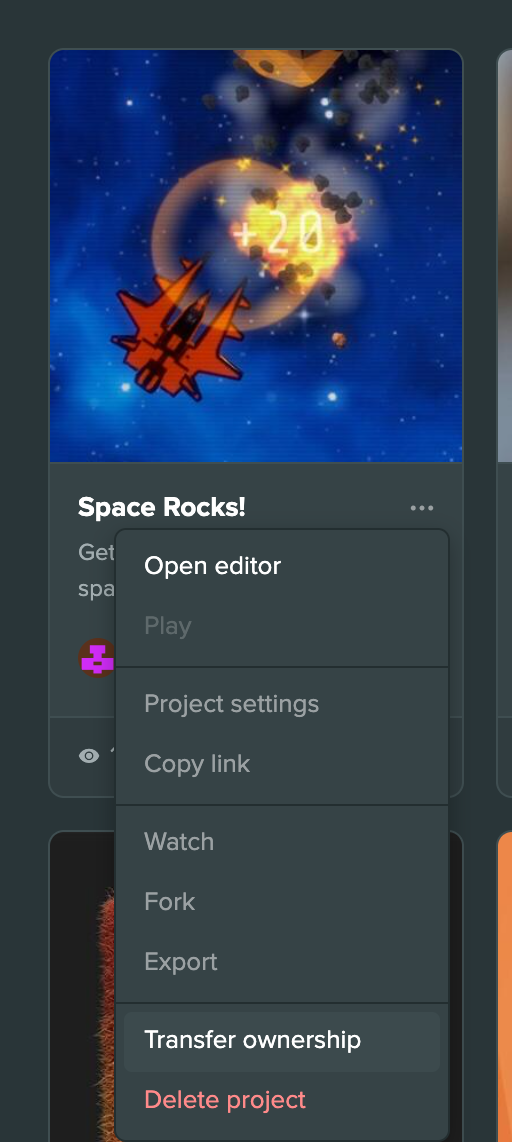
To transfer ownership of a project:
- Open the Project Dashboard at playcanvas.com/editor
- Find the project you want to transfer
- Open the project's ⋮ menu
- Select Transfer ownership
Transfer Dialog
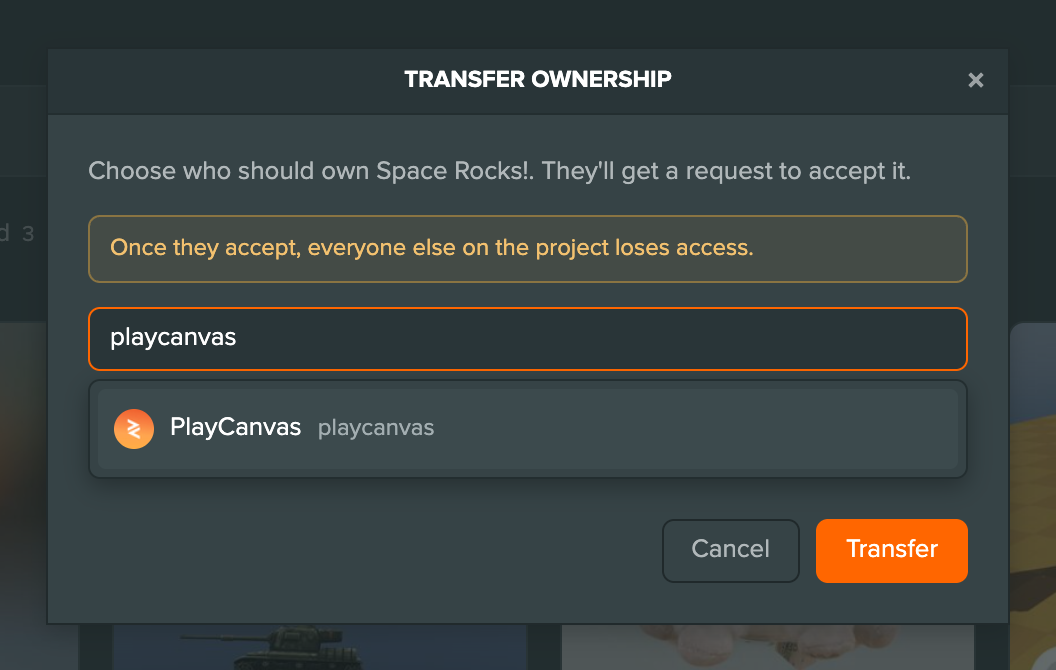
The dialog asks you to choose who should own the project, and explains that they'll get a request to accept it. It also warns: "Once they accept, everyone else on the project loses access."
- Enter the recipient's username or organization name. The recipient is looked up as you type
- Check that the match shown under the field is the right account
- Select Transfer to send the transfer request
Supported Recipients
You can transfer ownership to:
- Individual Users: Any PlayCanvas user account
- Organizations: PlayCanvas organization accounts
The Transfer Process
1. Transfer Request
When you initiate a transfer:
- A transfer request is sent to the recipient
- The original owner retains control until accepted
- The request appears in the recipient's Project Dashboard
- Your card for the project shows Transfer pending and "Sent to <user>" with a Cancel transfer button to withdraw the request
- No changes occur until the transfer is accepted
2. Recipient Acceptance
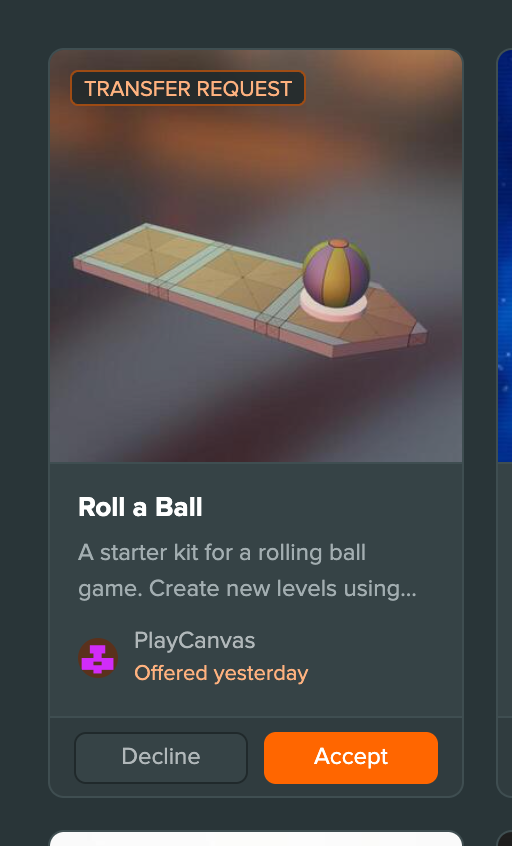
The recipient will see:
- The project's card at the top of their Project Dashboard, marked Transfer request
- When it was offered ("Offered yesterday") under the owner's name. In list view the row reads "<owner> wants to give you this project"
- Accept and Decline buttons on the card
3. Transfer Completion
Once accepted:
- Ownership transfers immediately to the new owner
- All team members are removed except the new owner
- Original owner loses all access unless re-added by new owner
- Transfer cannot be reversed without initiating a new transfer
Transfer completion removes all existing team members from the project. The new owner must manually re-add team members if needed.