Creating Projects
You can create Editor projects in two ways:
- Create a project based on a number of predefined starter kits.
- Fork an existing project, using it as a starting point.
Both are done from the Project Dashboard.
Create a Project from the Project Dashboard
-
Open the Project Dashboard at playcanvas.com/editor.
-
Select New project in the sidebar.
-
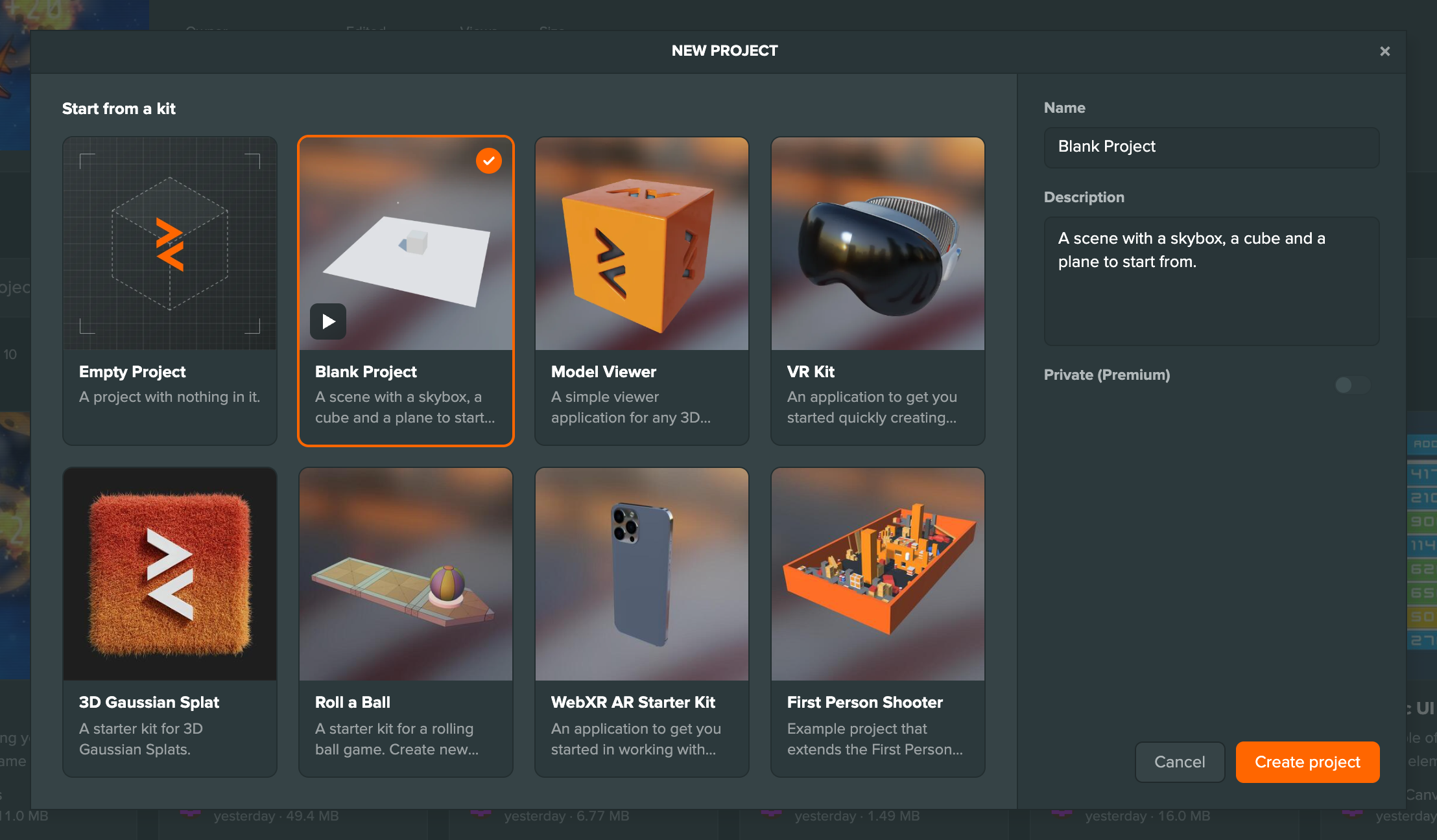
Pick a starter kit.
-
Set the name, description and owner, and choose whether the project is Private.
-
Select Create project.
When the project is ready, the dialog says "Your new project is ready. It opens in a new tab." Select Open project to open it in its own tab, or Not now to stay on the dashboard.
Starter Kits
Every project starts from a starter kit:
- Empty Project: A project with nothing in it
- Blank Project (the default): A scene with a skybox, a cube and a plane to start from
- Model Viewer: A simple starter kit for viewing 3D models
- VR Kit: A starter kit showing how to enter and exit a WebXR-based VR session
- 3D Gaussian Splat: A starter kit for 3D Gaussian Splats
- Roll a Ball: A simple physics-based 3D game
- WebXR AR Starter Kit: A starter kit showing how to initiate a WebXR-based AR session
- First Person Shooter: The basis for an FPS-type game or experience
You can only create private projects with a Personal or Organization plan.
Fork an Existing Project
Forking allows you to create a new project based on an existing public project (or a private project of which you are a team member). This is useful for:
- Using another project as a starting point for your own work
- Creating backups of your own projects
- Learning from example projects created by other developers
- Experimenting with modifications without affecting the original
How to Fork a Project
To fork a project from the Project Dashboard:
-
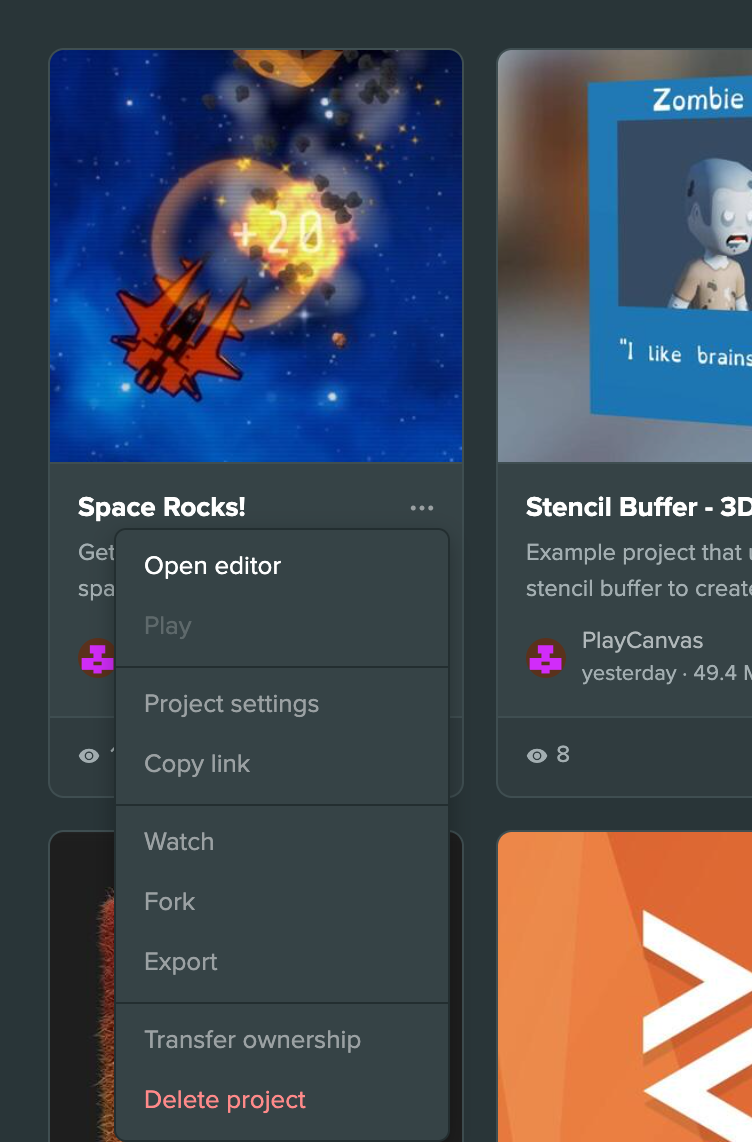
Select the ⋮ button on the project's card or row, then Fork.
-
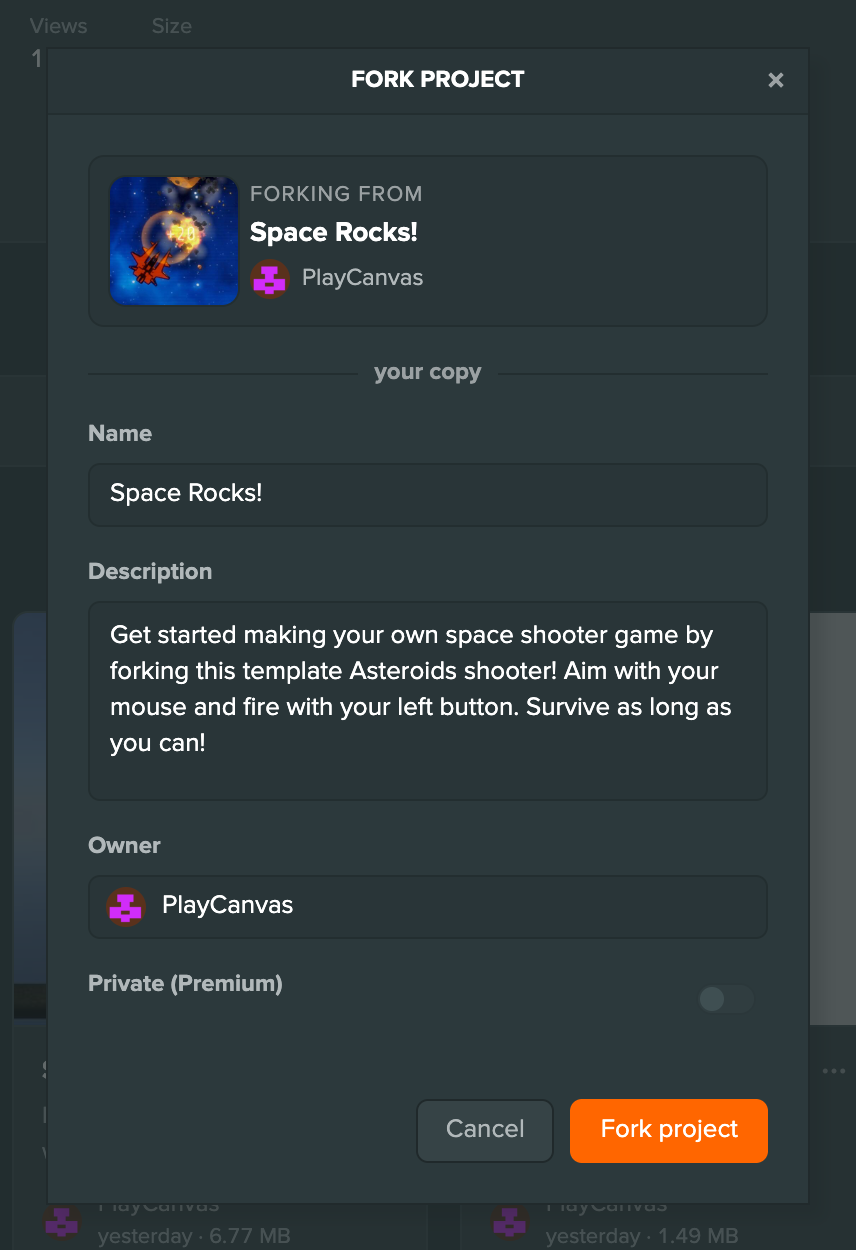
The fork dialog shows the project you are forking from, with its name and description filled in. Change them, and the owner, as needed.
-
Select Fork project.
The dialog explains why instead of showing the form when a project can't be forked: it uses legacy scripts, its owner keeps its source assets private and you can't edit it, or it is private and the new owner has no paid plan.
What Gets Forked
When you fork a project, the entire main branch is copied to your new project:
- All scenes and their settings
- All assets (textures, models, scripts, etc.)
- Project settings
What Doesn't Get Forked
Forking has some limitations:
- Version control history is not preserved
- Only the main branch is copied (other branches are ignored)
- Team members are not copied (you become the sole owner)
- Development logs and project activity are not copied
After Forking
Once your fork is created:
- You have full ownership and control over the new project
- You can modify, delete, or further develop the project as needed
- The fork is completely independent from the original project
- You can add your own team members and configure project settings
Forked projects appear in your project list just like any other project you've created.
A fork's Project settings on the Project Dashboard show a Forked From link to the project it was forked from.