Backup and Export
Protecting your PlayCanvas projects with regular backups is essential for safeguarding against accidental deletion, malicious actions, or data loss. This section covers all the methods available for backing up and restoring your projects.
Why Backup Your Projects?
Regular backups protect against:
- Accidental deletion of assets or scenes
- Malicious team member actions
- Account security issues
- Data corruption or technical problems
- Development mistakes that break your project
Backup Methods
1. Forking
The simplest way to create a backup is to fork your own project. Forking is covered comprehensively earlier in this section.
2. Exporting (from the Project Dashboard)
Export files provide complete project backups that can be stored offline and imported later.
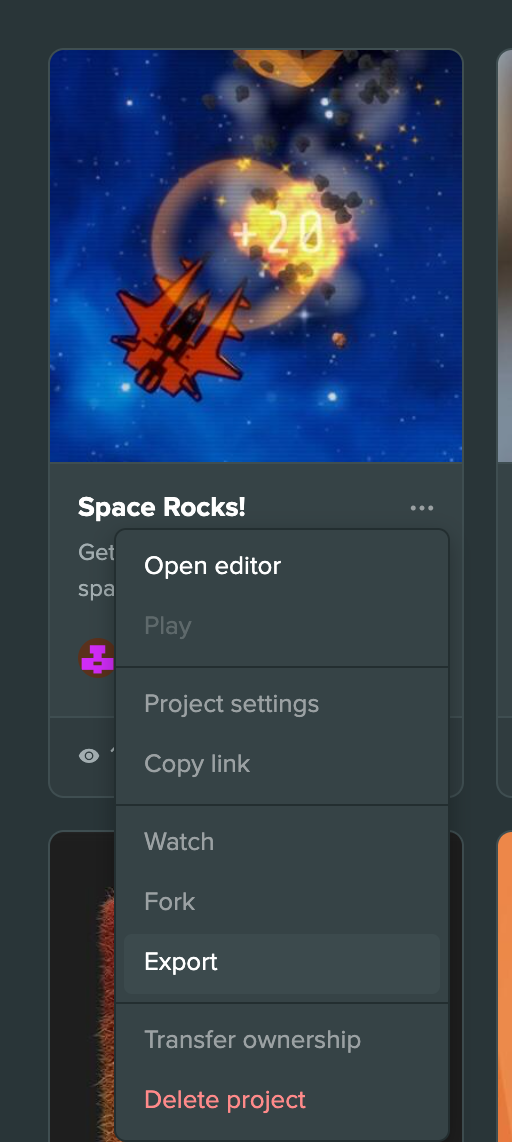
To export a project:
- Open the Project Dashboard at playcanvas.com/editor
- Open the project's ⋮ menu
- Select Export
- Wait while the dashboard shows Exporting <project name>... and builds the export
- The zip file downloads in a new tab when it is ready
Exported projects do not include:
- Version control history
- Any branches other than
main - The project's Dev Log
3. Exporting (via REST API)
For automated and advanced backup scenarios, use the PlayCanvas REST API.
API Advantages
- Automated Backups: Set up scheduled backup scripts
- Branch Selection: Choose which branch to export
- CI Integration: Include in continuous integration workflows
- Bulk Operations: Backup multiple projects programmatically
Using the API
The Project Export API allows you to:
# Export a project via REST API
curl -H "Authorization: Bearer {accessToken}" \
     -H "Content-Type: application/json" \
     -X POST \
     -d '{"branch_id": "99999999-9999-9999-9999-999999999999"}' \
     "https://playcanvas.com/api/projects/{projectId}/export"
Automation Tools
PlayCanvas provides an open-source Node.js tool to simplify automated backups:
- Command-line interface for easy scripting
- Support for multiple projects
- Configurable backup schedules
- Integration with cloud storage services
Restoring Projects
From Export Files
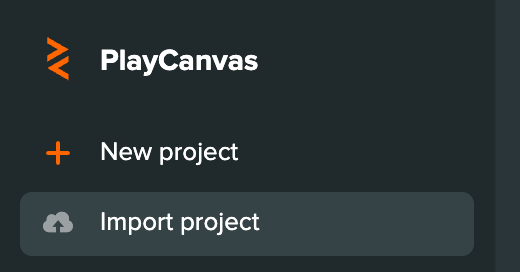
To restore a project from an export:
- Open the Project Dashboard
- Select Import project in the sidebar
- Choose your export
.zipfile - Wait while the file uploads and the project is imported
- When the import is done, select Open project. If anything in the project had to be adjusted on import, such as materials, the dialog lists it
Restore Considerations
- Creates a completely new project
- Original project remains unchanged
- All team members must be re-added
- Project settings may need reconfiguration
- Version control history is not restored
From Forks
Since forks are independent projects, "restoring" from a fork involves:
- Accessing your forked backup project
- Manually copying changed assets back to the original
- Or using the forked project as your new main project
- Updating team access and settings as needed
Backup Strategies
Regular Backup Schedule
Establish a consistent backup routine:
📅 Daily Backups (for active development):
- Fork projects before major changes
- Create exports for critical milestones
📅 Weekly Backups (for ongoing projects):
- Create comprehensive project exports
- Test restore procedures periodically
📆 Monthly Backups (for stable projects):
- Full project exports with documentation
- Long-term storage planning
Backup Storage
Store your backups securely:
Local Storage:
- External hard drives or NAS devices
- Encrypted backup drives
- Regular verification of backup integrity
Cloud Storage:
- Google Drive, Dropbox, or OneDrive
- AWS S3 or similar cloud storage services
- Version-controlled backup repositories
Distributed Storage:
- Multiple backup locations
- Team member backup sharing
- Geographic distribution for disaster recovery
Advanced Backup Techniques
Version Control Integration
Coordinate backups with your version control workflow:
- Branch-specific Backups: Export different branches separately
- Release Backups: Export every stable release
- Feature Backups: Backup before merging major features
Automated Workflows
Set up automated backup systems:
Continuous Integration:
- Trigger backups on specific events
- Integrate with GitHub Actions or similar services
- Automatic backup validation and testing
Scheduled Scripts:
- Daily/weekly backup scripts using the REST API
- Cloud storage integration
- Backup rotation and cleanup
Team Backup Coordination
For team projects:
- Designated Backup Manager: Assign backup responsibilities
- Shared Backup Storage: Team-accessible backup locations
- Backup Verification: Regular restore testing
- Documentation: Clear backup and restore procedures
Recovery Planning
Disaster Recovery
Prepare for worst-case scenarios:
- Identify Critical Assets: Determine what must be preserved
- Recovery Time Objectives: How quickly you need to restore
- Recovery Point Objectives: How much data loss is acceptable
- Communication Plan: How to notify team members
- Alternative Workflows: Temporary development procedures
Testing Restores
Regularly test your backup system:
- Partial Restores: Test individual asset recovery
- Full Restores: Complete project restoration
- Team Training: Ensure team members understand procedures
- Documentation Updates: Keep recovery procedures current
Untested backups are unreliable backups. Regular testing ensures your backup strategy works when you need it most.