MCP Server
The PlayCanvas Editor MCP Server connects AI assistants to an open PlayCanvas Editor session. It can modify project data and verify the result through the viewport or a running application.
Your MCP client starts the local server, and the Editor connects to it. Almost every tool acts on the project currently open in that Editor. A small set of project tools can also list, create, update and open the projects of the signed-in account, so the assistant can work from the Project Dashboard before any project is open.
Install the Server Once
Install Node.js 22.18 or later before configuring your MCP client. The commands use the published @playcanvas/editor-mcp-server package through npx.
Claude Code
claude mcp add playcanvas -- npx -y @playcanvas/editor-mcp-server
Codex
codex mcp add playcanvas -- npx -y @playcanvas/editor-mcp-server
On Windows, run:
codex mcp add playcanvas -- cmd /c npx -y @playcanvas/editor-mcp-server
Cursor and Claude Desktop
Add this server to the client's MCP configuration:
{
  "mcpServers": {
    "playcanvas": {
      "command": "npx",
      "args": ["-y", "@playcanvas/editor-mcp-server"]
    }
  }
}
In Cursor, open Settings > Cursor Settings > MCP. In Claude Desktop, open Settings > Developer > Edit Config. Restart the client after changing its configuration.
For JSON-based clients on Windows, use "command": "cmd" and prepend "/c" to the args array.
Connect the Project
- Open a project in the PlayCanvas Editor.
- Select the MCP button at the bottom of the Editor toolbar.
- Check that the port is
52000and select Connect.
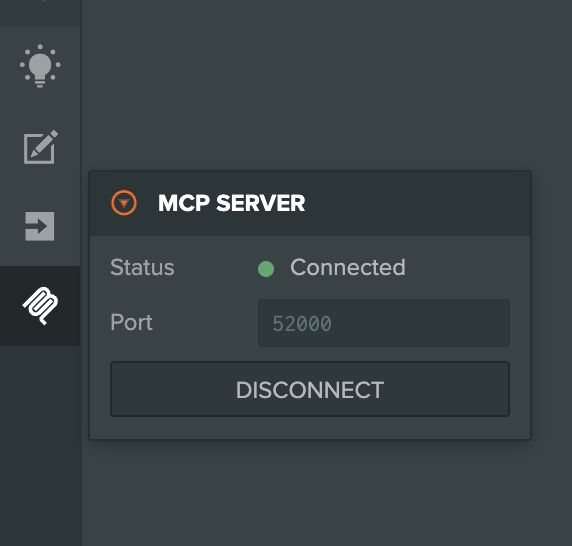
Keep the MCP client running while you use the connection. Only one Editor instance can connect to the server at a time, so disconnect another Editor before changing projects or browser tabs.
Chromium browsers ask before letting a website reach a server running on your own machine (Chrome 142 and later; Chrome 147 extends this to the connection the Editor uses). Select Allow when prompted, or open the padlock menu in the address bar and allow Apps on device. Only the Editor needs this permission — the Launch page is bridged through it. A blocked connection fails silently and looks the same as a server that is not running.
To use another port, append --port <number> to the server arguments and enter the same port in the Editor.
Connect from the Project Dashboard
The Project Dashboard at playcanvas.com/editor has an MCP server button in the account row at the bottom of the sidebar. Select it to open the MCP server panel, which shows the Status and Port, and select Connect.
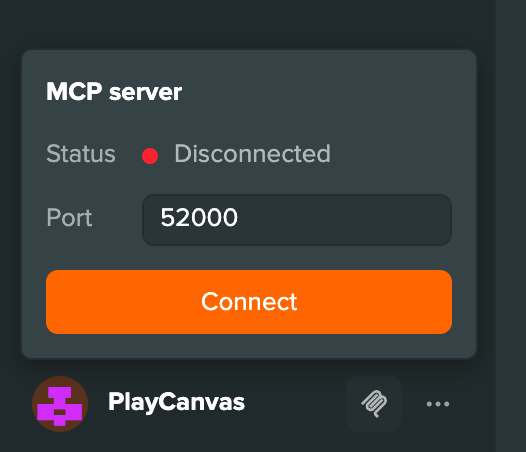
The connection is remembered. When the tab moves into a project, whether you open it or the assistant does, the Editor reconnects on load without another click.
Manage Projects
With the Project Dashboard or a project connected, the assistant can manage the projects of the signed-in account:
| Tool | What it does |
|---|---|
list_projects | Lists your projects, or an organization's, with their ids. |
get_project | Reads one project's summary. With no id, it reads the project open in the Editor. |
create_project | Creates a project. Set open to open it once it is ready. |
update_project | Changes a project's name, description or visibility. |
open_project | Opens a project in the connected tab. The tab reloads into the project and the Editor reconnects. |
Only name, description, private and owner (a username) can be set. Any other field is rejected by name. Plan limits apply, so a private project needs a paid plan. On the Project Dashboard no project is open, so the scene and asset tools report that until the assistant opens one.
List my PlayCanvas projects. Create a project called "Cube Garden", open it, and add a ring
of ten colourful cubes around the box in its scene.
The project tools need a version of the Editor MCP Server newer than 0.7.1, and Editor 2.35 or later.
Check the Connection Without Editing
Begin with a read-only request. This confirms that the assistant can see the intended Editor and gives it context before any mutation.
Inspect the project currently connected through PlayCanvas MCP. Report the loaded scene,
current selection, and version-control status. Do not change anything.
If the assistant reports the wrong scene or project, connect the correct Editor tab before continuing.
Create a Recovery Point
MCP operations change the Editor project directly; there is no local Push step. Create a checkpoint before a substantial task.
Check the current version-control status. If the project is ready for changes, create a
checkpoint named "Before lighting update". Do not switch branches, reset state, or modify
the scene yet.
If other collaborators have unsaved work or the project is not in the expected state, resolve that before asking the assistant to continue.
Describe the Change and Its Proof
Give the assistant one observable result rather than a list of tool calls. Include the scene or assets in scope, constraints it must preserve, and how it should prove completion.
In the loaded scene, improve the lighting around the vehicle display without moving the
vehicle or camera. Reuse the existing lights where possible. When finished, capture the
Editor viewport, launch the scene, capture the running result, and report any console errors.
The assistant can inspect and edit entities, components, scripts, assets, scenes, project settings, templates, animation data, builds, and version-control state. Let it select the tools needed for the requested outcome.
Verify the Running Result
For scene or behavior changes, source inspection is not enough. Ask the assistant to:
- Capture the Editor viewport to check composition and selected objects.
- Start a Launch instance.
- Capture the running application.
- Read runtime logs and query relevant entity state.
- Inject keyboard, mouse, or touch input when interaction is part of the task.
- Stop the Launch instance when verification is complete.
Allow pop-ups for the PlayCanvas Editor origin so the server can open the Launch window. It uses your existing PlayCanvas login session. Starting a Launch instance when one is already running attaches to it rather than restarting it, so a session in progress is not thrown away; ask for a specific option, such as a graphics device, to force a fresh launch.
This demo shows an assistant auditing a legacy Engine V1 project, cross-referencing the PlayCanvas documentation, migrating it to Engine V2 and ESM Scripts with checkpoints, and verifying the running result.
Review or Recover
Ask the assistant to summarize what it changed and the evidence it observed. Inspect the scene yourself before accepting the result.
- Use Editor undo/redo for a recent isolated edit.
- Restore the checkpoint when the entire task should be abandoned.
- Create a new checkpoint after accepting a substantial result.
Do not ask the assistant to hard-reset, delete a branch, restore a checkpoint, or delete project data unless you intend that destructive operation.
When to Use the VS Code Extension Instead
Use the VS Code Extension workflow when the assistant only needs to edit text-based assets and you want to review filesystem diffs before pushing anything to PlayCanvas. Use MCP when the task needs direct Editor, scene, asset, viewport, or runtime access.
Troubleshooting
The Editor Does Not Connect
Confirm that the MCP client is running the server, the client and Editor both use the same port, and no other Editor is connected. Restart the MCP client after changing its configuration.
If the panel stays on Connecting and reports that the browser blocked the connection, open the padlock menu for the Editor and allow Apps on device.
The First Connection Times Out
The first npx run may need time to download the package. Start the client again after the download finishes. Codex users can also increase startup_timeout_sec under [mcp_servers.playcanvas] in ~/.codex/config.toml.
Launch Does Not Open
Allow pop-ups for the Editor origin, close an existing Launch window, and ask the assistant to start the Launch instance again.
The Launch Instance Never Connects
The Launch window opens but the runtime tools report that it did not connect. Reload the Editor so it picks up the current build, then start the Launch instance again.
The Assistant Is Operating on the Wrong Project
MCP tools always target the project open in the connected Editor. Ask the assistant to open the intended project with open_project, or disconnect, open it yourself and reconnect before making more changes.
The server acts through your current Editor session and can perform destructive operations such as deleting entities, assets, builds, or branches and resetting project state. Review these operations before allowing them and create a checkpoint before substantial changes.