Hierarchy and Transforms
Every entity has a transform: a position, a rotation and a scale. These are relative to the entity's parent, so when a parent moves, turns or grows, its children move, turn and grow with it. That is what makes the hierarchy useful. A car's wheels stay on the car wherever it drives, a sword stays in its owner's hand, and a menu moves as a whole when you move its panel.
How the Hierarchy Works
This Engine app is a small solar system, built from five entities:
sun
earthOrbit          at the center, spinning slowly
└── earth           6 units out along its parent's X axis
    └── moonOrbit   at the center of the earth, spinning faster
        └── moon    1.5 units out along its parent's X axis
No code ever moves the earth or the moon. Each frame, the app only turns the two orbit entities around their own Y axes. The earth sits at a fixed position relative to earthOrbit, so as that entity turns, it carries the earth around the sun. The moon is two levels further down, so it is carried around the earth by moonOrbit, and around the sun by earthOrbit as well.
import * as pc from 'playcanvas';

// create the application with the component systems it uses
const canvas = document.getElementById('application');
const device = await pc.createGraphicsDevice(canvas, {
    deviceTypes: [pc.DEVICETYPE_WEBGPU]
});
device.maxPixelRatio = Math.min(window.devicePixelRatio, 2);

const options = new pc.AppOptions();
options.graphicsDevice = device;
options.componentSystems = [
    pc.RenderComponentSystem,
    pc.CameraComponentSystem,
    pc.LightComponentSystem
];

const app = new pc.AppBase(canvas);
app.init(options);
app.setCanvasFillMode(pc.FILLMODE_FILL_WINDOW);
app.setCanvasResolution(pc.RESOLUTION_AUTO);
window.addEventListener('resize', () => app.resizeCanvas());
app.start();

app.scene.ambientLight = new pc.Color(0.1, 0.1, 0.12);

const camera = new pc.Entity('camera');
camera.addComponent('camera', {
    clearColor: new pc.Color(0.03, 0.04, 0.07)
});
camera.setPosition(0, 7, 12);
camera.lookAt(0, 0, 0);
app.root.addChild(camera);

// a sphere with a material of the given color, which glows if emissive is true
const createSphere = (name, color, emissive = false) => {
    const material = new pc.StandardMaterial();
    if (emissive) {
        material.diffuse = new pc.Color(0, 0, 0);
        material.emissive = color;
    } else {
        material.diffuse = color;
    }
    material.update();

    const entity = new pc.Entity(name);
    entity.addComponent('render', { type: 'sphere', material: material });
    return entity;
};

// the sun glows, and lights the planets with an omni light
const sun = createSphere('sun', new pc.Color(1, 0.75, 0.3), true);
sun.addComponent('light', { type: 'omni', range: 30, intensity: 2 });
sun.setLocalScale(2, 2, 2);
app.root.addChild(sun);

// the earth is a child of an orbit entity at the center
const earthOrbit = new pc.Entity('earthOrbit');
app.root.addChild(earthOrbit);

const earth = createSphere('earth', new pc.Color(0.2, 0.45, 1));
earth.setLocalPosition(6, 0, 0);
earthOrbit.addChild(earth);

// the moon is set up the same way, one level further down
const moonOrbit = new pc.Entity('moonOrbit');
earth.addChild(moonOrbit);

const moon = createSphere('moon', new pc.Color(0.75, 0.75, 0.75));
moon.setLocalPosition(1.5, 0, 0);
moon.setLocalScale(0.35, 0.35, 0.35);
moonOrbit.addChild(moon);

// every frame, turn the orbits around their own Y axes, in degrees per second
app.on('update', (dt) => {
    earthOrbit.rotateLocal(0, 20 * dt, 0);
    moonOrbit.rotateLocal(0, 90 * dt, 0);
});
Some things to try:
- Speed the moon up by raising the
90. - Tilt the moon's orbit by adding
moonOrbit.setLocalEulerAngles(30, 0, 0);after the line that createsmoonOrbit. The orbit keeps turning around its own Y axis, which is now tilted. - Scale the earth up with
earth.setLocalScale(2, 2, 2);. The moon is below the earth in the hierarchy, so it grows too, and its orbit doubles in size. - Add a planet of your own. Copy the lines that create
earthOrbitandearthunder new names, put the new planet further from the sun, and turn its orbit more slowly in theupdatehandler.
The Coordinate System
PlayCanvas uses a right-handed coordinate system in which +Y is up. With the default view, looking from the front, +X points right and +Z points toward you, out of the screen. An entity's own forward direction is its -Z axis. That is the direction a camera looks in and the direction lookAt() points, and it is why moving forward in code means moving along -Z.
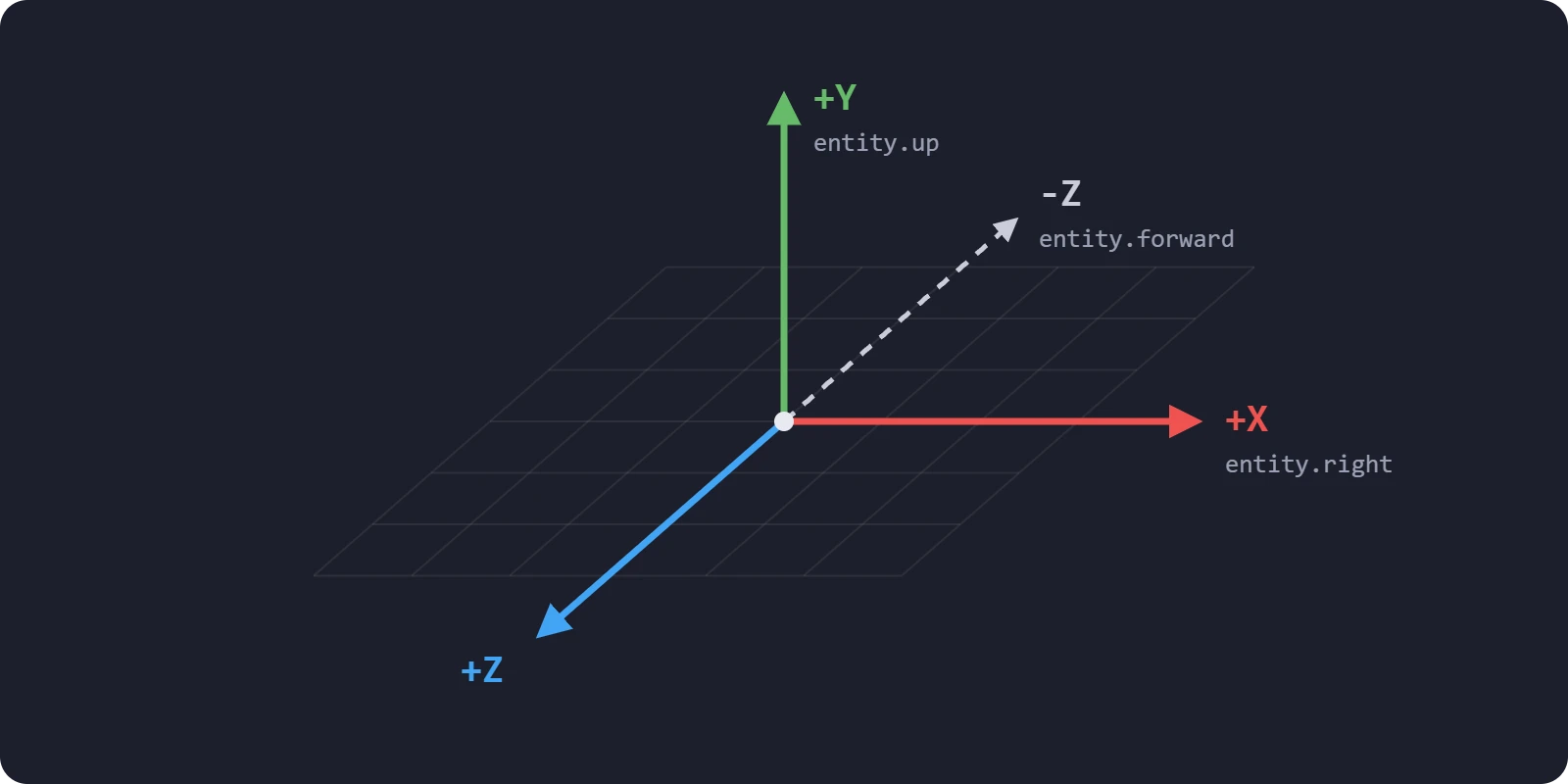
- Units - One unit is one meter by convention. The physics engine works in meters, and a primitive box is one unit wide.
- Angles - Euler angles are in degrees, applied in X, Y, Z order.
- Directions -
forward,rightandupgive an entity's -Z, +X and +Y axes in world space, wherever it has been turned.
Local and World Space
An entity's transform is stored in local space, relative to its parent. Its world space transform is where that puts it in the scene, after all of its ancestors' transforms have been applied. For an entity directly under app.root, the two are the same.
The engine has methods for both. The Local ones work relative to the parent, and the others in world space:
| Local space | World space | |
|---|---|---|
| Position | getLocalPosition(), setLocalPosition() | getPosition(), setPosition() |
| Rotation as Euler angles | getLocalEulerAngles(), setLocalEulerAngles() | getEulerAngles(), setEulerAngles() |
| Rotation as a quaternion | getLocalRotation(), setLocalRotation() | getRotation(), setRotation() |
| Scale | getLocalScale(), setLocalScale() | getScale(), read-only |
The vectors and quaternions that the get methods return belong to the entity, and change when it moves. Treat them as read-only, and clone() one to keep its value or to modify it. World scale can only be read, and only reliably when there is no skew, which is introduced by non-uniform scale higher up the hierarchy combined with rotation; see Scale.
- Engine
- Editor
- React
- Web Components
const car = new pc.Entity('car');
car.setPosition(10, 0, 0);
app.root.addChild(car);

const wheel = new pc.Entity('wheel');
car.addChild(wheel);
wheel.setLocalPosition(1, 0, 2); // relative to the car

console.log(wheel.getPosition().toString()); // [11, 0, 2]

wheel.setPosition(0, 0, 0); // the world origin
console.log(wheel.getLocalPosition().toString()); // [-10, 0, 0]
The Position, Rotation and Scale fields in the Inspector are the entity's local transform, relative to its parent, with the rotation as Euler angles in degrees. In the viewport, the World/Local button in the toolbar switches the gizmos between the world axes and the entity's own.
The position, rotation and scale props of an <Entity> are its local transform, relative to the enclosing <Entity>, with rotation as Euler angles in degrees:
<Entity name="car" position={[10, 0, 0]}>
  <Entity name="wheel" position={[1, 0, 2]} rotation={[0, 0, 90]} />
</Entity>
To read world space values, use the engine entity through a ref, for example ref.current.getPosition().
The position, rotation and scale attributes of a <pc-entity> are its local transform, relative to the enclosing <pc-entity>, with rotation as Euler angles in degrees:
<pc-entity name="car" position="10 0 0">
    <pc-entity name="wheel" position="1 0 2" rotation="0 0 90"></pc-entity>
</pc-entity>
To read world space values, use the engine entity, for example element.entity.getPosition().
Moving and Rotating
Setting a position or rotation puts an entity in a new place outright. To move or turn it from where it is, use these methods:
translate()moves the entity along the world's axes, andtranslateLocal()along its own, sotranslateLocal(0, 0, -1)moves it one unit forward, whichever way it faces.rotate()turns the entity around the world's axes, androtateLocal()around its own. Both take Euler angles in degrees.lookAt()turns the entity so that its -Z axis points at a position.
To move at the same speed whatever the frame rate, scale each frame's movement by dt, the time in seconds since the previous frame.
Don't read Euler angles back to add to them. A rotation has more than one Euler form, and the one you read can differ from the one you set: after setLocalEulerAngles(0, 120, 0), getLocalEulerAngles() returns (180, 60, 180). Keep the angle in a variable of your own and set it each time, or use rotate() and rotateLocal().
- Engine
- Editor
- React
- Web Components
app.on('update', (dt) => {
    ship.translateLocal(0, 0, -5 * dt); // 5 units per second, forward
    ship.rotate(0, 45 * dt, 0);         // 45 degrees per second, around the world's Y axis
});
Move entities from a script, in its update method:
import { Script } from 'playcanvas';

export class Fly extends Script {
    static scriptName = 'fly';

    update(dt) {
        this.entity.translateLocal(0, 0, -5 * dt);
        this.entity.rotate(0, 45 * dt, 0);
    }
}
Move the engine entity each frame through a ref, rather than through its props, so that React does not have to render every frame:
import { useRef } from 'react';
import { Entity } from '@playcanvas/react';
import { Render } from '@playcanvas/react/components';
import { useAppEvent } from '@playcanvas/react/hooks';

function Ship() {
  const ref = useRef(null);

  useAppEvent('update', (dt) => {
    ref.current.translateLocal(0, 0, -5 * dt);
    ref.current.rotate(0, 45 * dt, 0);
  });

  return (
    <Entity ref={ref} name="ship">
      <Render type="cone" />
    </Entity>
  );
}
You can also attach a script with the <Script> component.
Move the engine entity each frame from the application's update event, or attach a script with <pc-script>:
<pc-entity name="ship">
    <pc-render type="cone"></pc-render>
</pc-entity>

<script type="module">
    import { whenReady } from '@playcanvas/web-components';

    const { app } = await whenReady('pc-app');
    const { entity } = await whenReady('pc-entity[name="ship"]');

    app.on('update', (dt) => {
        entity.translateLocal(0, 0, -5 * dt);
        entity.rotate(0, 45 * dt, 0);
    });
</script>
Setting the entity's position or rotation attribute later puts it back where the attribute says.
Dynamic rigid bodies are moved by the physics engine, which overwrites changes made to their transform. Move them with forces and impulses, or teleport them. See Moving and Teleporting.
Parenting
Adding an entity to a new parent takes it away from its old one. It keeps its local transform, so it jumps to the same position relative to its new parent. To keep it where it is in the world, save its world position and rotation first and set them again afterwards.
The order of an entity's children is the order they were added in, unless you insert a child at a particular index. For most entities it makes no difference, but user interface elements are drawn in hierarchy order, so later siblings are drawn on top.
- Engine
- Editor
- React
- Web Components
To move the wheel onto the trailer and keep its local transform, add it to the trailer. It jumps to the position relative to the trailer that it had relative to its old parent:
trailer.addChild(wheel);
To keep its world transform instead, so that it stays where it is, save its world position and rotation before you move it, and set them again afterwards:
const position = wheel.getPosition().clone();
const rotation = wheel.getRotation().clone();
trailer.addChild(wheel);
wheel.setPosition(position);
wheel.setRotation(rotation);
To insert a child at the start of the list instead of the end:
trailer.insertChild(spare, 0);
Drag an entity onto another in the Hierarchy to make it its child, or between two entities to move it there. The Editor keeps the entity's world transform when you reparent it, so it doesn't move in the viewport; hold Ctrl (Cmd on Mac) while you drop it to keep its local transform instead. See Hierarchy Panel.
An <Entity> is the child of the <Entity> it is nested in. Moving it to a different parent in your JSX makes React unmount it and mount a new one, so its engine entity is destroyed and created again under the new parent.
A <pc-entity> is the child of the <pc-entity> it is nested in. Moving the element to a new parent destroys its entity and creates a new one from its attributes and child tags, so changes made to the old entity from code are lost.
Scale
Scale multiplies everything below an entity, its children's positions as well as their sizes. That is what you want for a model that should be drawn larger as a whole, but it gets in the way when you only want to change the shape of one part. Non-uniform scale, which stretches an entity more along one axis than another, is the most awkward: under a child that is rotated, it no longer stretches along the child's own axes, which skews the child.
To keep scale where you want it, put it on the leaf entities that draw things, and group them under unscaled parents. A table, for example, is a table entity with an unscaled transform, whose children are a flattened box for the top and four thin boxes for the legs.
Scale also matters for physics: collision shapes made from primitives ignore it. See Collision Shapes.
See Also
- Entities - Creating and destroying the entities in the hierarchy
- Finding Entities - Looking up entities by name, path, tag or component
- Hierarchy Panel and Viewport - Arranging entities and transforming them with gizmos in the Editor
- Hierarchy - An engine example of a hierarchy of moving entities
- GraphNode - The engine API reference for transforms and the hierarchy