Layers and Masks
An anim component can run several state machines at once, one on each layer. Each layer has states, transitions and a default state of its own, and all of them share the component's parameters. Use layers for actions that happen at the same time and change independently: a character's legs can walk, run and jump on one layer while its arms aim and shoot on another, and its face smiles and blinks on a third.
Every component has a base layer, the first, and the layers are applied in order, each on top of the layers before it. Each layer has a weight, which sets how much it contributes, and a blend type, which sets how it combines with the layers below. A mask limits a layer to some of the model's nodes, so that it animates only the arms, say, and leaves the rest to the layers below.
Adding Layers
- Engine
- Editor
- React
- Web Components
addLayer() adds a layer, with its weight, mask and blend type, and returns it. Give the layer states with its own assignAnimation():
const upperBody = character.anim.addLayer('UpperBody', 1, upperBodyMask, pc.ANIM_LAYER_OVERWRITE);
upperBody.assignAnimation('Aim', aimTrack);
upperBody.assignAnimation('Shoot', shootTrack, 1, false);
A state graph's data can also hold several layers. Each entry of layers takes a weight and a blendType as well as its states and transitions:
layers: [
    { name: 'Base', states: [/* ... */], transitions: [/* ... */] },
    { name: 'UpperBody', weight: 1, blendType: pc.ANIM_LAYER_OVERWRITE, states: [/* ... */], transitions: [/* ... */] }
]
Find a layer by name with findAnimationLayer(), or through the layers array.
A state graph asset starts with a base layer, which cannot be deleted. Click + LAYER in the layers panel of the graph editor to add another, and set its Name, Default State, Blend Type and Blend Weight there. Choose the layer to edit from the dropdown at the top right of the graph.

The Anim component shows a section for each layer, with a slot for each of its states.
Add the layer to the engine component from a component of your own, placed in the model's <Entity> after its <Anim playing />:
import { useEffect } from 'react';
import { useParent } from '@playcanvas/react/hooks';

function UpperBody({ tracks }) {
  const entity = useParent();

  useEffect(() => {
    const layer = entity.anim.addLayer('UpperBody', 1, upperBodyMask);
    layer.assignAnimation('Aim', tracks.aim);
  }, [entity, tracks]);

  return null;
}
<pc-anim> plays clips on a single layer. For several layers, add the anim component to the model's entity from code, as for a state graph, then add the layers to it:
model.entity.addComponent('anim', { activate: true });
model.entity.anim.assignAnimation('Walk', tracks.walk);

const upperBody = model.entity.anim.addLayer('UpperBody', 1, upperBodyMask);
upperBody.assignAnimation('Aim', tracks.aim);
Weights and Blend Types
A layer's weight runs from 0, where it has no effect, to 1. What it does at the weights in between depends on the layer's blend type:
- An Overwrite layer (
pc.ANIM_LAYER_OVERWRITE), the default, blends from the result of the layers below it towards its own pose, by its weight. At 1, it replaces them; at 0.5, the result is halfway between. The base layer blends with the model's original pose in the same way, so a base layer with a weight of 0.5 plays its clips at half strength. - An Additive layer (
pc.ANIM_LAYER_ADDITIVE) adds its clips' difference from the model's original pose to the result of the layers below, scaled by its weight. Use it to add a motion on top of another, such as a recoil on top of an aim, or breathing on top of any pose.
Change a weight at any time with the layer's weight. To fade a layer in or out smoothly, blendToWeight() moves its weight to a value over a time in seconds:
const upperBody = character.anim.findAnimationLayer('UpperBody');
upperBody.blendToWeight(1, 0.3); // fade in over 0.3 seconds
upperBody.blendToWeight(0, 0.3); // and out again
The anim component's Normalize Weights (normalizeWeights) option changes how layers combine. With it on, the weights of the layers that animate a node are scaled by their total, so the original pose never shows through. A layer that is alone on a node plays at full strength whatever its weight, an overwrite layer replaces every layer below it on the nodes it animates, and additive layers are blended with the layers below instead of added to them. Leave it off unless you need that behavior. The Editor turns it on for anim components created before the option existed, to keep their behavior the same.
Masks
A mask lists the nodes that a layer animates. Nodes that are not in its layer's mask are left to the layers below, as if the layer were not there. A layer without a mask animates every node that its clips animate.
- Engine
- Editor
- React
- Web Components
A mask is an object whose keys are node paths: the names of the nodes from the anim component's entity, or its Root Bone when one is set, down to the node, separated by /. A path starts with the name of that entity, like the paths of a clip's curves. A value of true puts that node in the mask, and { children: true } puts that node and everything below it in the mask. Here the component is on an entity named Root:
upperBody.mask = {
    // the upper spine and everything below it, such as the arms and head
    'Root/Hips/Spine/Spine1': { children: true },
    // the lower spine, without its children
    'Root/Hips/Spine': true
};
Pass the mask as the third argument of addLayer(), or set it later with the layer's mask. Set it to null to remove it.
Masks belong to each entity's Anim component, not to the state graph asset, so the same graph can be masked differently on different models.
-
Select the entity, and in the Anim component's section for a layer, click CREATE MASK.
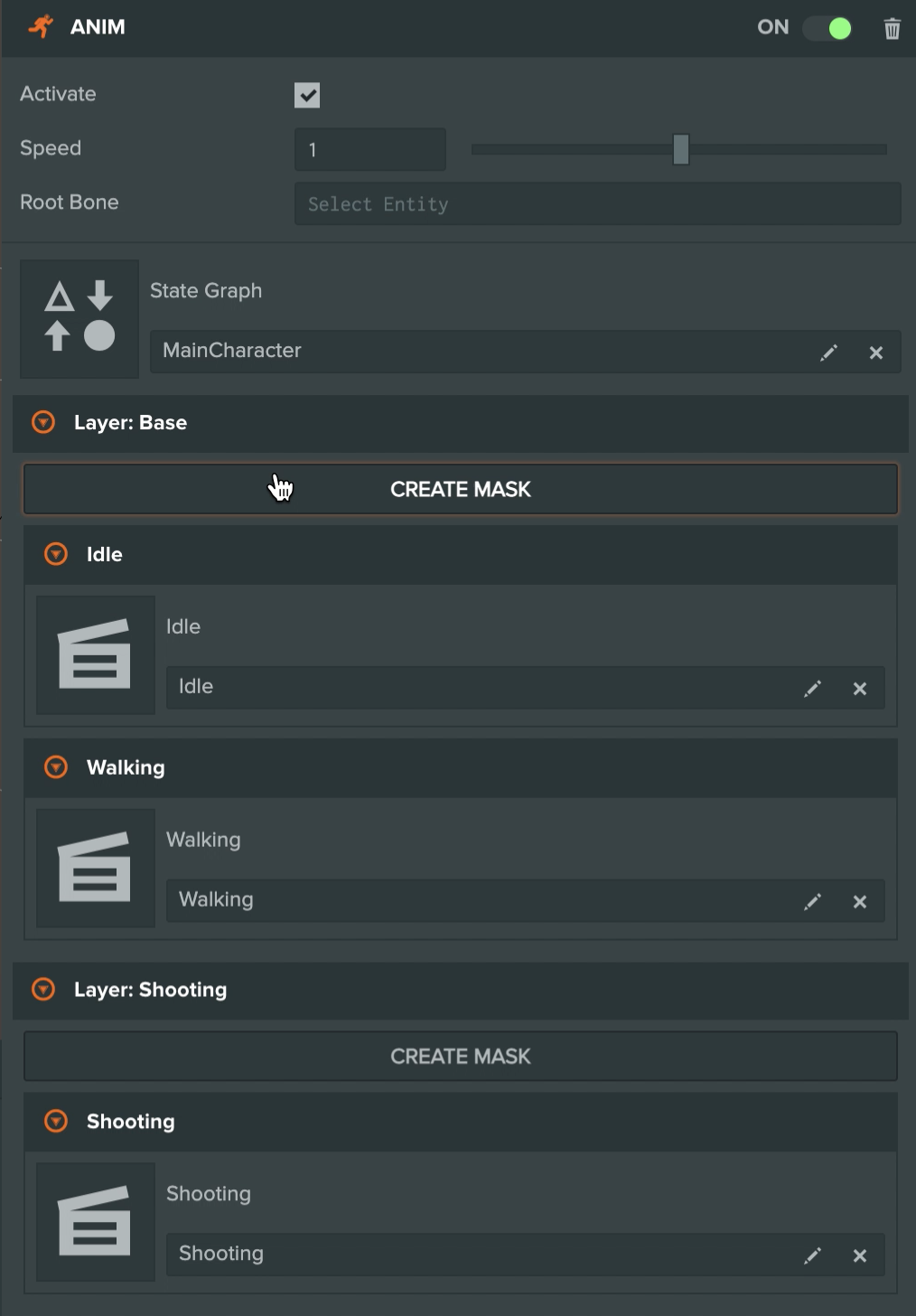
-
The mask inspector shows the hierarchy that the component animates, from its Root Bone. Check the nodes that the layer should animate. Right-click a node and choose Add hierarchy or Remove hierarchy to check or uncheck it and everything below it at once.
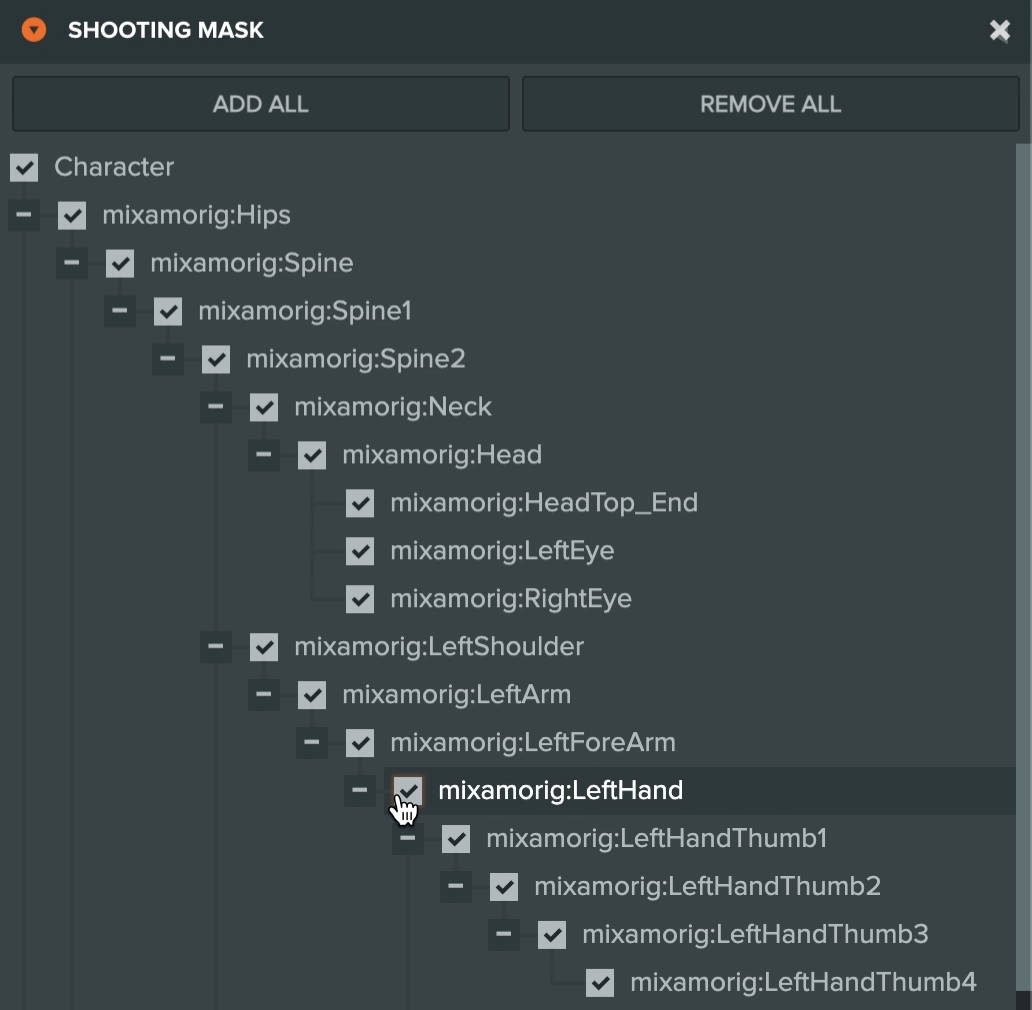
Click EDIT MASK to change a mask later, and the delete button beside it to remove it.
Pass the mask to addLayer(), or set the layer's mask, from your own component, as in the Engine tab.
Pass the mask to addLayer(), or set the layer's mask, on the component you added from code, as in the Engine tab.
Example
This Engine app idles a robot arm on its base layer, and adds a second layer that plays the arm's inspect clip. The second layer's mask holds only the wrist and the joints below it, so the rest of the arm keeps idling. Click the canvas to fade the layer in or out with blendToWeight().
import * as pc from 'playcanvas';

// create the application with the component systems and resource handlers it uses
const canvas = document.getElementById('application');
const device = await pc.createGraphicsDevice(canvas, {
    deviceTypes: [pc.DEVICETYPE_WEBGPU]
});
device.maxPixelRatio = Math.min(window.devicePixelRatio, 2);

const options = new pc.AppOptions();
options.graphicsDevice = device;
options.componentSystems = [
    pc.RenderComponentSystem,
    pc.CameraComponentSystem,
    pc.LightComponentSystem,
    pc.AnimComponentSystem
];
options.resourceHandlers = [pc.ContainerHandler, pc.TextureHandler];

const app = new pc.AppBase(canvas);
app.init(options);
app.setCanvasFillMode(pc.FILLMODE_FILL_WINDOW);
app.setCanvasResolution(pc.RESOLUTION_AUTO);
window.addEventListener('resize', () => app.resizeCanvas());
app.start();

app.scene.ambientLight = new pc.Color(0.35, 0.35, 0.4);

// load the robot arm, a GLB with five animations
const asset = new pc.Asset('robot-arm', 'container', {
    url: 'https://developer.playcanvas.com/assets/robot-arm.glb'
});
await new Promise((resolve) => {
    asset.ready(resolve);
    app.assets.add(asset);
    app.assets.load(asset);
});

const camera = new pc.Entity('camera');
camera.addComponent('camera', {
    clearColor: new pc.Color(0.11, 0.12, 0.17)
});
camera.setPosition(1.75, 1.4, 2.15);
camera.lookAt(0, 0.75, 0);
app.root.addChild(camera);

const light = new pc.Entity('light');
light.addComponent('light', {
    castShadows: true,
    shadowBias: 0.2,
    normalOffsetBias: 0.05
});
light.setEulerAngles(48, 38, 0);
app.root.addChild(light);

const floor = new pc.Entity('floor');
const floorMaterial = new pc.StandardMaterial();
floorMaterial.diffuse = new pc.Color(0.24, 0.26, 0.31);
floorMaterial.update();
floor.addComponent('render', { type: 'plane', material: floorMaterial });
floor.setLocalScale(20, 1, 20);
app.root.addChild(floor);

// create the arm's entities, and give its root an anim component
const arm = asset.resource.instantiateRenderEntity({ castShadows: true });
arm.addComponent('anim', { activate: true });
app.root.addChild(arm);

const tracks = Object.fromEntries(asset.resource.animations.map(animation => [animation.resource.name, animation.resource]));

// the base layer idles the whole arm
arm.anim.assignAnimation('Idle', tracks.idle);

// a second layer, masked to the wrist and everything below it, plays inspect at a weight of 0
const wrist = arm.anim.addLayer('Wrist', 0, {
    'arm_base/arm_column/arm_upper/arm_forearm/arm_wrist_roll': { children: true }
}, pc.ANIM_LAYER_OVERWRITE);
wrist.assignAnimation('Inspect', tracks.inspect);

// click to blend the wrist layer in or out over half a second
let on = false;
canvas.addEventListener('click', () => {
    on = !on;
    wrist.blendToWeight(on ? 1 : 0, 0.5);
});

const label = document.createElement('div');
label.style.cssText = 'position: absolute; left: 12px; bottom: 10px; color: #ccc; font: 14px sans-serif;';
document.body.appendChild(label);
app.on('update', () => {
    label.textContent = `Wrist layer weight: ${wrist.weight.toFixed(2)}. Click to blend it in or out.`;
});
Some things to try:
- Move the mask up the arm, to
'arm_base/arm_column/arm_upper', and the layer takes over the upper arm and forearm as well. - Replace the mask with
null, and the whole arm inspects when the layer is in. - Change
pc.ANIM_LAYER_OVERWRITEtopc.ANIM_LAYER_ADDITIVE, and the wrist adds the inspect motion to its idling instead of replacing it.
The Layer Masks example plays an upper-body layer over a character's full-body layer. In the Examples Browser, use the controls panel to switch each layer's state, change the upper-body layer's blend type, turn its mask on and off, and set how much each layer contributes:
See Also
- State Graphs - The states and transitions of each layer
- Anim Component - The Editor reference for the component, its layers and masks
- AnimComponent and AnimComponentLayer - The engine API reference