Animation Events
An animation event marks a moment in a clip with a name. When an anim component plays past that moment, it fires the event, and your listeners run. Use events to keep things in time with an animation: a footstep sound as a foot lands, a dust cloud under it, the frame of an attack that deals damage, or the end of a clip that should start something else.
Adding Events
Events belong to a clip, so every anim component that plays the clip fires them. Each event has a time in seconds from the start of the clip, a name, and any other properties you want to pass to its listeners.
- Engine
- Editor
- React
- Web Components
Set a clip's events to an AnimEvents holding all of its events. The events can be listed in any order:
walkTrack.events = new pc.AnimEvents([
    { time: 0.2, name: 'footstep', foot: 'left' },
    { time: 0.7, name: 'footstep', foot: 'right' }
]);
This replaces any events the clip already has.
Select an animation asset in the Assets panel, and click + EVENT in the EVENTS panel of the Inspector. Set each event's fields:
| Field | Description |
|---|---|
| time | When the event fires, in seconds from the start of the clip. |
| name | The name that listeners use to listen for it. |
| number | A number to pass to the listeners, as number. |
| string | A string to pass to the listeners, as string. |
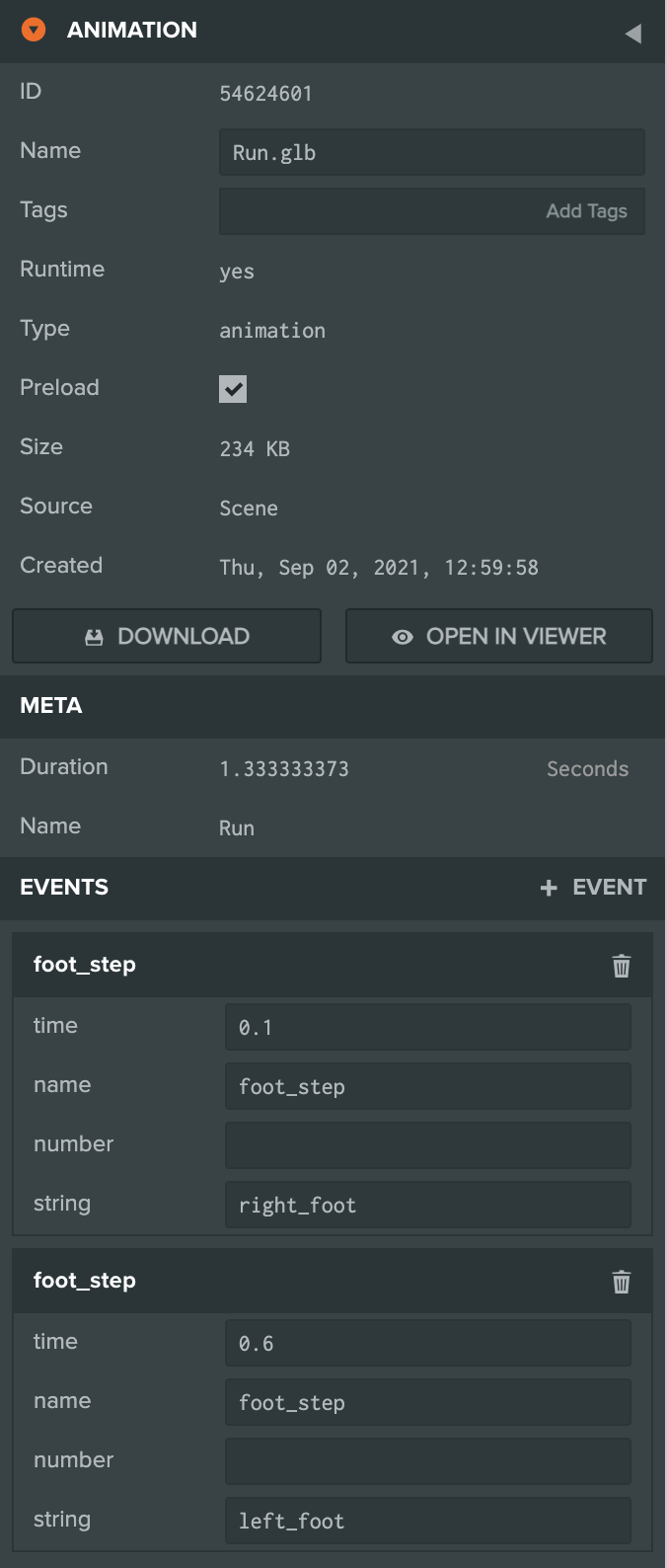
Set the events on the clip, as in the Engine tab, once its model has loaded:
import { useEffect } from 'react';
import { AnimEvents } from 'playcanvas';
import { useModel } from '@playcanvas/react/hooks';

const { asset } = useModel('character.glb');

useEffect(() => {
  if (!asset) return;
  const walk = asset.resource.animations.find(animation => animation.resource.name === 'walk').resource;
  walk.events = new AnimEvents([
    { time: 0.2, name: 'footstep', foot: 'left' },
    { time: 0.7, name: 'footstep', foot: 'right' }
  ]);
}, [asset]);
Set the events on the clip, as in the Engine tab. Once a <pc-model> is ready, the <pc-asset> it uses has loaded, and its asset holds the clips:
import { AnimEvents } from 'playcanvas';
import { whenReady } from '@playcanvas/web-components';

await whenReady('pc-model[name="character"]');
const container = document.getElementById('character').asset.resource;
const walk = container.animations.find(animation => animation.resource.name === 'walk').resource;
walk.events = new AnimEvents([
    { time: 0.2, name: 'footstep', foot: 'left' },
    { time: 0.7, name: 'footstep', foot: 'right' }
]);
Listening for Events
The anim component fires each event under its name, with an object that holds the event's properties: its name, its time, the track it belongs to, and the other properties you gave it, such as number and string from the Editor.
- Engine
- Editor
- React
- Web Components
character.anim.on('footstep', (event) => {
    console.log(`${event.foot} foot down at ${event.time} s of ${event.track.name}`);
});
Listen from a script on the entity with the Anim component:
import { Script } from 'playcanvas';

export class Footsteps extends Script {
    static scriptName = 'footsteps';

    initialize() {
        this.entity.anim.on('foot_step', (event) => {
            // the event's string field names the foot that landed
            const foot = this.entity.findByName(event.string);
            this.app.fire('dust', foot.getPosition());
        });
    }
}
Listen from a component placed in the model's <Entity> after its <Anim playing />, and stop listening when it unmounts:
function Footsteps({ onFootstep }) {
  const entity = useParent();

  useEffect(() => {
    entity.anim.on('footstep', onFootstep);
    return () => entity.anim.off('footstep', onFootstep);
  }, [entity, onFootstep]);

  return null;
}
Listen on the anim component of the <pc-anim>:
const anim = await whenReady('pc-anim');
anim.component.on('footstep', (event) => {
    console.log(`${event.foot} foot down`);
});
When Events Fire
An event fires in the frame in which playback passes its time:
- On every loop. A looping clip fires its events again each time round.
- At the end of a clip. An event at a clip's duration fires when it reaches the end, even if it does not loop, so use one to tell when a clip has finished.
- At any speed. Events fire when a clip plays faster, slower or backwards.
- On every layer. Each layer fires the events of the clips it plays, even at a weight of 0. Two layers that play clips with the same event fire it twice.
- During cross-fades. The state being left keeps playing during a cross-fade, and keeps firing its events until the cross-fade ends.
When one effect spans several animations, ask an AI assistant through the Editor MCP Server to check event names and payloads against script listeners, then reproduce the animations in Launcher to find missing or mistimed effects.
Example
This Engine app plays the robot arm's pick clip on a loop, and adds two events to the clip: one when its jaws have closed, and one when they have opened again. A listener makes the jaws glow while they are closed, and shows the last event.
import * as pc from 'playcanvas';

// create the application with the component systems and resource handlers it uses
const canvas = document.getElementById('application');
const device = await pc.createGraphicsDevice(canvas, {
    deviceTypes: [pc.DEVICETYPE_WEBGPU]
});
device.maxPixelRatio = Math.min(window.devicePixelRatio, 2);

const options = new pc.AppOptions();
options.graphicsDevice = device;
options.componentSystems = [
    pc.RenderComponentSystem,
    pc.CameraComponentSystem,
    pc.LightComponentSystem,
    pc.AnimComponentSystem
];
options.resourceHandlers = [pc.ContainerHandler, pc.TextureHandler];

const app = new pc.AppBase(canvas);
app.init(options);
app.setCanvasFillMode(pc.FILLMODE_FILL_WINDOW);
app.setCanvasResolution(pc.RESOLUTION_AUTO);
window.addEventListener('resize', () => app.resizeCanvas());
app.start();

app.scene.ambientLight = new pc.Color(0.35, 0.35, 0.4);

// load the robot arm, a GLB with five animations
const asset = new pc.Asset('robot-arm', 'container', {
    url: 'https://developer.playcanvas.com/assets/robot-arm.glb'
});
await new Promise((resolve) => {
    asset.ready(resolve);
    app.assets.add(asset);
    app.assets.load(asset);
});

const camera = new pc.Entity('camera');
camera.addComponent('camera', {
    clearColor: new pc.Color(0.11, 0.12, 0.17)
});
camera.setPosition(1.75, 1.4, 2.15);
camera.lookAt(0, 0.75, 0);
app.root.addChild(camera);

const light = new pc.Entity('light');
light.addComponent('light', {
    castShadows: true,
    shadowBias: 0.2,
    normalOffsetBias: 0.05
});
light.setEulerAngles(48, 38, 0);
app.root.addChild(light);

const floor = new pc.Entity('floor');
const floorMaterial = new pc.StandardMaterial();
floorMaterial.diffuse = new pc.Color(0.24, 0.26, 0.31);
floorMaterial.update();
floor.addComponent('render', { type: 'plane', material: floorMaterial });
floor.setLocalScale(20, 1, 20);
app.root.addChild(floor);

// create the arm's entities, and give its root an anim component
const arm = asset.resource.instantiateRenderEntity({ castShadows: true });
arm.addComponent('anim', { activate: true });
app.root.addChild(arm);

// give the gripper's jaws a material of their own, which the events make glow while they are closed
const jaws = ['arm_jaw_l', 'arm_jaw_r'].flatMap(name => arm.findByName(name).render.meshInstances);
const jawMaterial = jaws[0].material.clone();
jaws.forEach((meshInstance) => {
    meshInstance.material = jawMaterial;
});

// add two events to the pick clip: the jaws are closed at 2.3 seconds, and open again at 4.6
const pick = asset.resource.animations.find(animation => animation.resource.name === 'pick').resource;
pick.events = new pc.AnimEvents([
    { time: 2.3, name: 'jaws', string: 'closed' },
    { time: 4.6, name: 'jaws', string: 'open' }
]);
arm.anim.assignAnimation('Pick', pick);

// the anim component fires each event as it plays past it, on every loop
const label = document.createElement('div');
label.style.cssText = 'position: absolute; left: 12px; bottom: 10px; color: #ccc; font: 14px sans-serif;';
label.textContent = 'Waiting for an event...';
document.body.appendChild(label);
arm.anim.on('jaws', (event) => {
    jawMaterial.emissive = event.string === 'closed' ? new pc.Color(0.2, 1, 0.3) : pc.Color.BLACK;
    jawMaterial.update();
    label.textContent = `Event: ${event.name}, ${event.string}, at ${event.time} seconds into ${event.track.name}`;
});
Some things to try:
- Move the
closedevent to1.9seconds, when the jaws start to close. - Add
{ time: 0, name: 'jaws', string: 'open' }, and the event fires at the start of each loop. - Play the clip backwards, with
arm.anim.assignAnimation('Pick', pick, undefined, -1);. The events fire the other way round, so the jaws glow while they are open.
See Also
- Animation Clips - The clips that events belong to
- Animation Asset - The Editor's animation asset inspector
- AnimEvents and AnimComponent - The engine API reference