Your Profile
Every PlayCanvas account has a public profile. Its address is:
https://playcanvas.com/user/<USERNAME>
To open your own, select your name at the bottom of the Project Dashboard sidebar and choose View public profile.
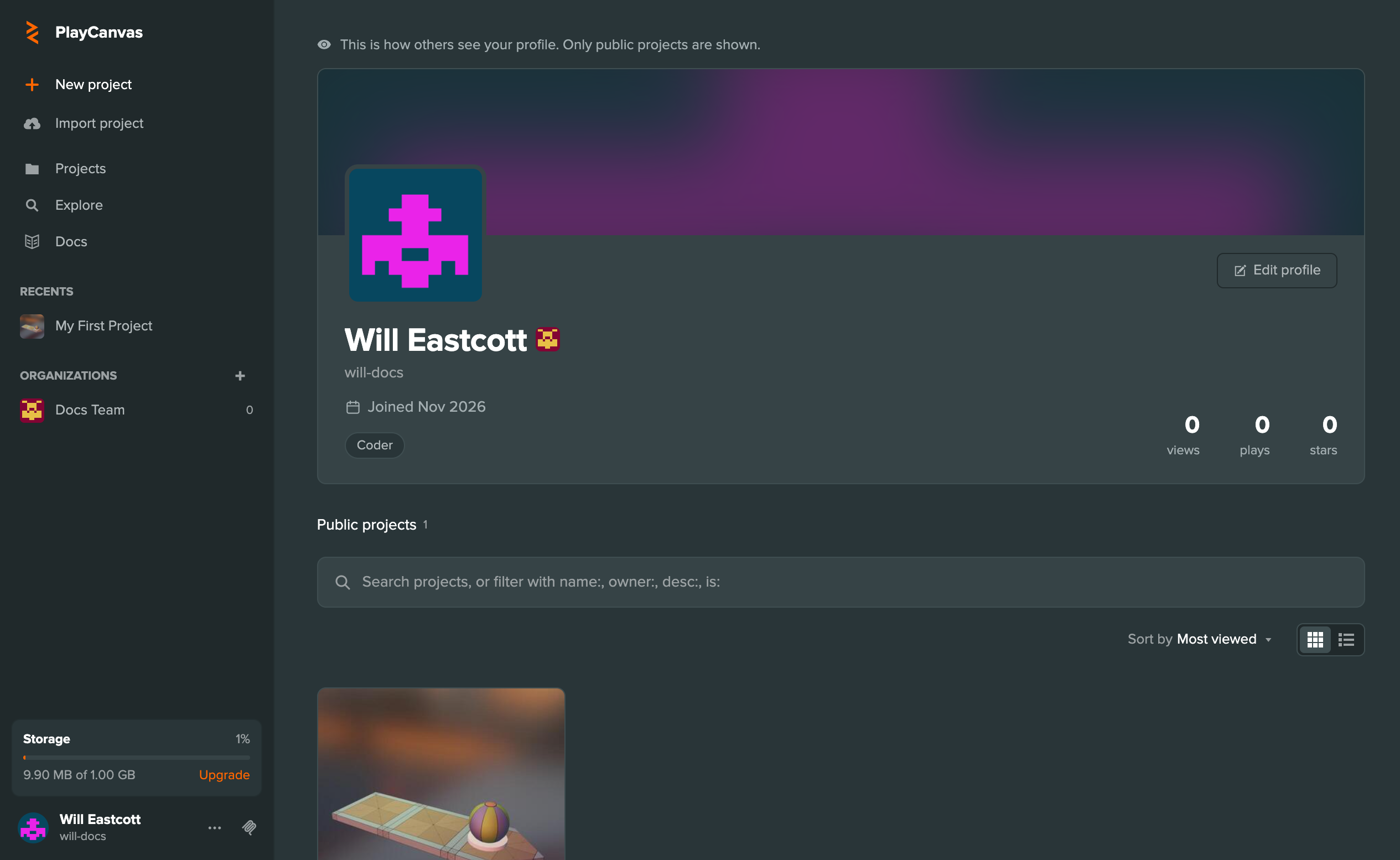
Your profile shows:
- Your picture, full name and username
- When you joined PlayCanvas
- Your skills, such as Coder or Artist
- The total views, plays and stars of your public projects
- Your Public projects
Only your public projects are listed, so anyone can view your profile, including visitors who aren't logged in. When you view your own profile, a note at the top reminds you that this is how others see it.
Public Projects
Search your public projects by name, owner or description, or narrow the list with the same filters as the Project Dashboard, such as name:. Sort by orders the projects by Last edited, Last opened, Created, Name, Most viewed, Most played or Size, Descending or Ascending. The buttons next to it switch between cards and a list.
Editing Your Profile
Select Edit profile to open your Account Settings in a new tab. There you can change your picture, username, full name and skills, and add links to your website and social accounts.
Once you're logged in, playcanvas.com takes you to your Project Dashboard, which lists all of your projects, public and private.