Plans and Billing
Your personal account and each organization have their own plan and their own billing. This page covers the Plans page, where you choose and subscribe to a plan, and the Billing tab of your account settings, where you manage it. For questions about renewals, currencies, refunds and how seats are billed, see the Billing FAQ.
Plans
The Plans page compares the plans and lets you subscribe. Open it with Upgrade plan in the menu under your name in the Project Dashboard, or with Change plan or Compare plans on the Billing tab.
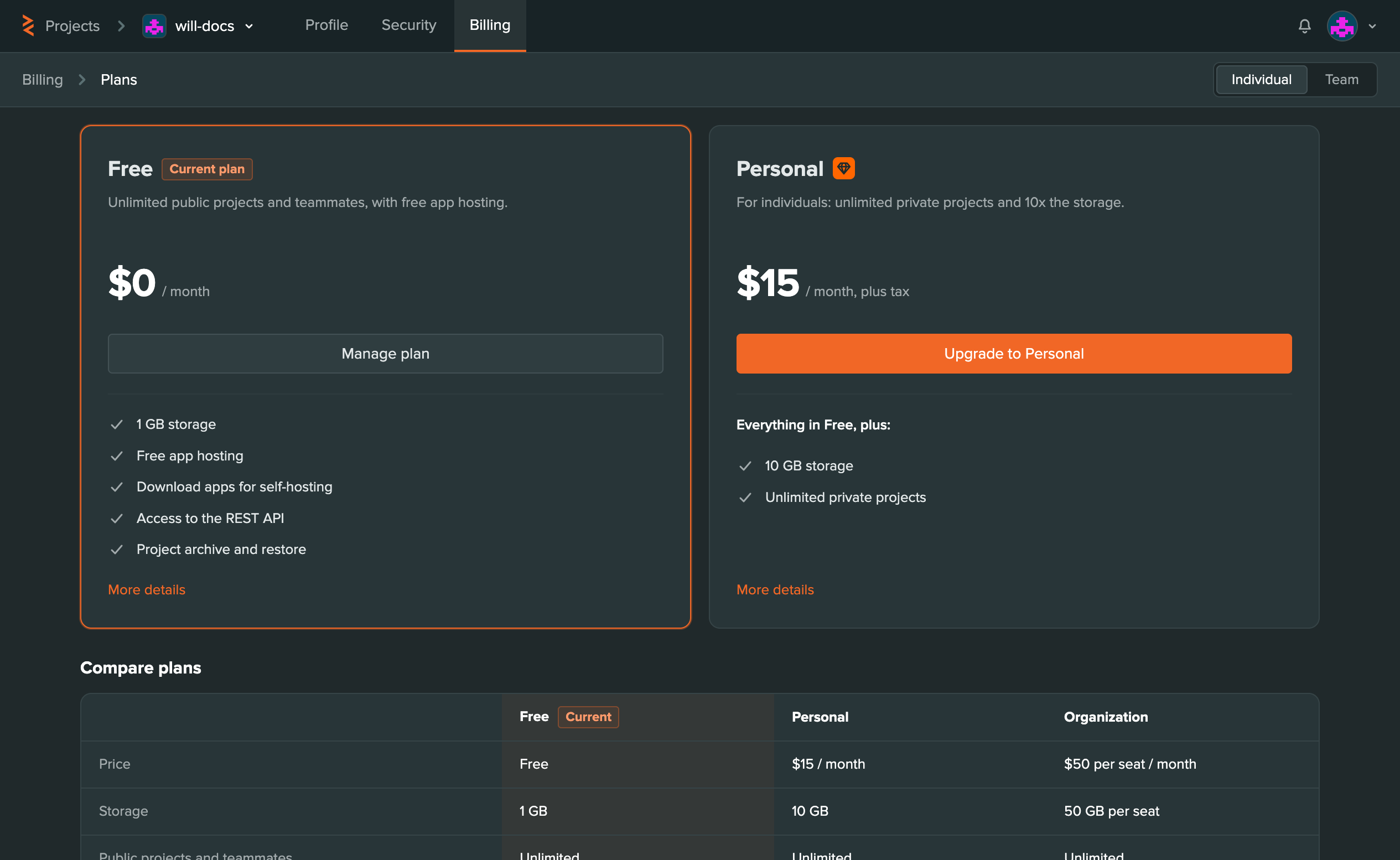
Individual shows the Free and Personal plans, and Team shows the Organization plan. The plans apply to the account you're viewing. An organization can only choose the Organization plan, so on your personal account, Team offers Create organization instead.
To subscribe, select Upgrade to Personal on your personal account, or Upgrade followed by the organization's name on an organization. At checkout, enter your payment method and billing address, and select Subscribe. Prices are in US dollars, and tax is added at checkout based on your billing country. In Japan, prices are in yen and include tax — see What payment methods and currency do you accept?.
If you have a promo code, enter it under Have a promo code? and select Apply.
The Billing Tab
To open it, select your name at the bottom of the Project Dashboard sidebar, choose Account settings and select the Billing tab. For an organization, switch to it with the account switcher at the top of the page first.
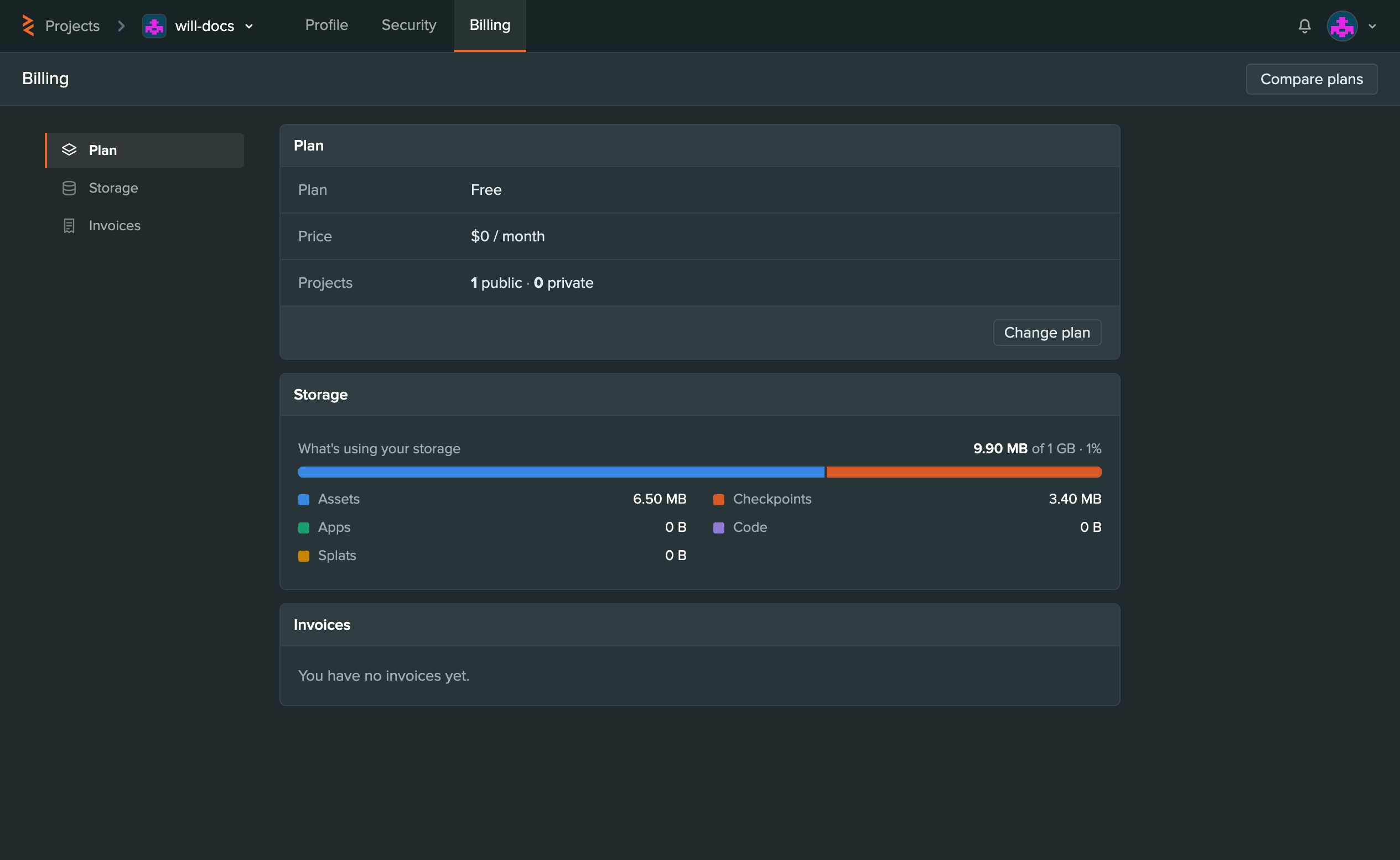
Plan
Plan shows the account's plan and price, and how many public and private projects it has. On a paid plan, it also shows when the plan renews, and for an organization, how many of its seats are in use. Change plan opens the Plans page, and so does Compare plans at the top right.
Organizations on the Organization plan also have Change seats here. See Adding and Removing Seats.
Storage
Storage shows how much of the plan's storage allowance the account is using, and what's using it:
- Assets - 3D models, textures, audio and other assets in your projects. Every open branch of a project counts its own copy of the assets. See How Version Control Affects Your Storage.
- Checkpoints - The version history of your projects.
- Apps - Your published apps. Deleting a published build removes its full size from your usage.
- Code - Your scripts and other code.
- Splats - The Gaussian splats you have published to SuperSplat.
The Project Dashboard shows the same total, broken down by project.
Payment
Accounts on a paid plan have a Payment section with the card you pay with, your Billing details and your VAT number:
- Select Update next to your card to change your payment method.
- Select Edit next to your billing details to change the name and address shown on your invoices.
- Select Add or Edit next to the VAT number to set one. VAT numbers are only for billing addresses in the EU, UK, Switzerland and Norway.
Invoices
Invoices lists the account's past invoices, with a PDF of each to download. Invoices are also emailed to the account's owner on each billing date.
Cancel Plan
You can cancel a paid plan at any time:
- Open the Billing tab of your account settings.
- In the Cancel plan section, select Cancel plan and confirm.
- If you also have organizations on the Organization plan, switch to each one with the account switcher at the top of the page and repeat the steps above on its Billing tab.
Once your subscription is cancelled, you will not be billed again unless you resubscribe.
When you cancel your subscription, it will not revert to the Free plan immediately. Your plan stays active until the end of the billing period, and the Plan section shows when it ends. Private projects lock after that. If you change your mind before then, select Resume plan to continue your subscription.