Spine
Spine by Esoteric Software is an editor for 2D skeletal animation. The playcanvas-spine plugin plays animations exported from Spine in PlayCanvas, on both WebGL2 and WebGPU.
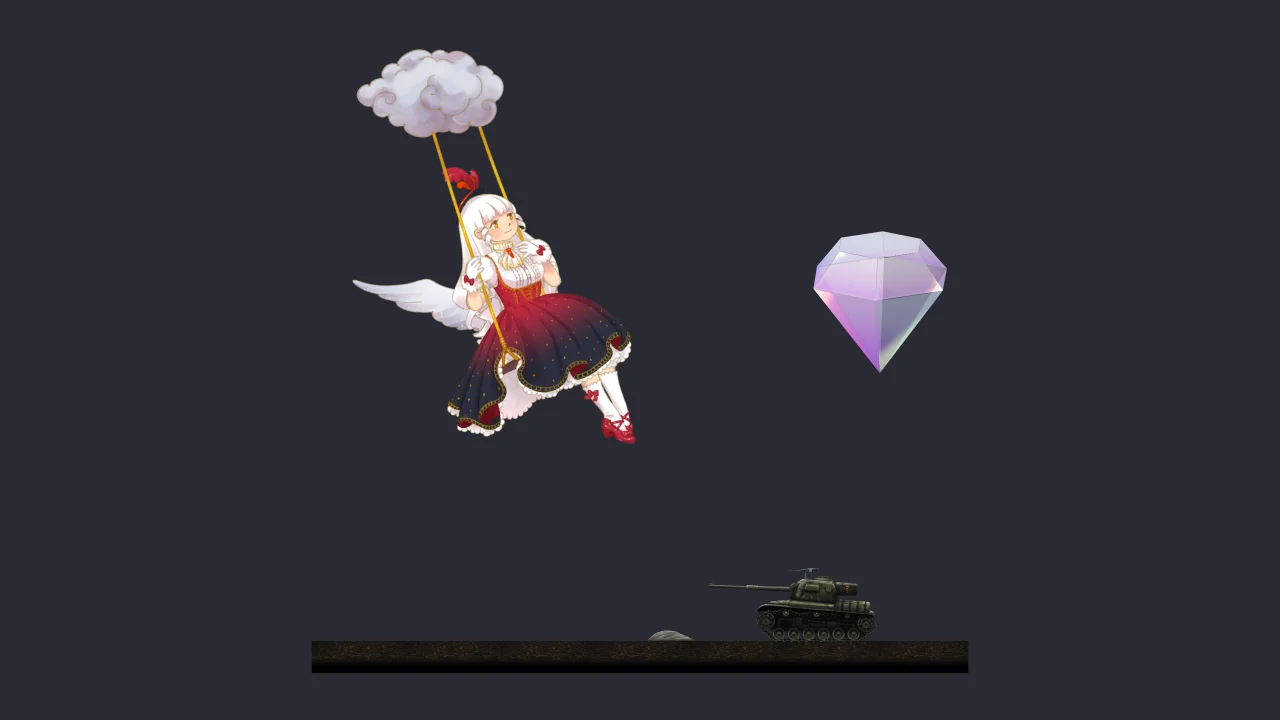
The Spine 4.3 example, showing the Celestial Circus, Diamond and Tank example projects by Esoteric Software.
The plugin adds a spine component to the engine. It also exposes the spine-core runtime as the global spine, so your scripts can use the full Spine API. See the examples for each supported Spine version.
Versions
Use the plugin build matching the version of the Spine editor the animations were exported with. The builds are in the build folder of the repository, each also available as a minified .min.js file.
| Spine editor | Plugin |
|---|---|
| 4.3 | playcanvas-spine.4.3.js |
| 4.2 | playcanvas-spine.4.2.js |
| 4.1 | playcanvas-spine.4.1.js |
| 4.0 | playcanvas-spine.4.0.js |
| 3.8 | playcanvas-spine.3.8.js |
| 3.6 | playcanvas-spine.3.6.js |
Exporting from Spine
Export each skeleton as JSON, together with its texture atlas: an .atlas file and one or more .png pages. Premultiplied alpha is recommended, as it gives the best quality antialiased edges.
The Spine 4.3 plugin also loads skeletons exported in the binary .skel format, which is several times smaller than JSON and faster to load. The plugins for earlier Spine versions throw an error when given a binary skeleton.
Textures
The texture assets need to be loaded with the right sRGB setting, or the skeletons do not render with the right colors:
- Spine 4.3: disable sRGB. Like the Spine editor and the Spine runtimes, the 4.3 plugin renders in gamma space, and it logs a warning when an atlas texture is sRGB.
- Spine 3.6 to 4.2: enable sRGB, which is the default for textures imported into the Editor.
The plugin finds the texture for each page of the atlas by name, so the texture asset has to be named after the image file, such as spineboy-pma.png. Textures imported into the Editor are named after their file.
Using Spine in the Editor
- Add the plugin build for your Spine version and spine.js to your project.
- In the script loading order, make sure the plugin loads before
spine.js. - Import the exported
.jsonor.skel,.atlasand.pngfiles. The atlas is imported as a text asset, and a.skelskeleton as a binary asset. For Spine 4.3, disable sRGB on the imported textures. - Add a script component with the
spinescript to an entity, and assign the atlas, skeleton and texture assets to its attributes. Assign a binary skeleton to theskeletonBinaryattribute instead ofskeleton. Thepriorityattribute controls the order of overlapping skeletons, and thephysicsInheritanceattribute makes physics react to the movement of the entity.
The spine script adds the spine component when it initializes, so control the animation from another script in its postInitialize method:
import { Script } from 'playcanvas';

export class PlayRun extends Script {
    static scriptName = 'playRun';

    postInitialize() {
        this.entity.spine.state.setAnimation(0, 'run', true);
    }
}
The Spine Animation tutorial is a complete Editor project, with a binary and a JSON skeleton, and a panel to control their animations.
Using Spine in an engine-only project
The plugin uses the engine through the global pc, so when importing the engine as a module, assign it before loading the plugin. Load the plugin as a script asset after creating the application, as it adds the spine component system to the application when it loads. An application created with AppBase needs the ScriptHandler, JsonHandler, TextHandler and TextureHandler resource handlers to load these assets:
import * as pc from 'playcanvas';
import { Asset, AssetListLoader, Entity } from 'playcanvas';

window.pc = pc;

// ... create and start the application ...

const assets = {
    plugin: new Asset('playcanvas-spine', 'script', { url: 'playcanvas-spine.4.3.min.js' }),
    skeleton: new Asset('spineboy-pro.json', 'json', { url: 'spineboy-pro.json' }),
    atlas: new Asset('spineboy-pma.atlas', 'text', { url: 'spineboy-pma.atlas' }),
    // named after the atlas page, and without sRGB for Spine 4.3
    texture: new Asset('spineboy-pma.png', 'texture', { url: 'spineboy-pma.png' }, { srgb: false })
};

await new Promise((resolve) => {
    new AssetListLoader(Object.values(assets), app.assets).load(resolve);
});

const spineboy = new Entity('spineboy');
spineboy.addComponent('spine', {
    atlasAsset: assets.atlas.id,
    skeletonAsset: assets.skeleton.id,
    textureAssets: [assets.texture.id]
});
app.root.addChild(spineboy);

spineboy.spine.state.setAnimation(0, 'run', true);
To load a binary .skel skeleton with the Spine 4.3 plugin, load it as a binary asset:
const skeleton = new Asset('spineboy-pro.skel', 'binary', { url: 'spineboy-pro.skel' });
Spine coordinates are scaled by 0.01, so a skeleton 700 pixels tall in the Spine editor is 7 units tall in the scene.
The Spineboy example is a complete engine-only project using the plugin:
Controlling animations
The spine component gives access to the spine-core objects of the skeleton:
| Property | Description |
|---|---|
entity.spine.state | The AnimationState, which plays animations on tracks and mixes between them. |
entity.spine.skeleton | The Skeleton, with its bones, slots, skins and colors. |
entity.spine.spine | The plugin object, with the priority, layers and timeScale properties. |
For example, to mix between animations, play an animation on a second track and listen for events:
const state = entity.spine.state;

// mix for 0.2 seconds when the animation changes
state.data.defaultMix = 0.2;

// loop the run animation on track 0, and play the shoot animation once on track 1
state.setAnimation(0, 'run', true);
state.setAnimation(1, 'shoot', false);
state.addEmptyAnimation(1, 0.2, 0);

state.addListener({
    event: (entry, event) => {
        console.log(`event ${event.data.name}`);
    }
});
See the Spine runtimes guide and the spine-core API reference for the full API.
Colors
The Spine 4.3 plugin renders the colors of the spine-core runtime, so tint skeletons using them:
| Color | Tints |
|---|---|
skeleton.color | The whole skeleton. |
slot.getPose().color | A slot, found with skeleton.findSlot(slotName). Animations that key the color of the slot override it. |
slot.getPose().darkColor | The dark color of a slot, for tint black. |
attachment.color | An attachment, found with skeleton.getAttachment(slotName, attachmentName). |
const skeleton = entity.spine.skeleton;

// tint the whole skeleton
skeleton.color.set(1, 0.5, 0.5, 1);

// tint the head slot
skeleton.findSlot('head').getPose().color.set(1, 0, 0, 1);
Slot blend modes (normal, additive, multiply and screen) and tint black are supported by the Spine 4.3 plugin.
Physics
Physics constraints, added in Spine 4.2, make parts of a skeleton such as hair and cloth swing and settle on their own. The 4.2 and 4.3 plugins simulate them as the skeleton animates.
With the Spine 4.3 plugin, physics constraints can also react to the movement and rotation of the entity, so that the physics driven parts lag behind, swing and settle when the entity moves around the scene. This physics inheritance is disabled by default. In the Editor, enable the physicsInheritance attribute of the spine script. In code, use the skeletonPhysics object of the plugin, which is the SkeletonPhysicsMovement of the spine-core runtime:
const { skeletonPhysics } = entity.spine.spine;

// pass the full movement and rotation of the entity to physics
skeletonPhysics.setPositionInheritance(1, 1);
skeletonPhysics.rotationInheritance = 1;
The horizontal and vertical movement, and the rotation, have separate factors: values between 0 and 1 pass part of the movement, and 0 passes none. The rotation is the rotation of the entity around its local Z axis, which is the normal of the skeleton plane.
When an entity is moved instantly, for example when it respawns, reset the transform so that the jump is not passed to physics:
entity.setPosition(10, 0, 0);
entity.spine.spine.skeletonPhysics.resetTransform();
Spine 4.3
Spine 4.3 changed parts of the spine-core API, for example skeleton.setToSetupPose() is now skeleton.setupPose(), so scripts using the spine global need updating when moving to 4.3. See the Spine runtimes changelog for the details.
The setTint method of earlier plugins is not supported by the 4.3 plugin, which logs a warning when it is called. Use the colors of the skeleton, its slots and attachments instead.
The 4.3 plugin can also pass the movement of entities to physics.
Layers and draw order
Skeletons are rendered in the UI layer by default. To render them in other layers, set their layer IDs:
const worldLayer = app.scene.layers.getLayerByName('World');
entity.spine.spine.layers = [worldLayer.id];
The priority of the plugin object sets the draw order of overlapping skeletons. Skeletons with a lower priority are rendered first.